Publishing a Page to a Server
- General > Publishing Type
- Value
- Comment
- General > Aliases
- Value
- Comment
- Publish to LAN > Webroot
- Value
- Comment
- Publish to LAN > Target folder
- Value
- Comment
- Publish Data Files > Publish data files
- Value
- Comment
- Publish Data Files > Files to publish
- Value
- Comment
- Publish Data Files > Folder
- Value
- Comment
- Open Page after Publish > Base URL
- Value
- Comment
- Open Page after Publish > Server port
- Value
- Comment
- Open Page after Publish > Default page
- Value
- Comment
Description
The following is a step by step example of publishing a page and associated data files to a server, and then viewing the published page.
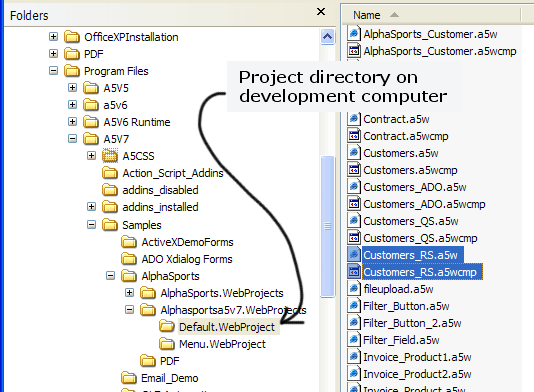
The following picture shows the page ( Customers_RS.a5w ) and its embedded grid component ( Customers_RS.a5wcmp ) that will be published. They are located in the Default web project folder under the AlphaSportsA5V7 database. The folder's path is c:\program files\a5v7\samples\alphasports\alphasportsa5v7.webprojects\default.webproject. Note that after I opened the AlphaSportsA5V7 database and opened the Web Projects Control Panel, it automatically created the alphasportsa5v7.webprojects and alphasportsa5v7.webprojects\default.webproject directories.
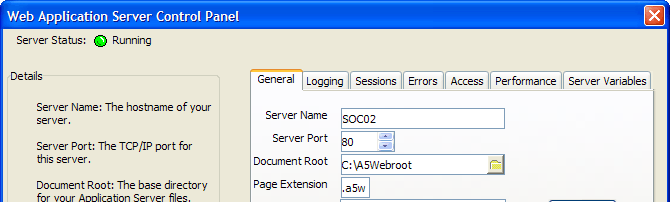
When initially configuring the Application Server, I defined my Document Root (local webroot) folder to be c:\a5webroot and the Server Port to be 80.
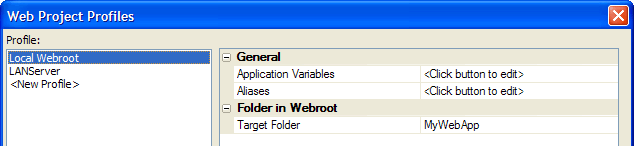
I modified the Local Webroot profile as shown in the picture below. I changed the Folder in Webroot > Target Folder property to "MyWebApp". This meant that the Web Projects Control Panel created the folder named c:\a5webroot\MyWebApp when I published the first file to the local webroot.
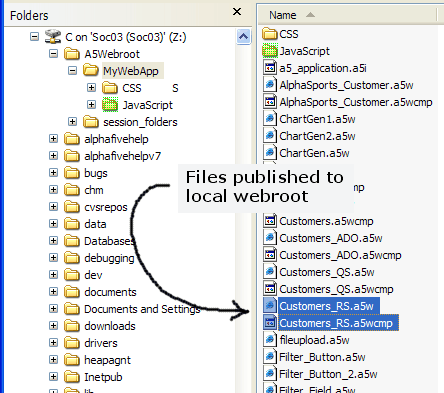
During the development of the Customers_RS grid and page, I published them to the local webroot to see if I was satisfied with the design. The following picture shows the files I published. The publishing process also automatically created the c:\a5webroot\mywebapp\javascript, c:\a5webroot\mywebapp\css, and c:\a5webroot\mywebapp\css\sunset directories and copied the Sunset cascading stylesheet to this last directory.
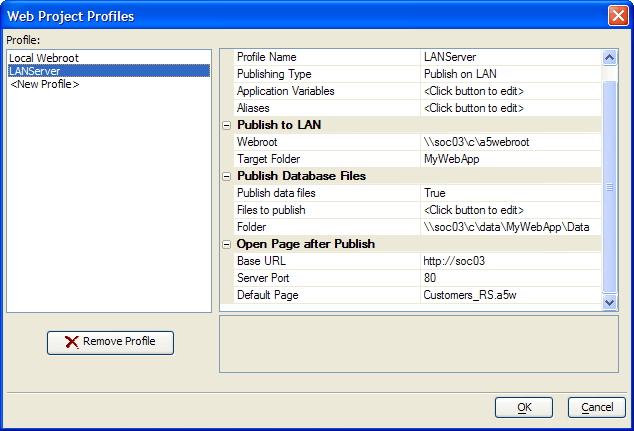
Next I configured a profile named "LANServer" for my server computer.
There are several important properties to set.
General > Publishing Type
General > Aliases
Value
PathAlias.ADB_Path = c:\data\mywebapp\data
Comment
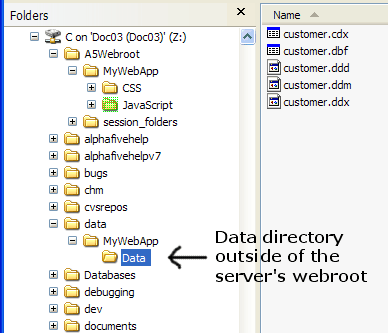
The PathAlias.ADB_Path alias defines the location of the published data. This data was published outside of the server's webroot. This protects the data against unauthorized access. I created the c:\data\mywebapp\data directory.
I had to share the c:\data directory, so that it could receive files from another computer.
Publish to LAN > Webroot
Publish to LAN > Target folder
Publish Data Files > Publish data files
Publish Data Files > Files to publish
Publish Data Files > Folder
Open Page after Publish > Base URL
Open Page after Publish > Server port
Open Page after Publish > Default page
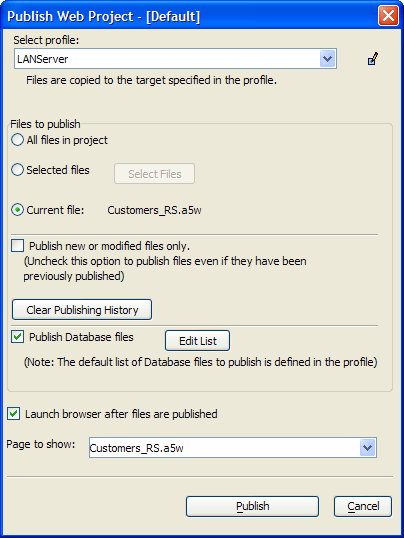
This picture shows the dialog when I published the customers_RS page to the server. Things to note:
the Select profile value is "LANServer", the profile for the server soc03.
the Files to publish value is "Current file", because I selected the customers_RS page before clicking Publish.
the Publish new or modified files only check box is cleared, because the PathAlias.ADB_Path alias is newly defined.
the Publish Database files check box is set, because I wanted to click Edit List and select the customer.dbf table.
the Launch browser after files are published check box is set, because I wanted the browser to immediately display the published page.
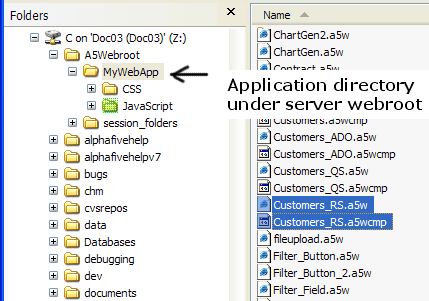
The following picture shows the page and grid component published to the MyWebApp directory under the server's webroot.
The following picture shows the customer table files published to the c:\data\MyWebApp\data directory on the server.
See Also