Reading and Writing Alpha Anywhere Tables
- Displaying Data From a Table
- About Objects and Pointers
- Object Type: Car
- Car Object 1
- Car Object 2
- accelerate(pressure)
- brake(pressure)
- turn(direction, degree)
- Beep(pressure)
- monitor_Tank()
- Object Specification:
- Navigating Through a Table
- The Table Methods You Should Know
- TABLE.OPEN()
- TABLE.CURRENT()
.FETCH_FIRST() .FETCH_EOF() .FETCH_NEXT() .FETCH_PREV() .FETCH_LAST() .FETCH_GOTO() .CLOSE() .CHANGE_BEGIN() .CHANGE_END() .ENTER_BEGIN() .ENTER_END() .DELETE() - Value =
. Fieldname . Fieldname = Value . Fieldname = Value
Description
One of the most common uses of the Application Server is displaying data from a database. This is quite easy to do now that you know how to include Xbasic in our pages. All that is needed is to use the Xbasic commands to open a table and retrieve data from it.
Displaying Data From a Table
Create a new A5W page with the following content.
<html>
<head><title>Reading from a Table</title></head>
<body>
<%A5
dim pTbl as P
pTbl = table.open("customer")
pTbl.fetch_first()
%>
<font size=2 face=Verdana>Data from the Customer table</font>
<table BORDER="1">
     <tr>
         <td><font size=2 face=Verdana>Customer ID</font></td>
         <td><font size=2 face=Verdana> <%A5 ? pTbl.customer_id %> </font></td>
     </tr>
     <tr>
         <td><font size=2 face=Verdana>First name</font></td>
         <td><font size=2 face=Verdana> <%A5 ? pTbl.firstname %> </font></td>
     </tr>
     <tr>
         <td><font size=2 face=Verdana>Last name</font></td>
         <td><font size=2 face=Verdana> <%A5 ? pTbl.lastname %> </font></td>
     </tr>
</table>
<%A5
pTbl.close()
%>
</body>
</html>
Click the 'lightning' icon to run the page in Live Preview.
Select an entry from the list box and click Select. Things to note in this page include:
pTbl is a Pointer variable. The process of opening a table returns a pointer variable, which thereafter is used to run all table methods.
The pTbl.fetch first() method returns the first record in the table.
The pTbl.close() method closes the table and makes it accessible to other persons and/or applications.
Select File > Save As and name the page "Reading_from_a_Table".
Click to run the page in Live Preview.
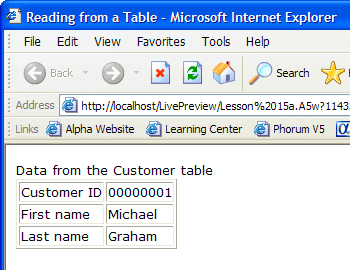
The page opens the customer table, reads the first record, displays the values of three fields, then closes the table.
About Objects and Pointers
For those new to programming, it may be easy to understand the idea of a variable that contains a number or a character string. Understanding a pointer variable may be more challenging. Pointers can be thought of as the "names" of objects (in reality to describe a pointer as the "location" of an object would be more precise). When you refer to a particular object in Alpha Anywhere, you are defining that particular object as belonging to a category of objects that have similar characteristics that you can edit and that react to actions that you can create and control. You can specify the appearance or display of an object by manipulating its characteristics and you can determine how an object reacts to user input by writing Xbasic scripts that control what happens when an object does something or is accessed by a user. For example, you can think of a car as an object. You may own two cars which have similar properties and actions, but, of course, behave differently according to what those properties and actions are. Lets say your two cars are:
Car1: Ford Focus
Car2: Masserati
Now, both of these are objects are particular objects of a certain type. They are cars. Since they are both cars you know, by definition, that they share certain characteristics. For example, a few of their shared characteristics are:
name
color
gas_Accepted
top Speed
current_Speed
passenger_Capacity
Characteristics of objects are referred to as properties. The properties of your two car objects have values appropriate to their own characteristics. Some property values are shown below for the two cars.
Object Type: Car
Car Object 1
- Property Name
- Property Value
- Name
Ford Focus
- Color
Blue
- Gas_Accepted
Regular
- Top Speed
95
- current_Speed
0
- passenger_Capacity
5
Car Object 2
- Property Name
- Property Value
- Name
Masserati
- Color
Red
- Gas_Accepted
Premium
- Top Speed
195
- current_Speed
0
- passenger_Capacity
2
Objects 1 and 2 are both objects of type car and they both have the same collection of properties (as would all objects that are defined as Cars), though its the values of those properties that distinguish one object of the same type from another. Objects of the same type also share actions or methods. These are things the objects do, rather than what the objects are. In this example, all cars (or, in other words, all objects of type car) perform certain actions. These are:
accelerate(pressure)
What happens? Speed up when the gas pedal is pushed up until top speed. Also, display the current speed on the dashboard.
brake(pressure)
What happens? Slow down when the brake pedal is pushed.
turn(direction, degree)
What happens? Turn the wheels according to the direction and degree indicated by the steering wheel.
Beep(pressure)
What happens? Make a noise when the horn is pressed.
monitor_Tank()
What happens? (Ford Focus) Flash a dashboard warning light when the gas tank is less than 2 gallons full. (Masserati) Flash a dashboard warning light when the gas tank is less than 10 gallons full.
As you can see, what happens for each action is sometimes determined by an input from the driver. The car objects acceleration action is affected by the drivers pressure on the gas pedal. This action also determines what value is stored in the current_Speed property. (I.e., methods can set the values of properties of objects). And the accelerate method uses the top_Speed property setting to limit how fast the car can go. Other actions happen automatically without any driver input. The dashboard flashes when the gas drops below a certain level without any input from the driver as the monitor_Tank() action is continually performed for a car object. Make note of this - both car objects have the same methods. One, named monitor_Tank(), however, does a slightly different action relevant to its particular object. In fact, in Alpha Anywhere the names of the methods for an object are already determined. But we can control what actually happens when that method performs its action. In other words, objects that are built-in to Alpha Anywhere (like a form or table) have a predetermined set of methods, but you can control what actually happens when those methods are run using Xbasic. In summary, a car object is fully defined by these properties and methods:
Object Specification:
- Type
- Car
- Properties
name
- -
color
- -
gas_Accepted
- -
top_Speed
- -
current_Speed
- -
passenger_Capacity
- Methods
accelerate(pressure)
- -
brake(pressure)
- -
turn(direction, rate)
- -
beep (pressure)
- -
monitor_Tank()
All the parts of your applications written in Alpha Anywhere are objects or distinct entities. An object is a part of Alpha Anywhere that has properties (or characteristics) and methods (or scripts that do something to or with an object). For example, tables, databases, forms, browses, reports, scripts, and even the Alpha Anywhere program itself are all objects. You may have noticed that properties of an object are like variables. They are storage locations that hold variable data values. They are, in fact, variables that belong to and describe a specific object. In the same way, methods are like scripts. Methods are pre-named scripts that execute certain actions. When you create an object in Alpha Anywhere, it returns a way to reference the object. This reference is a pointer. When you create a new table object, you get back a pointer to the table. You use this pointer to access the table's methods. as you saw in the script above, to read and write a table's records, we first created a pointer named pTbl, then we gave it a value with the table.open() command. Afterwards, we could read the first record of the table with the pTbl.fetch_first() method.
<%A5
dim pTbl as P
pTbl = table.open("customer")
pTbl.fetch_first()
%>
Navigating Through a Table
Now that we know how to display data from a table and we know how to work with user input, we can combine them to add navigation to the basic page we just created. In this example we have added an HTML form that contains the navigation buttons. Additionally it contains a hidden field that stores the current record number. This current record number is needed so that the application knows where we were so it can move to the previous or next record. The WYSIWYG view of this page is illustrated below.
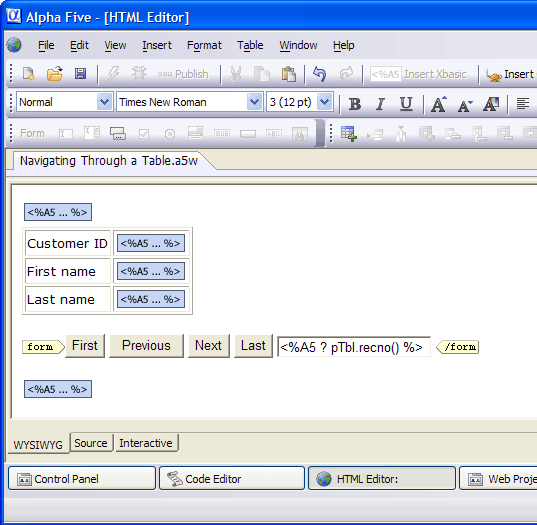
Create a new A5W page with the following content.
Select File > Save As and name the page "Navigating through a table".
<HTML>
<HEAD><TITLE>Navigating Through a Table</TITLE></HEAD>
<BODY>
<%A5
dim pTbl as P
pTbl = table.open("customer")
if eval_valid("nav_button") then
    select
        case nav_button = "First"
            pTbl.fetch_first()
        case nav_button = "Previous"
            pTbl.fetch_goto( val(this_recno) )
            pTbl.fetch_prev()
        case nav_button = "Next"
            pTbl.fetch_goto( val(this_recno) )
            pTbl.fetch_next()
        case nav_button = "Last"
            pTbl.fetch_last()
    end select
else
    pTbl.fetch_first()
end if
%>
<TABLE BORDER="1">
<TR><TD>Customer ID</TD><TD> <%A5 ? pTbl.customer_id %> </TD></TR>
<TR><TD>First name</TD><TD> <%A5 ? pTbl.firstname %> </TD></TR>
<TR><TD>Last name</TD><TD> <%A5 ? pTbl.lastname %> </TD></TR>
</TABLE>
<FORM ACTION=" <%A5 ? Request.script_name %> ">
<INPUT TYPE="SUBMIT" NAME="nav_button" VALUE="First">
<NPUT TYPE="SUBMIT" NAME="nav_button" VALUE="Previous">
<INPUT TYPE="SUBMIT" NAME="nav_button" VALUE="Next">
<INPUT TYPE="SUBMIT" NAME="nav_button" VALUE="Last">
<INPUT TYPE="HIDDEN" NAME="this_recno" VALUE=" <%A5 ? pTbl.recno()%> ">
</FORM>
<%A5
pTbl.close()
%>
</BODY>
</HTML>
There are several new items to note in this page.
First, we create a function that responds to nav_button, opens the underlying table, and fetches the appropriate record. The first time the page is loaded the nav_button variable has not yet been assigned a value (and implicitly dimmed). as a result, the expression eval_valid("nav_button") returns .F. . as a result, the function uses pTbl.fetch_first() to retrieve the first record.
The <FORM ... </FORM> code section responds to the user's input. When the user clicks on one of the INPUT buttons, the resulting NAME, VALUE pair is submitted to the HTML page ( <%A5 ? Request.script_name %> ), as opposed to the server. This causes the browser to reload the HTML page and interpret all its code again. This time the nav_button variable has a value. as a result, the expression eval_valid ("nav_button") returns .T.. The routine uses the select case syntax to analyze the value of nav_button and read the appropriate record.
When nav_button has the value "Previous" or "Next", the script depends on the value of a variable named this_recno that stores the value of ((TBL.RECNO Method|pTbl.recno())), which is the current record number. Unlike previous pages, this page does not use an Xbasic variable to save the this runtime information. Rather it uses a hidden button , which is the fifth element of the form control.
At the bottom of the page pTbl.close() closes the Alpha Anywhere table.
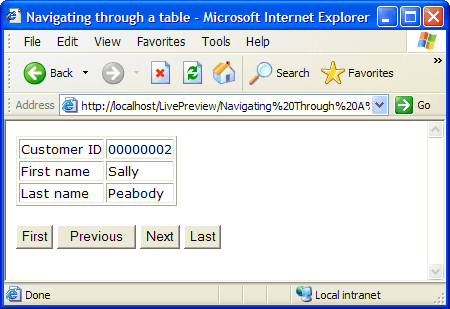
Click the 'lightning' icon to run the page in Live Preview. After being run, your browser will display something like this.
The Table Methods You Should Know
As the last example illustrated, there are many table functions, methods, and properties that provide useful services when you are writing a program. Here are some of the most frequently used.
TABLE.OPEN()
Note that this is a method of the "TABLE" object. Use this method web publishing scripts to return a table pointer.
TABLE.CURRENT()
This method opens the table associated with the currently open form or browse. Use this method when writing a script tied to a button on a conventional Alpha Anywhere form.
<TBL>.FETCH_FIRST()
This method uses the pointer returned by TABLE.OPEN()to retrieve the first record in the table.
<TBL>.FETCH_EOF()
This method is used as the test in a WHILE ... END WHILE loop when stepping through the records in a table.
<TBL>.FETCH_NEXT()
<TBL>.FETCH_PREV()
<TBL>.FETCH_LAST()
<TBL>.FETCH_GOTO()
These methods provide additional ways to navigate through records once a table is open.
<TBL>.CLOSE()
You must always close a table after you are finished with it.
<TBL>.CHANGE_BEGIN()
<TBL>.CHANGE_END()
These methods start and end a group of commands that update the values of existing table records.
<TBL>.ENTER_BEGIN()
<TBL>.ENTER_END()
These methods start and end a group of commands that create new table records.
<TBL>.DELETE()
This method deletes the current record.
Value = <TBL>. Fieldname
This syntax allows you to read the Value of the field named Fieldname.
<TBL>. Fieldname = Value
<TBL>. Fieldname = Value
This syntax allows you to set the Value of the field named Fieldname.