AlphaSportsWeb Explained
Description
This is a Legacy page. AlphaSports Web was the First Demo Project for Alpha's Web Application Server. Applies to Alpha Five Version 9
AlphaSports for the Web
Initial considerations
Creating an application for a Web environment is an interesting challenge. Web applications require a different approach and different thinking than desktop applications. You can easily build a desktop application that has complex form designs, large amounts of data on one page, and multiple pages open simultaneously. Speed is rarely an issue with modern computers, and the current design genies allow considerable customization of any layout.
But the Web is different. The browser concept imposes a number of constraints. Browsers primarily use HTML and other "open source" concepts like JavaScript. Nearly every modern browser follows a set of universal standards to allow a Web page to display in any browser. These rules place many limitations on how various elements work, such as how a drop down list looks and behaves, how data is submitted back to a server, how buttons operate, and on and on. The layout of most Web pages is normally based on a grid or table and cell construction that requires some careful planning during design. Moving the position of an element on a page may require reconstructing the complete page. There is little room to alter the way the way the actual design elements work because they are part of the accepted rules for a browser. Any successful Web page must follow these current Web standards to work properly.
The other issue is speed. The Web employs a Client/Server model. The local browser or client first requests a page from a remote server. The server takes the request and builds the page and populates it with data. It then sends the whole page back to the client. Both of these actions require time. If the page design is complex, the server may take a noticeable time to build or populate the page. If the final page file size is large, the download time across the Web may be slow. These issues exist in any Web page construction, regardless of the server technology used. A successful Web designer must consider these limitations and frequently make compromises on the complexity of the page designs.
Specifications
The basic goal behind the design of AlphaSports Web was a desire to create a "real world" commercial grade application that was based on the existing AlphaSports desktop demo application. The design had to consider the normal constraints of the Web environment and yet be a successful substitute for a desktop application. A common use of the Alpha Anywhere Application Server is to add Web capability to an existing desktop application. AlphaSports Web does not alter the AlphaSports desktop functionality and can co-exist with that application. However, the two applications are completely separate and only share tables and data. The Web application does not require a desktop database to operate, and can actually exist without any related database. It replaces the desktop database functionality with the Web components and pages and accesses tables and data directly.
Every application design starts with the functional requirements or specifications. This application was built around an online shopping concept, with the capability to update and maintain the supporting data using a browser interface. Early in the process, it was determined that the final design should appear simple to use with relatively few "layers" to the data. The decision was made to access most pages from a main navigation page or menu bar. To simplify navigation, a number of pages open as pop-ups, leaving the original page in view. Many pages have multiple ways to navigate to other pages, such as links in grids, hyperlinks on the pages, buttons, and even images with links.
Nearly all of the functionality of the desktop AlphaSports database was duplicated in the Web version. This was achieved by creating two different paths within the application. First, there are the public pages that are designed for online sales and promoting the products available from AlphaSports. Most of these pages do not require any login or security. The second path within the application is the administration section. These pages can only be accessed with a specific login and have security to prevent unauthorized access. Many of these pages duplicate the data maintenance actions normally found in a desktop implementation. The login process determines the navigation path by evaluating the user ID and then sending the user to the pages allowed by their access.
A secondary purpose was to show how to use various Alpha Anywhere components effectively and efficiently. Nearly every page is built using components, many with multiple components. In fact, every basic component construction is found in AlphaSports for the Web.
Building AlphaSports Web
To improve speed the AlphaSports Web application keeps the number of elements on each page to a minimum. Many of pages are view-only pages with links to pages that do allow editing. A page with only labels is both faster to build on the server and has less HTML text. Therefore it will build and download faster. Only pages that are used less frequently, such as some internal maintenance pages, make extensive use of input fields. Every effort was made to eliminate unnecessary HTML in AlphaSports Web. For example, instead of adding inline styles to set a cell width in a grid, most column widths were fixed by setting the column header width. The inline style adds some text, but it only is added for the column row instead of for each cell in each row. Even apparently small changes like this can have measurable impacts on speed.
A common error with grid layouts is to try to use too many rows. While showing many rows on a page may appear to be a good idea, this design approach slows page building and downloading. At some point, the speed impact negates the apparent efficiency of having everything on one page. A decision was made in AlphaSports Web to break up the data into small pieces as much as possible, use limited rows in grids, and use multiple pages. Not only are the pages faster to build, but the download times are improved, making the pages display quicker. Even removing a single field in a grid can have a significant speed impact.
Freeform regions are used in many of the components in AlphaSports. These allow more design freedom and have no real speed impact. A few grids use custom controls that provide some unique opportunities for customizing a display. In AlphaSports Web they are used to highlight products with "special" pricing. Considerable effort was spent on attention to detail to add an appearance of professionalism, such as making input text boxes a uniform length.
Many Web pages require some method to select a value from a list to populate some input value. A typical construction is a drop down list. However, a grid layout may require multiple drop down lists with one built for each record in a row. A more efficient method is to take advantage of the lookup option in Alpha Anywhere. AlphaSports Web makes extensive use of lookups. Drop downs are used in some places where the options are limited, or in the case of dialogs or single record grids where the drop down appears only once.
Another goal of this project was to build modular constructions. A page template was built for the public pages and another built for the internal or administrative pages. After the templates were refined, building other pages became very efficient as the page building process consisted of adding a single component to the template page.
As the project began to take shape, it was observed that there was an opportunity to use the same basic component design in multiple locations. One example is the single record tabbed grid used to show customer information. This was used on multiple pages by first building the component with all features needed. After placing a component on a given page, parameter overrides changed the style of the component or hide or alter certain features such as a delete option. In this way, a single component was built just once, but used many times.
Efficiency was the primary goal of the AlphaSports Web construction. Efficiency in usability through relatively simple page layouts, efficiency in construction through the modular approach, and efficiency in speed through minimizing the html on a page. Working within the constraints of the Web is challenging, but the component concept in Alpha Anywhere removes many of the concerns. The final component output meets the "rules of the road", without the user having to write any HTML or worry about the standards. The Component Builders are very efficient tools that can make building a Web application easier and faster without compromising the final result.
Installation
The AlphaSportsWeb sample database is an optional upgrade to the AlphaSports sample database that ships with Alpha Anywhere. We created AlphaSportsWeb to illustrate how to use Alpha Anywhere web publishing to build an on-line e-commerce application. We expect that developers will use it as a starting point or as reference code when building their own applications.
To install AlphaSportsWeb :
Run AlphaSportsWeb.EXE and click Next >.
Enter your license code and click Next >. to display the following dialog.
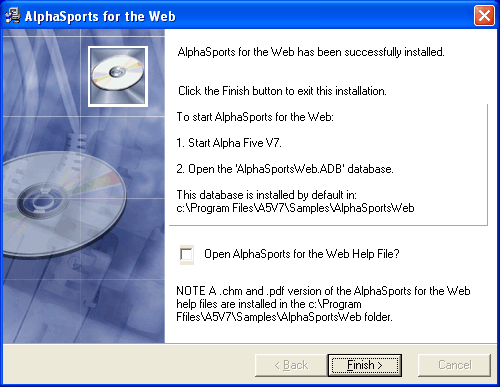
Optionally, check Open AlphaSports for the Web Help File.
Click Finish.
Start Alpha Anywhere.
Open AlphaSportsWeb. You will find it in the \Samples\AlphaSportsWeb folder under you Alpha Anywhere program directory.
Click the "AlphaSportsWeb" menu entry to display the following dialog.
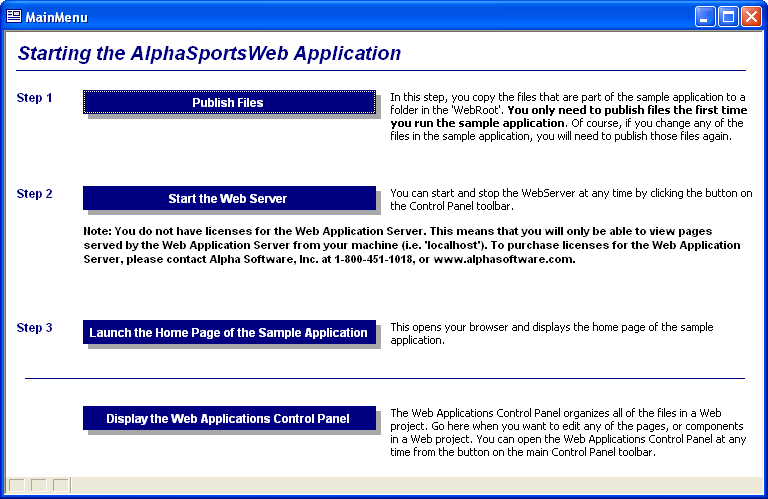
Click Publish Files. This places a working copy of the application on your local webroot. This means that you can immediately start investigating the features and techniques of the application. Later, you can publish these files from the Web Projects Control Panel .
Click Start the Web Server. Later, you can start and stop this local copy of the Application Server from the Web Projects Control Panel.
Click Launch the Home Page of the Sample Application. This will display the first page that a customer would see when he visits this site.
Click Display the Web Applications Control Panel. This will display the pages, components, images, and other files that are the source materials for AlphaSportsWeb.
The remainder of this document explains the techniques that the Alpha Anywhere developers used when creating AlphaSportsWeb. You can always find a copy of these help files at http://support.alphasoftware.com/alphafivehelp/index.htm.
Configuration and Publishing
Local Webroot Profile
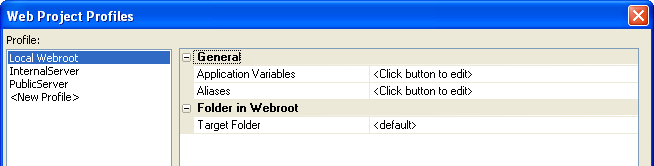
Your initial and default profile should be Local Webroot. Here you can test the appearance of your pages and components, and logic of your code. By default, AlphaSportsWeb does not use any Application Variables. There is only one set of aliases.
For local development: PathAlias.ADB_Path = =a5.get_path()
For publishing to a server: PathAlias.ADB_Path = c:\data\alphasportsweb
InternalServer Profile
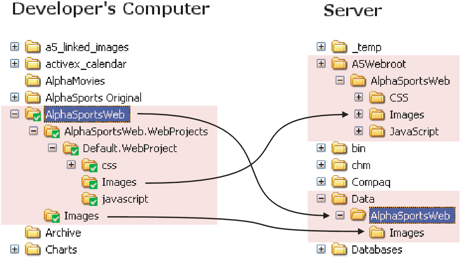
The "InternalServer" profile is a template that you can modify and use for your internal (LAN) publishing activities. The assumption here is that you can publish your data using standard Windows file access. The profile publishes pages to the c:\A5Webroot directory and the data files to the c:\Data directory on the server. There is only one set of aliases.
For local development: PathAlias.ADB_Path
a5.get_path()
For publishing to a server: PathAlias.ADB_Path
c:\data\alphasportsweb
The default definition for aliases should be adequate for your local development needs. To change the server alias, select General > Aliases and click .
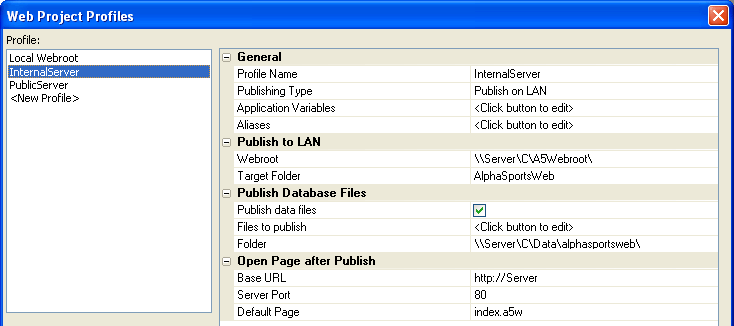
The publishing process automatically copies all folders under the web project folder. Thus, the css, Images, and javascript folders appear under the c:\A5Webroot\AlphaSportsWeb folder on the server. Note the Publish to LAN > Webroot and Publish to LAN > Target Folder properties below.
The Publish Database Files > Folder property defines the target directory for the Alpha Anywhere database files. The Publish Database Files > Files to Publish property lists all database files, plus all the files found under c:\AlphaSportsWeb\Images on the development computer. These files are published to c:\Data\AlphaSportsWeb\Images on the server.
PublicServer Profile
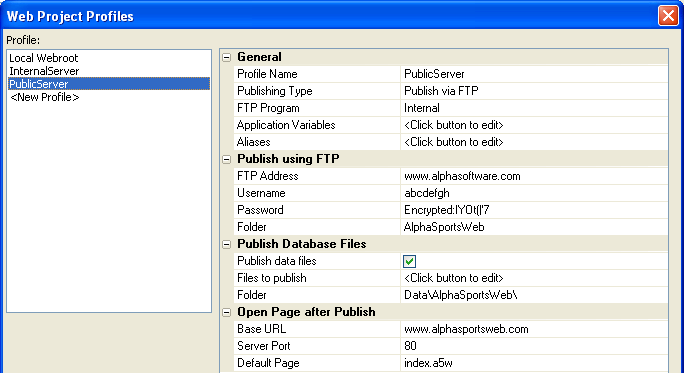
The "PublicServer" profile is a template that you can modify and use for your external (FTP) publishing activities. The assumption here is that you can not publish your data using standard Windows file access. The profile publishes pages to the AlphaSportsWeb folder under the server's webroot and the data files to the Data\AlphaSportsWeb\ folder on the server.
Also take note that the FTP Address, Username, Password, and Base URL values shown below are for illustration purposes only. Again, these are values that you will define in coordination with the server administrator.
Publishing
To initially publish AlphaSportsWeb to your local webroot, follow these steps.
In the Web Projects Control Panel select Publish. to display the Publish Web Project dialog box:
Select "Local Webroot" in the Select Profile list.
Select All files in project in the Files to Publish section.
Clear Publish new or modified files only.
Click Clear Publishing History > Yes.
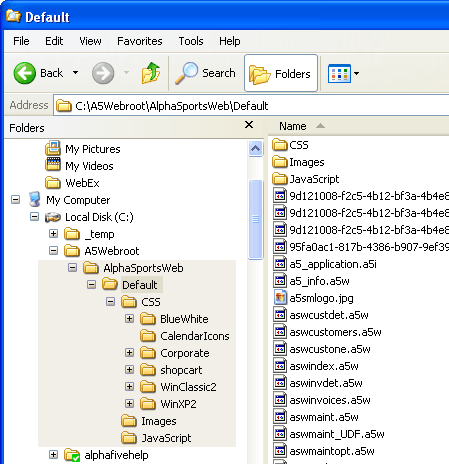
Click Publish. This action creates the folders highlighted below and copies all the project files to the appropriate locations. Note that your webroot may be defined to be a folder different from "C:\A5Webroot".
Publishing to a Server
To publish AlphaSportsWeb to a server, follow these steps.
In the Web Projects Control Panel select Publish. to display the Publish Web Project dialog box:
Select "InternalServer" or "PublicServer" in the Select Profile list.
Select All files in project in the Files to Publish section.
Clear Publish new or modified files only.
Click Clear Publishing History > Yes.
Select Publish Database files.
Click Edit List to display the Select Database Files to Publish dialog.
Check the Select all tables/sets in the Database check box.
Click Add File and navigate to the AlphaSportsWeb\Images\ folder.
Select all the files in the folder and click Open.
Click OK.
Click Publish. This action creates the folders highlighted below and copies all the project files to the appropriate locations.
Using AlphaSportsWeb
The AlphaSportsWeb application offers the following features.
Administrative Features
- Feature
- Description
- Maintain product categories
Use a desktop layout to edit the product_category table.
- Maintain vendors
Select the Vendors menu entry.
- Maintain products
Select the Products > Product Listing menu entry.
- Maintain your user name or password
Select the Your Account > Your Information menu entry
- Maintain specials
Select the Products > Specials List menu entry.
- Maintain customers
Select the Customers > Customer List menu entry.
- View or print invoices
Select the Sales > Invoices menu entry.
- Maintain internal users
Select the Sales Reps menu entry.
- Print a report
Select the Reports menu entry.
- Pack tables
Select the Maintenance menu entry.
- Re-index tables
Select the Maintenance menu entry.
- Clear empty shopping carts
Select the Maintenance menu entry.
- Send an email
Select the Customers > Send Email menu entry.
Customer Features
- Feature
- Description
- Select a product category
Click an entry in the Browse Products grid.
- View all specials
Select the Home menu entry and click the Show All Specials hyperlink.
- View a larger product image and detailed description
Click the Description hyperlink in any product record.
- View all products
Select the Products menu entry.
- Add a product to the shopping cart
Click the shopping cart image in any product record.
- View shopping cart contents
Select the Shopping Cart > View Cart menu entry.
- Purchase products in shopping cart
Select the Shopping Cart > Check Out menu entry.
- Modify shopping cart quantities
Select the Shopping Cart > View Cart menu entry.
- View order history
After logging in, select the Your Account > Order History menu entry.
- Maintain your profile
After logging in, select the Your Account > Your Information menu entry.
Tables and Sets
The AlphaSportsWeb application contains the following tables and sets.
component_breakdown
The component_breakdown table contains notes about which A5W pages contain which components, and notable features to be found in each.
customer
The customer table contains all information that describes a customer. The difference from the version in the AlphaSports database is the new password field.
dummy
The Dummy table provides a single record with a single field with a fixed value. This record provides a common parent or link for other unrelated tables. You can see the use of the dummy table in the TGRDL_HIST tabbed gridlinker component.
export_users
The export_users table contains a list of user from the web security users table. This is used solely for demonstration purposes to show a list of users intially saved in the application. This table was populated by exporting users from the Users and Groups security form. See Export Users Table Definition.
invoice (set)
The invoice set contains the information that describes an order. It is the same set found in the AlphaSports database. The set makes the invoice_header table parent to the customer and invoice_items tables. The invoice_items table is parent to the product table, which is parent to the vendor table.
invoice_header
The invoice_header table contains part of the information that describes an order. The difference from the version in the AlphaSports database is the new type field, which defines the source of the sale.
invoice_invert (set)
The invoice_invert set makes the invoice_items table parent to the invoice_header table. The ASWSALESHIST.A5W page uses the set to build sales summary tables.
invoice_items
The invoice_items tables contains the information that describes the components of an order. It is the same table found in the AlphaSports database.
lk_avail
AlphaSportsWeb uses the lk_avail table to list when the products are be expected to be in stock. The sort_ord field allows the list to be presented in shortest to longest order, instead of alphabetically. See lk_avail Table Definition.
product
The product table contains all information that describes a product, including pictures, and associates each with a unique ID. This table is significantly different from the version in the AlphaSports database. See Product Table Changes.
product_category
The product_category table lists product categories and associates each with a unique ID. See Product Category Table Definition.
sales_summary_cost
The sales_summary_cost table lists number of invoices, the last invoice date, and the last invoice number for each customer. The ASWSALESHIST.A5W page runs the Xbasic copied from the sales summary by cost operation and populates the sales_summary_cost table. See Sales Summary Cost Table Definition.
sales_summary_quan
The sales_summary_quan table lists the number of units sold and the last invoice date for each product. The ASWSALESHIST.A5W page runs the Xbasic copied fromthe sales summary by quan operation and populates the sales_summary_quan table. See Sales_Summary_Quan Table Definition.
shipping_types
The shipping_types table lists shipping methods and associates each with a unique ID and base cost. See Shipping_Types Table Definition.
shop_cart
The shop_cart table lists items that customers have selected (placed in a shopping cart), but have not actually purchased. See Shop_Cart Table Definition.
shop_cart_values (set)
The shop_cart_values set links the shop_cart table (parent) one to one with the product table (child) and specials table (child).
special_sales (set)
The special_sales set links the product table (parent) links one to one with the specials table (child).
specials
The specials table lists products on sales, sale prices, and the date when each sale ends.
vendor
The vendor table contains all information that describes a vendor. It is the same table found in the AlphaSports database.
web_reports
The web_reports table contains information necessary to run and control access to reports. See Web_Reports Table Definition.
Export_Users Table Definition
The export_users table contains the following fields.
User_Id
Character,8. The user_id field holds a unique ID for each user.
Groups
Memo,10. The groups field contains a comma delimited list of security groups assigned to the user.
lk_avail Table Definition
The lk_avail table contains the following fields.
ship_avail
Character,20. The ship_avail field contains a description of the length of time until a product will be back in inventory.
sort_ord
Numeric,2,0. The sort_ord field provides a way to sort the table by length of time until the product will be available.
Product Table Changes
The AlphaSportsWeb product table contains all information necessary to describe and present a product to a customer. The list below contains the fields not found in the AlphaSports product table.
List
Numeric,7,2 Format. The list field contains the price of a product, as opposed to the actual (discounted) price of a product.
Cat_Id
Character,4 Format. The cat_id field is an index into the product_category table, which contains descriptions of product categories. The relationship is defined on the Lookups tab of the cat_id field rules.
Picture
Image File Reference Format. The picture field contains a picture of the product.
Detail
Memo Format. The detail field contains a long description of the product.
Ship_Avail
Character,20. The ship_avail field contains the time interval until a product will be back in inventory. The relationship is defined on the Lookups tab of the ship_avail field rules.
Product_Category Table Definition
The product_category table contains the following fields.
Category
Character, 30 format. The category field contains a description of a product classification.
Cat_Id
Character, 4 format. The cat_id field links to the cat_id field in the product table. This link enables product table layouts to display category field descriptions.
Sales_Summary_Cost Table Definition
The sales_summary_cost table contains the following fields. A summary operation populates this list.
Customer_Id
Character,8 format. The customer_id field links to the customer_id field in the customer table.
Count_Invoice_Number
Numeric,10,0 format. The count_invoice_number field holds the number of purchases that a customer has made.
Last_Date
Date,8 format. The last_date field holds the date of the last purchase by a customer.
Last_Invoice_Number
Character,6 format. The last_invoice_number field holds the invoice number of the last purchase by a customer.
Sales_Summary_Quan Table Definition
The sales_summary_quan table contains the following fields. A summary operation populates this table.
Product_Id
Character,12 format. The product_id field links to the product_id field in the product table.
Total_Quantity
Numeric,8,0 format. The total_quantity field contains the number of units sold for each product.
Last_Invoice_Header_Date
Date,8 format. The last_Invoice_Header_date field holds the date of the last product sale.
Shipping_Types Table Definition
The shipping_types table contains the following fields.
Ship_Code
Character,4 format. The ship_code field contains a unique value used to identify each delivery method.
Delivery_By
Character,20 format. The delivery_by field holds a description of a delivery method.
Base_Price
Numeric,6,2 format. The base_price field contains the base price assigned to each delivery method.
Sort_Ord
Numeric,4,0 format. The sort_ord field contains a value used to order the display of the table's fields.
Shop_Cart Table Definition
The shop_cart table contains the following fields.
Item_Id
Character,8 format. The item_id field is not used.
Session_Id
Character,40 format. The Application Server assigns Session_Id. Currently, WAS will use the same session ID for each browser for every access. If you close your browser and reopen, the WAS will assign the same session ID. It is used here to identify the browser used to create the cart, to show if any items were selected by the user's browser in a previous shopping "session".
Cart_Id
Character,36 format. The cart_id contains a unique identifier for each collection of items selected for purchase.
Prod_Id
Character,12 format. The prod_id field contains the identifier for a product selected for purchase.
Owner_Id
Character,8 format. The owner_id field identifies the owner of the shopping cart, which is the customer ID of the user after he or she logs on.
Quantity
Numeric,5,0 format. The quantity field contains the number of unit of a product selected for purchase.
Open
Logical,1 format. The open field indicates whether a selected product has been purchased.
Ord_Date
Date,8 format. The ord_date field contains the date that a product was selected for purchase.
Ord_Time
Character,8 format. The ord_time field contains the time that a product was selected for purchase.
Specials Table Definition
The specials table contains the following fields.
Product_Id
Character,12 format. The product_id field contains the unique identifier for a product. This field links to the product_id field of the product table.
Sale_Price
Numeric,7,2 format. The sale_price field contains the discounted sale price of a product.
Sale_Until
Date,8 format. The sale_until field contains the last date that a product is on sale.
Web_Reports Table Definition
The web_reports table contains the following fields.
Rpt_Id
Character,4 format. The rpt_id field contains a unique ID for an Alpha Anywhere report.
Rpt_Name
Character,26 format. The rpt_name field contains the name of a defined Alpha Anywhere report.
Rpt_Table
Character,26 format. The rpt_table field contains the name of the dictionary file that contains the report definition.
Rpt_Level
Numeric,2,0 format. Not used
Operations
The AlphaSportsWeb application contains the following operations not found in the AlphaSports application. Because a web application cannot directly run operations stored in an Alpha Anywhere database, we created these operations and then copied their underlying Xbasic into the ASWSALESHIST.A5W page.
Operations:
Post_Sales_Quantities
Subtracts the quantity field in the invoice_items table from the qty_in_sto field of the product table.
sales_summary_by_cust
This operation was the source of the Xbasic code that the ASWSALESHIST.A5W page runs to populate the sales_summary_cust table.
sales_summary_by_quan
This operation was the source of the Xbasic code that the ASWSALESHIST.A5W page runs to populate the sales_summary_quan table.
Variables
The AlphaSportsWeb application depends on a number of session and property array variables.
cart_ID
cartparms
checkout_vars
flds[]
fldsc[]
fldsi[]
session.protectedchkout
session.protectedchkoutprogress
session.protectedPuser
session.dataclear
session.enteruserdata
session.targetURL
sessionID
sessionID (C) and cart_ID (C)
The Application Server assigns each client browser a unique sessionID. This identifier remains constant between browser sessions. The application stores sessionID in the shop_cart table. The cart_id variable is unique for each browser session. The API_UUIDCREATE() function creates cart_id, which is a Universally Unique Identifier (UUID...otherwise known as a Globally unique ID or GUID). This is a 32 character (128 bit) hexadecimal string (not including dashes) that is guaranteed to be completely unique if you have a network card. The application stores cart_id in the shop_cart table and in the cart_id cookie.
Together, cart_id and sessionID allow the customer to exit the application, then resume shopping and find previously selected (but not purchased) items in the shopping cart.
>flds[] (P), >fldsc[] (P), and fldsi[] (P)
The ASWINVDET.A5W page populates the flds[] property array with the field values of the invoice_header table record, where the invoice_number field equals the value contained in inv. The script uses the .INITIALIZE_FROM_TABLE() method. The same technique to populates the fldsc[] property array with the field values of the customer table record, where the customer_id field equals the value contained in flds[1].customer_id. Another part of the script uses .INITIALIZE_PROPERTIES() to create and initialize property variables under the fldsi[] property array. .INITIALIZE_FROM_TABLE()is a fast and easy way to extract values from a table into a format that can be manipulated, and in this case, displayed. .INITIALIZE_PROPERTIES()is a fast way to create a dot variable with default values.
_protectedchkoutprogress>session.protectedchkoutprogress (N)
The INDEX.A5W, CHECKOUTCALC.A5W, CHECKOUTCART.A5W, CHECKOUTCOMP.A5W, and CHECKOUTUSER.A5W pages use session.protectedchkoutprogress to control and verify the user's progression through the 3 checkout screens. The session.protectedchkoutprogress variable is protected from attempted changes from the URL query string.
INDEX.A5W
When a customer arrives at either of these pages, the assumption is that he or she is ready to begin shopping. as a consequence, the script resets the session.protectedchkoutprogress variable to 0, meaning checkout has not begun.
PRODUCTLIST.A5W
CHECKOUTCART.A5W
When the customer has successfully added an item to a shopping cart, the script sets the checkout progress to 1.
CHECKOUTUSER.A5W
The checkout progress must be greater than or equal to 1 to display this page. When the customer has successfully entered all required information, the AfterValidate event of the DLG_UCHKOUT dialog component sets the checkout progress to 2.
CHECKOUTCOMP.A5W
The checkout progress must be greater than or equal to 2 to display this page. When the customer has successfully completed the checkout process, the script sets the checkout progress to 3.
CHECKOUTCALC.A5W
The checkout progress must be greater than or equal to 3 to display this page.
_protectedchkout>session.protectedchkout (P)
The session.protectedchkout dot variable holds the customer's shipping and billing field values input to the CHECKOUTUSER.A5W page. The session.protectedchkout variable is protected from attempted changes from the URL query string.
INDEX.A5W
When a customer arrives at either of these pages, the assumption is that he or she is ready to begin shopping. as a consequence, the script deletes the session.protectedchkout variable, which may contain old data.
PRODUCTLIST.A5W
CHECKOUTCALC.A5W
The page does not display, if the session.protectedchkout variable does not exist. If the variable does exist, the script copies it values to checkout_vars and deletes session.protectedchkout.
CHECKOUTUSER.A5W
If the value of the session.dataclear variable is .T., the Activate event of the DLG_UCHKOUT dialog component initializes the session.protectedchkout variable. If the value of the session.enteruserdata variable it NULL, the Activate event of the DLG_UCHKOUT dialog component sets the dialog's controls with the contents of the session.protectedchkout variable.
CHECKOUTCOMP.A5W
One of the first things that the page script does is test the value of session.protectedchkout.firstname. If NULL, the customer's information is assumed to be incomplete, and control is redirected to the CHECKOUTCART.A5W page. Next, the script checks to see if a number of critical invoicing variables have values. If a problem is found, the script places an error message into the error_msg variable. Otherwise, the script prepares and displays the shopping cart, shipping and billing information on the page.
_protectedPuser>session.__protected.pUser (P)
This pointer variable contains information about the current logged in user. The session.protectedpUser.ulink variable is populated by the security system and contains the value saved in the ulink security field for the current logged in user. The session.protectedpUser.ulink variable is used in the component grd_invhcp to set the value for the argument :WhatCustomer. The argument is used in a filter to show only records for the current logged in user. It is also used by the LOGGEDINVALUES.A5W page to identify the current logged in user. The LOGGEDINVALUES.A5W page populates the variables session.protectedpUser.name and session.protectedpUser.type for the current logged in user. The session.protectedpUser variable is protected from attempted changes from the URL query string.
checkout_vars (P)
The CHECKOUTCALC.A5W script copies the session.protectedchkout data into checkout_vars, then deletes session.protectedchkout. This prevents the user from submitting the page a second time after clicking the "Back" button.
cartparms (P)
The cartparms pointer variable contains the information that describes the customer's shopping session. The CHECKOUTCART.A5W and SHOPCART.A5W pages define cartparms and pass it to the shopcart_chk() function. This function checks to see if the customer has an existing cart exists from a previous session. If so, the function returns the HTML required to display the cart's contents. The SHOPCART_ADD.A5W page uses cartparms to check if a shopping cart remains from a previous session. If not, it uses shopcart_add() to create a new shopping cart containing the selected product.
session.dataclear (L)
The CHECKOUTUSER.A5W page uses session.dataclear to indicate whether the user has pressed the "Clear" button. If so, the Activate event of the DLG_UCHKOUT dialog component erases the contents of the dialog's controls and the AfterValidate event uses it as an indication that it does not need to save the user's input.
session.enteruserdata (C)
The CHECKOUTUSER.A5W page uses session.dataclear to hold the user's customer ID after he presses the "adduser" button. The Activate event of the DLG_UCHKOUT dialog component uses the session.dataclear in the filter expression that retrieves the customer's data from the customer table.
session.targetURL (C)
The CHECKOUTUSER.A5W page uses session.targetURL to save the URL of the current page when it needs to temporarily redirect to LOGIN.A5W page. If the application user is classified as Internal, the Validate event of the DLG_UCHKOUT dialog component sets session.targetURL to NULL. This variable is only used on public pages.
Adding an Item to the Shopping Cart
INDEX.A5W and SPECIALS.A5W (containing the GRD_SPEC grid component), PRODUCTINFO.A5W (containing the GRD_PRODONE grid component), and PRODUCTLIST.A5W (containing the GRD_PRODS grid component) include the SHOPCART.JS JavaScript file into their pages. In each case the component has one or more image buttons that call the JavaScript add_to_cart_quan() function, passing the product_id value of the selected product. The JavaScript function opens and prompts for a quantity, and then opens another page as a popup and passes the product ID to that page in the page URL. If the prompt is cancelled or the value entered is 0, the JavaScript ends and no item is added to the cart.
Variations of the following code are found in the Column Properties > Freeform Template property of the "Sale Price" field of the GRD_SPEC and GRD_PRODONE grid components. Similar code is located under the Column Properties > Freeform Template property of the "Cart" field of the GRD_PRODS grid component.
In each case clicking the image button calls the add_to_cart_quan() function and passes the current value of product_id. We placed this code in a freeform template to allow the OnClick event of the image to run the Javascript.
The JavaScript function shows a prompt to specify the quantity to order and then displays the SHOPCART_ADD.A5W page in a new window. The product ID is a URL parameter,and is locally named prod_id. The quan is also added to the URL and is obtained from the prompt. There are another version of the function named add_to_cart() that does not open a prompt to select quantity. Instead, a default quantity of 1 will be assigned.
The SHOPCART_ADD.A5W script tests to see if the cart_id variable (cookie) exists. If not, the script creates it.
Next, the script creates the cartparms pointer variable, and among other assignments, sets the cartparms.product_id variable to the product ID value received in the URL and sets the cartparms.quantity variable to the Quan value from the prompt.
SHOPCART_UDF.A5W adds a record to the shop_cart table, then prepares and returns the HTML code displayed on the page.
Web Publishing Components
The AlphaSportsWeb application contains the following web publishing components.
DLG_CUSTEDIT
Dialog. Customers use this dialog to edit their user and security information.
DLG_CUSTSEC
Dialog. Administrators use this dialog to edit a customers security information.
DLG_HDATE
Dialog. Sets the "from" date to use in the filter expression that selects records for the GRD_HISTCUST and GRD_HISTQUAN grid components.
DLG_IEMAIL
Dialog. Sends an email.
DLG_INTUSER
Dialog. Internal user use this dialog to edit their user and security infomation or the information for other internal users.
DLG_MAINT
Maintenance. A maintenance component to pack or reindex tables.
DLG_MAINTOPT
Dialog. Selects an administrative maintenance operation to run.
DLG_REGCART
Dialog. Customers use this dialog to enter security information if they are registering for the first time.
DLG_REPORTS
Dialog. Selects an administrative report to run.
DLG_UCHKOUT
Dialog. Captures or displays the customer information required by the billing and shipping processes.
GRD_CART
Grid. Displays the contents of the customer's shopping cart. It allows the customer to change item quantities or remove items from the cart.
GRD_CARTOUT
Grid. Displays the contents of the customer's shopping cart. It allows the customer to change item quantities or remove items from the cart.
GRD_CUST
Grid. Administrators and logged in users use this grid to view and edit customer records.
GRD_CUSTEMAIL
Grid. A lookup that allows users to select email addresses by user name.
GRD_CUSTLIST
Grid. Administrators use this grid to select and view customer information and customer sales histories.
GRD_CUSTN
Grid. Administrators use this grid to enter new customer records.
GRD_HISTCUST
Grid. Administrators use this grid to review customer sales.
GRD_HISTQUAN
Grid. Administrators use this grid to review product sales.
GRD_INTPROD
Grid. Administrators use this grid to maintain product records.
GRD_INTSPEC
Grid. Administrators use this grid to maintain the list of products on sale.
GRD_INTUSERLIST
Grid. Administrators use this grid to show a list of internal users.
GRD_INVHC
Grid. Displays a list of invoices placed by all customers.
GRD_INVHCP
Grid. Displays a list of orders placed by a customer.
GRD_INVHEAD
Grid. Administrators use this grid to select an invoice to view the items in an order.
GRD_INVLINES
Grid. Administrators use this grid to see the details of the items in an order.
GRD_LKCATS
Lookup Grid. Provides a lookup of product category names and IDs
GRD_LKPROD
Lookup Grid. Provides a lookup of product record fields.
GRD_LKVEN
Lookup Grid. Provides a lookup of vendor names and IDs.
GRD_LOGINDATA
Grid. Used on login page as an example to show a list of users in the security system.
GRD_PRODDET
Grid Administrators use this grid to maintain the details of a product listing.
GRD_PRODNAV
Grid. Customers use this grid to select a product category to filter the list of displayed products on the PRODUCTLIST.A5W page.
GRD_PRODIMG
Grid. Administrators use this grid to maintain add images to product records
GRD_PRODONE
Grid. Customers use this grid to view the detailed description of a product before ordering it.
GRD_PRODS
Grid. Customers use this grid to view an alphabetical list of products. The customer can order a product by clicking the shopping cart image.
GRD_SPEC
Grid. Customers use this grid to view products that are on sale with discounted prices. The customer can order a product by clicking the shopping cart image.
GRD_TITLEHIST
Grid. A device that allows the TGRDL_HIST tabbed gridlinker to display unrelated tables.
GRD_VEND
Grid. Administrators use this grid to input, edit, and delete vendor records.
GRDL_INV
GridLinker. Administrators use this component to display the GRD_INVHEAD and GRD_INVLINES grid components in a parent-child relationship.
LG_LOGIN
Login. Used to login to system as part of security system.
NAV_INT
Navigation. Provides the mechanism for moving between the administrative pages of the application.
NAV_MAIN
Navigation. Provides the mechanism for moving between the public pages of the application.
TGRDL_CUST
Tabbed Grid Linker. Administrators use this component to review and edit customer records and customer sales history.
TGRDL_HIST
Tabbed GridLinker. Administrators use this component to review overall sales history.
Web Pages
The AlphaSportsWeb application contains the following A5W and HTML web pages.
A5_INFO.A5W
Administrative users use the A5_INFO.A5W page to display information about the Application Server and current sessions.
ASWCUSTDET.A5W
Administrative users use the ASWCUSTDET.A5W page to view or edit a single customer record.
ASWCUSTOMERS.A5W
Application administrators use the ASWCUSTOMERS.A5W page to maintain customer records.
ASWCUSTONE.A5W
Application administrators users use the ASWCUSTONE.A5W page to view a single customer record.
ASWINDEX.A5W
The ASWINDEX.A5W page is the landing page for internal users. The page appears after an internal user logs in, but before he or she uses the navigation component to select another page.
ASWCUSTSEC.A5W
Application administrators users use the ASWCUSTSEC.A5W page to view a single customer's security record.
ASWINVOICES.A5W
The application administrator users the ASWINVOICES.A5W page to select, view, and print the details of invoices.
ASWMAINT.A5W
The application administrator uses the ASWMAINT.A5W page to select various file maintenance actions.
ASWMAINTOPT.A5W
The ASWMAINTOPT.A5W page runs the maintenance operation selected in the ASWMAINT.A5W page.
ASWPACKREINDEX.A5W
The application administrator uses the ASWPACKREINDEX.A5W page to pack or reindex the tables used by the AlphaSports Web application.
ASWPRINTRPT.A5W
The application administrator uses the ASWPRINTRPT.A5W page to select a report to print.
ASWPROCESSING.A5W
The ASWPROCESSING.A5W page displays a frame set. The upper frame's content shows the system is "processing". The lower frame contains a page that is performing a maintenance operation.
ASWPRODONE.A5W
The application administrator uses the ASWPRODONE.A5W page to view or edit a product record.
ASWPRODUCTS.A5W
The application administrator uses the ASWPRODUCTS.A5W to input, edit, and delete product records.
ASWSALESHIST.A5W
The application administrator uses the ASWSALESHIST.A5W page to review the number of unit sales for products and the number of sales to customers.
ASWSEARCH.A5W
The application administrator uses the ASWSEARCH.A5W page to find the value of any field in any record in the customers, products, and invoices tables.
ASWSENDEMAIL.A5W
The application administrator would use the ASWSENDEMAIL.A5W page to send an email, presumably to someone in the customer table.
ASWSPECLIST.A5W
The application administrator uses the ASWSPECLIST.A5W page to add, edit, and delete special (sale) prices.
ASWUPLOADIMG.A5W
The application administrator uses the ASWUPLOADIMG.A5W page to add a new image to a rpoduct record.
ASWUSERGET.A5W
ASWUSERGET.A5W contains logic to determine if a logged in user has an employee record.
ASWUSERLIST.A5W
The application administrator uses the ASWUSERLIST.A5W page to show a list of internal users.
ASWUSERONE.A5W
An internal user opens the ASWUSERONE.A5W page to view or edit his or her user name and password.
ASWVENDONE.A5W
The ASWVENDONE.A5W page provides a vendor lookup function for the GRD_LKVEN grid component, which is used when the application administrator is editing or adding a product record.
ASWVENDORS.A5W
The application administrator uses the ASWVENDORS.A5W page to add, edit, or delete vendor records.
CHECKOUTCALC.A5W
The CHECKOUTCALC.A5W page performs the final processing of an order. It updates tables, generates an invoice, optionally prints the invoice for the customer, and subtracts the items sold from inventory.
CheckOutCalcPayPal.A5W
The CheckOutCalcPayPal.A5W page performs the final processing of an order. It updates tables, generates an invoice, optionally prints the invoice for the customer, and subtracts the items sold from inventory. This variation of the CHECKOUTCALC.A5W page pairs with the CheckOutCompPayPal.A5W page to illustrate the use of PayPal.
CHECKOUTCART.A5W
The CHECKOUTCART.A5W page is the first page in the checkout process. The page verifies the product quantities the shopping cart, then sets a session variable to track the progress of the check out process.
CHECKOUTCOMP.A5W
The CHECKOUTCOMP.A5W is the 3rd page in the checkout process. The customer provides credit card payment information on this page.
CheckOutCompPayPal.A5W
The CheckOutCompPayPal.A5W is the 3rd page in the checkout process. The customer provides credit card payment information on this page. This variation of the CHECKOUTCOMP.A5W page pairs with the CheckOutCalcPayPal.A5W page to illustrate the use of PayPal.
CHECKOUTREGISTER.A5W
The CHECKOUTREGISTER.A5W page is an optional fourth step in the checkout process. It allows a new customer to enter security information to register..
CHECKOUTUSER.A5W
The CHECKOUTUSER.A5W page is the second step in the checkout process. It allows the customer to enter shipping and billing information.
CUSTOMER.A5W
A customer uses the CUSTOMER.A5W page to edit his or her contact, shipping, and billing information. The which requires a login. It contains saved information about the current logged on customer.
FRAMEEXIT.A5W
The AlphaSportsWeb application uses the FRAMEEXIT.A5W page to exit from an inner frame in a frame set. In AlphaSportsWeb frame sets display a header in the upper frame, while a processing page in the lower frame is doing some sort of computation.
INDEX.A5W
INDEX.A5W is the first page that AlphaSportsWeb displays. The page contains a list of product categories, a random list of 3 products on sale, and the NAV_MAIN navigation component, which allows the user to login to administrative pages.
INVDETAIL.A5W
The INVDETAIL.A5W page displays a printable version of an invoice.
LOGGEDINVALUES.A5W
LOGGEDINVALUES.A5W page finds values for an existing logged in user.
LOGIN.A5W
LOGIN.A5W is the main login page for all users.
LOGINLIST.A5W
LOGINLIST.A5W is a demonstration page to show a list of users initially configured in the security system.
NOTALLOWED.A5W
NOTALLOWED.A5W will be shown to a logged in user if they don't have permssion to see a requested page
PROCESSHEADER.A5W
The PROCESSHEADER.A5W page displays content that indicates that the application is working.
PRODUCTINFO.A5W
A customer uses the PRODUCTINFO.A5W page to display a single product record which contains a larger product picture and a longer product description.
PRODUCTLIST.A5W
A customer uses the PRODUCTLIST.A5W page to display a list of products with thumbnail pictures and prices and to purchase an item by clicking the shopping cart image.
SALESHIST.A5W
A customer view the SALESHIST.A5W page to view his or hear sales history.
SEARCH_UDF.A5W
The SEARCH_UDF.A5W page contains the search code used by the ASWSEARCH.A5W page
SHOPCART.A5W
A customer views the SHOPCART.A5W to see the items selected for purchase.
SHOPCART_ADD.A5W
The SHOPCART_ADD.A5W page displays in a popup window to confirm that the customer has added an item to the shopping cart.
SHOPCART_UDF.A5W
The SHOPCART_UDF.A5W page provides functions for the shopping cart.
SPECIALS.A5W
A customer displays the SPECIALS.A5W page to view all products on sale.
TEMPLATEINT.A5W
We used TEMPLATEINT.A5W to simplify and speed the development process.
TEMPLATEPUBLIC.A5W
We used TEMPLATEPUBLIC.A5W to simplify and speed the development process.
TOPPAGE.A5W
The TOPPAGE.A5W page contains the page header.
UNDERCONSTRUCT.A5W
The AlphaSportsWeb application displays the UNDERCONSTRUCT.A5W page when the user attempts to display an unfinished page.
ERRORPAGE.HTM
The AlphaSportsWeb application displays ERRORPAGE.HTM only if a parameter sent to a page is missing or incorrect.
PAGE_NOT_FOUND.HTM
PAGE_NOT_FOUND.HTM is a sample page that could be used to redirect from a 404 server error
PROCESSING.HTM
The PROCESSING.HTM page is a frameset used to show a header while a page within the frameset is processing.
Removing Non-essential Code
When the HTML Editor places a component on an A5W page, the result for a grid looks something like this (in this case for a component named grd_prods ).
<table>
<tr>
<td> <%A5 ?x_grd_prods.Output.Body.Grid_Echo %> </td>
</tr>
<tr>
<td> <%A5 ?x_grd_prods.Output.Body.UpdateErrors %> </td>
</tr>
<tr>
<td> <%A5 ?x_grd_prods.Output.Body.Search_HTML %> </td>
</tr>
<tr>
<td> <%A5 ?x_grd_prods.Output.Body.Grid_HTML %> </td>
</tr>
<tr>
<td> <%A5 ?x_grd_prods.Output.Body.DetailView_HTML %> </td>
</tr>
</table>
Frequently, some of these sections are not needed and can be removed to give better formatting and reduce the amount of HTML on the page. I did it on almost every page.
"Grid_Echo" can almost always be removed.
"Update_errors" can be removed on any component that is view only (no data to update).
"Search_HTML" can be removed if there is no search section, or it is not used.
"DetailView_HTML" can be removed if there is no detail section.
After a little extra formatting, the simplified version of the page code now looks like this:
<table border="0" cellspacing="3" cellpadding="0">
<tr>
<td> <%A5 ?x_grd_prods.Output.Body.Grid_HTML %> </td>
</tr>
</table>
Customizing AlphaSportsWeb
Changing Styles
You can change the appearance of the AlphaSportsWeb application by changing the underlying Cascading Style Sheets.
Open the Web Projects Control Panel.
Select Edit > Web Component Style Sheets... .
Select the style sheet you would like to edit and click Open.
Refer to Webform Style Builder for more detailed instructions.
If you wish to use a different style sheet for a dialog component:
Open the dialog component in the Dialog Builder.
Display the Form > Properties menu.
Click the web properties button in the Layout Options > Style name property to select a different style sheet.
If you wish to use a different style sheet for a grid component:
Open the grid component in the Grid Builder.
Display the Grid > Properties menu.
Click web properties button in the Layout Options > Style name property to select a different style sheet.
If you wish to use a different style sheet for a navigation component:
Open the navigation component in the Navigation System Builder.
Display the Navigation System menu.
Click web properties button in the Root Settings > Style property to select a different style sheet.
Many pages contain style overrides. You also can change these settings. The ASWCUSTDET.A5W page contains a typical example of a style override.
Open the A5W page in an editor.
At the top of the page is a line of Xbasic that sets the variable pgstyle to the name of a CSS style. You can change the style here.
pgstyle = "asw" 'override page styles
Alternatively, look for the section between ... tags after a line of Xbasic that contains a call to a5w_load_component(). You will see a section of code similar to the one below. Here you could set the style_name property to the name of a CSS style. From this:
with tmpl_NAV_INT
    ...
    style_name = pgstyle ' override style
    ...
end with
to this:
with tmpl_NAV_INT
    ...
    style_name = "asw"
    ...
end with
Other Grid Component Modifications
There are a number of other grid properties that you can easily modify that will change its appearance.
Properties
Grid > Fields > Display Settings > Display format
This property defines currency and date display formats.
Grid > Fields > Summary values
This set of properties enables the calculation and display of column summaries.
Grid > Fields > Column Properties > Column heading
This is the caption that appears above a column or to the left of a row.
Grid > Fields > Column Properties > Cell in-line style
This property specifies new style settings that override the style settings of the cascading style sheet.
Grid > Properties > Layout Options > Rows of data
This property sets the number of rows that appear in a grid.
Grid > Properties > Layout Options > Font size
Changing the default value of "Medium" to "Smaller" reduces the point size of the text and makes the grid smaller.
Grid > Properties > Shading and Dividers > Alternate row shading
Setting this property to TRUE causes alternative grid rows to have different colors.
Grid > Properties > Record Navigator > Record navigator layout
Use the Record Navigator Designer to restyle the navigation controls used by your grid.
Grid > Properties > Quick Search > Has Quick Search
The Quick Search feature is a fast and efficient way to help users find records in your grid.
"No records found" and "Total records" messages
HTML that appears between grid rows.
Properties of the tag underlying the grid.
Grid > Properties > Summary value options
This set of grid properties define the labels and style properties associated with summary fields (if you have defined any).
Grid > Properties > Show on last page only
By default column summary fields appear on each page of the grid. This property causes them to appear only on the last page of the grid.
Grid > Properties > Freeform Edit Regions
This set of grid properties modifies allows you to define HTML that will appear above, below, to the left, and to the right of the grid. This benefit of this feature is that it allows you to associate specific page content with the grid, no matter what page it appear upon.
Grid > Update Settings > Permissions > Number of new record rows
This property defines the number of blank new record rows that appear in the grid when the user is allowed to add records.
Grid > Update Settings > Permissions > Show new records on last page only
By default new record row(s) appear on every page of the grid. This property causes them to appear only on the last page of the grid.
Grid > Update Settings > Validation
This set of grid properties modifies the:
Text that appears in error messages when field validation errors occur.
The instruction message that explains to the user how to correct an error.
The column labels that appear above the row(s) of validation error messages.
Grid > Update Settings > Customization
This set of grid properties modifies the:
Text label of the Submit button.
Text label of the Delete checkbox.
Text label of the Cancel button.
Whether a Cancel button appears.
More Consequential Modifications
There are a number of more consequential modifications that you will want to make after you have carefully considered your application requirements.
Grid > Fields > Column Properties > Security Groups
This property sets the security groups allowed to see a grid control.
Grid > Update Settings > Permissions > Allow delete
Set this property to FALSE to prevent users from deleting records.
Grid > Update Settings > Permissions > Allow update
Set this property to FALSE to prevent users from modifying records.
Grid > Update Settings > Permissions > Allow insert
Set this property to FALSE to prevent users from adding new records.
Grid > Update Settings > Permissions > Delete Security Groups
This property sets the security groups allowed to delete a record, even when delete record functionality is enabled.
Grid > Update Settings > Permissions > Update Security Groups
This property sets the security groups allowed to modify a record, even when update record functionality is enabled.
Grid > Update Settings > Permissions > Insert Security Groups
This property sets the security groups allowed to add a record, even when insert record functionality is enabled.
Configuring Security
The AlphaSportsWeb application includes sophisticated group based security. There are three steps to configure the security.
Defining Security Settings:
Select and define all of the security options .
Adding Users and Groups
Add users and groups into the security system and assign permissions for users
Defining Page Security
Define page permission and assign groups allowed to see login pages.
Defining Security Settings
The first step when configuring the web publishing security framework for Alpha Sports Web is to define the security features you want to use.
Display the Web Projects Control Panel.
Click Security to display the Web Security dialog.
Select Web Security Configuration and click OK to display the Security Settings dialog.
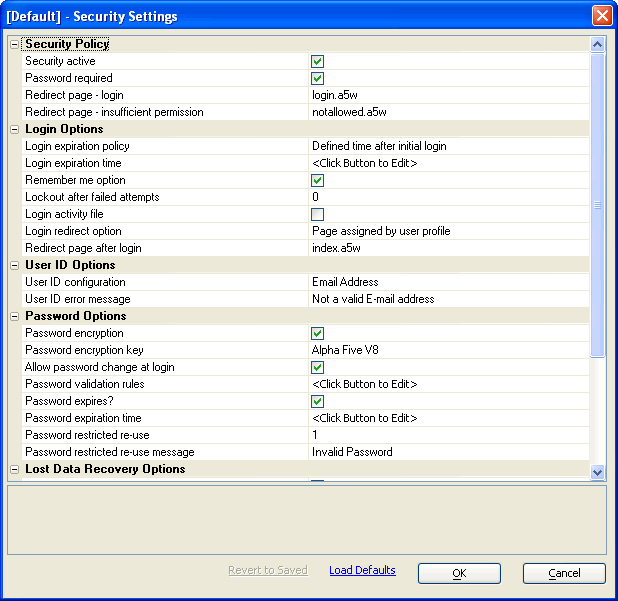
Enable (check) the Security Policy > Security Active property.
Enable (check) the Security Policy > Password Required property. A large number of additional properties will appear.
Click the web properties button in the Security Policy > Redirect Page - login property and select "Login.a5w".
Click the web properties button in the Security Policy > Redirect Page - insufficient permission property and select "notallowed.a5w".
Click the web drop down button to set the Login Options > Login expiration policy to "Defined time after initial login".
Click the web properties button in the Login Options > Login expiration time property and select 6 months.
Enable (check) the Login Options >Remember me option.
Click the web properties in the Login Options > Redirect Page after Login property and select "index.a5w".
Enter Alpha Five V8 into the Password Options > Password encryption key property.
Enable (check) the Password Options > Allow passwiord change at login option.
Click the web properties button in the Password Options > Password Validation Rules property to display the Password Validation dialog.
Enable (check) the Text Format > Allow digits property.
Enter "6" into the Data Length > Minimum Length property.
Enter "12" into the Data Length > Maximum Length property.
Click OK.
Enable (check) the Password Options > Password expires? option.
Click the web properties button in the Password Options > Password expiration time property and select 6 months.
Set the Password Options > Password restricted re-use to 1.
Scroll down to the Lost Data Recovery Options. Picture
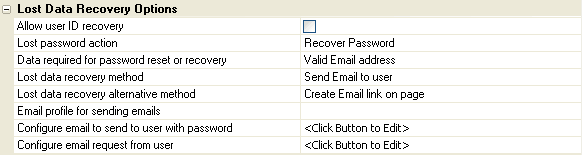
Click the web drop down button to set the Lost Data Recovery Options > Lost password action to "Recover Password ".
Click the web drop down button to set the Lost Data Recovery Options > Data Required for password reset or rcovery to "Valid Email address".
Click the web drop down button to set the Lost Data Recovery Options > Lost recovery method to "Send Email to user".
Click the web drop down button to set the Lost Data Recovery Options >Lost recovery alternative method to "Create Email link on page ".
Click the web drop down button in the Lost Data Recovery Options >Configure email to send to user with password property and accept the default layout by Clicking OK.
Click the web properties button in the Lost Data Recovery Options >Configure email request from user property and accept the default layout by Clicking OK.
Open the customize options by expanding the option. Picture
1. Enable (check) the Customize Options > Show external user identifier field property.
2. Enter "__protected__user_pUser.Ulink" into the Customize Options > Session variable for identifier field property.
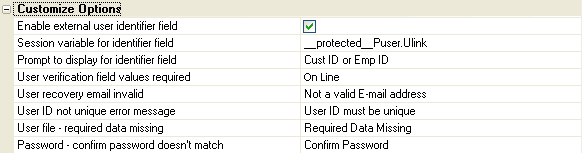
Click Save.
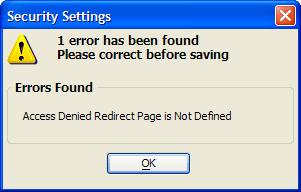
If you have neglected to set any required properties, a dialog similar to the following will appear. Click OK and correct these errors. Picture
Adding Users and Groups
All users who login to Alpha Sports Web have to be first registered in the user table.
Display the Web Projects Control Panel.
Click Security to display the Web Security dialog.
Select Users and Groups and click OK to display the Web Users and Groups dialog.
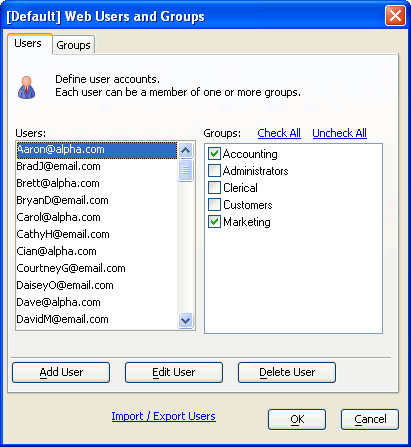
Display the Groups tab.
Click Add Group, enter "Accounting", and click OK.
Click Add Group, enter "Clerical", and click OK.
Click Add Group, enter "Customers", and click OK.
Click Add Group, enter "Marketing", and click OK.
Display the Users tab. The Import / Export Users option will be used to add new user.
Click on Import / Export Users to open the selection dialog.
Select Import User Information from Table and click OK.
The Import to Web Users Table dialog will open.
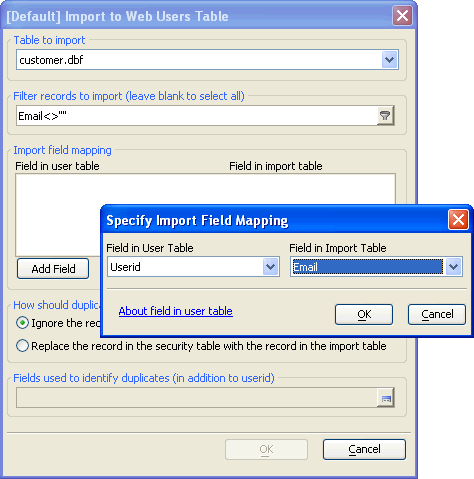
Click the Web drop down button for Table to Import and select the customer.dbf table.
Click the filter button to open the filter builder and enter email<>"" as the filter expression.
Click the Add Field button to open the field map dialog.
Map the fields as follows:
- Field in User Table
- Field in Import table
- Userid
Email
- Password
Password
Email
- Ulink
Customer_id
Click the Add Groups button to open the Select Groups Dialog dialog.
Check the group Customers and click OK.
Click OK to import the users from the customer table.
Click on Import / Export Users to open the selection dialog.
Select Import User Information from Table and click OK.
The Import to Web Users Table dialog will open.
Click the Web Drop Down button for Table to Import and select the internal_user.dbf table.
Click the Add Field button to open the field map dialog.
Map the fields as follows:
- Field in User Table
- Field in Import table
- Userid
Email
- Password
Password
Email
- Ulink
Emp_id
Click OK to import the users from the internal_users table.
For each internal user, select groups other than Customer.
Click OK to close the Web Users and Groups dialog
Defining Page Security
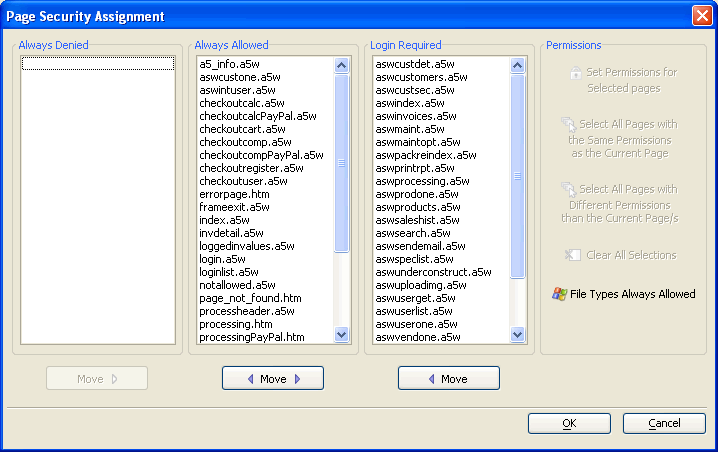
The third step when implementing the web security in Alpha Sports Web is to define which of your pages will fall into these three categories:
pages that web users can never open (Always Denied)
pages that web users can open without login (Always Allowed)
pages that web users can open after successful login (Login Required)
The page security for each page in Alpha Sports Web can be found by selecting the page from the Web Pages list. The security category for the page and groups allowed are listed. Defining Page Security explains how to move a page to the desired category and assign a security group if login is required.
Limitations
Web publishing applications only.
See Also