Getting Started with Progressive Web Applications (PWA)
Description
You can now build PWAs (Progressive Web Applications) in Alpha Anywhere. A PWA is
an installable web application that can run in disconnected mode.
Discussion
You can now build PWAs in Alpha Anywhere. A PWA is an installable web
application that can run in disconnected mode. On desktop applications, you can install
an icon on your computer's home screen to launch the PWA. On mobile devices you
can install the app and create an icon on the home screen (just as you would with a
native Cordova app).
PWAs are an attractive alternative to building mobile applications using Cordova
because you don't need to publish your application to an App store. Like native Cordova
applications, PWAs have access to many native device APIs (such as the camera).
However, native Cordova applications can still access a much broader range of native
device APIs (such as the device file system, SQLite, etc.).
Once a PWA has been installed, launching the PWA (by tapping on its icon on
the home screen or desktop) is extremely fast. The application can typically be launched
even if your device is not currently connected to the internet.
PWAs can be easily updated by simply publishing an updated version of the
application to the site where the PWA is hosted and also bumping the PWA
cache value. When a user launches a previously installed PWA, the latest
version of the application is automatically downloaded and installed (assuming that at
the time the app is launched, an internet connection is available).
PWAs are created from UX components.
Progressive Web Applications combine the ease of access of a traditional
web application with many of the benefits of a native app.
- Web application – Users reach the app by navigating to a
URL in the browser. No installation is required, but the app always
runs inside the browser chrome.
- Native application – Installed from an app store or
installer. Offers an app-like experience and offline capabilities,
but requires installation and updates through the store or a desktop
installer.
- Progressive Web Application – Delivered through the browser
using standard web technologies, but can be installed as an app with
its own icon, run without browser chrome, and work offline. No app
store submission is required.
Open the Web Control Panel.
Select an UX component.
Click the PWA button on the Web Control Panel
toolbar.
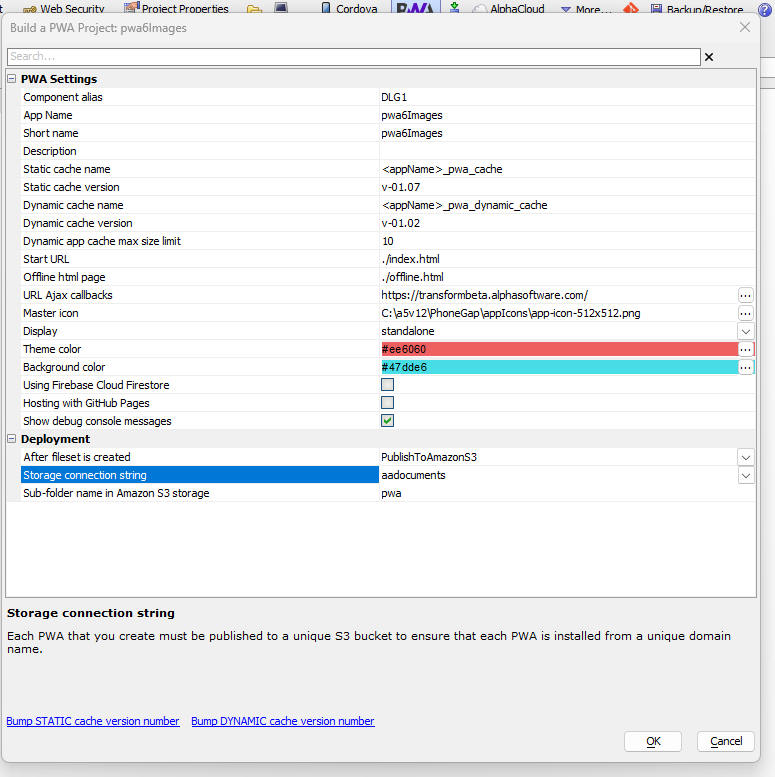
The PWA builder genie will then be displayed ("Build a PWA Project").
To deploy a PWA from a UX component, the following conditions must
be met:
- The application must be hosted on a server that supports
https. Browsers require https for installing and
running PWAs. (During development, testing on localhost does
not require https.)
- The application must have a start page (the published UX
component that serves as the entry point to the app).
- A web app manifest (manifest.json) must be published with
the app. The PWA builder automatically generates this file from the
PWA properties (name, short name, icons, display, theme
color, etc.).
- A service worker script must be registered. The service worker
runs in the background and is used to enable install, caching, and
offline behavior. The PWA builder automatically generates the
service worker script.
The majority of the properties have default values, which do not need to be
changed. The properties of note are:
- URL Ajax callbacks – If your app makes callbacks to an
Alpha Anywhere server (classic server, IIS, or Alpha
Cloud), this is the URL of the server. The server must be using
the https protocol.
- Static cache version – Every time you make a change to the
UX component, you should bump this value. An easy way to do
this is to click the Bump STATIC cache version number
hyperlink at the bottom of the screen. Changing the static cache
version number ensures that a new version of the app is loaded and
installed the next time the PWA is launched.
- Theme color – The theme color used by the PWA.
- Background color – The background color used when the app
is launched. This is typically used as the splash screen color and
should be similar to the app background color.
- Master icon – The master icon for the app. The master icon
will be used to generate the icons required by the PWA.
- Display – Controls how the app is displayed when launched
from the home screen icon. This property can only be changed if the
application has not previously been installed.
- Deployment – Controls how the fileset is handled after it
is created.
PWAs must be loaded from a web site that supports the https
protocol.
To install a PWA on an iPhone you must use Safari to open the
PWA page.
IMPORTANT: You must use Safari to open the PWA page. If you
open the PWA page in Chrome you will not be able to install
the app (create an icon on the phone's Home screen).
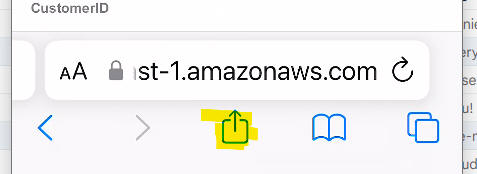
Once you have loaded the PWA page in Safari, tap the Share
icon.
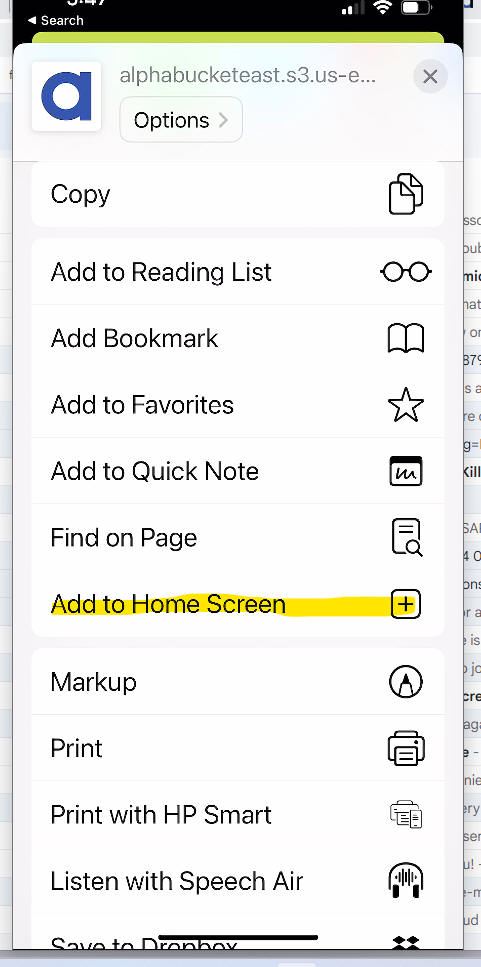
Tapping the Share icon displays a menu. Scroll the menu until you see the
Add to Home Screen command.
This installs the PWA on the device's Home screen using the icon you
specified in the PWA builder.
If you want to change the icon after the app has been installed, you must first
uninstall the PWA and then reinstall it.
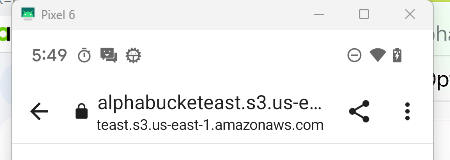
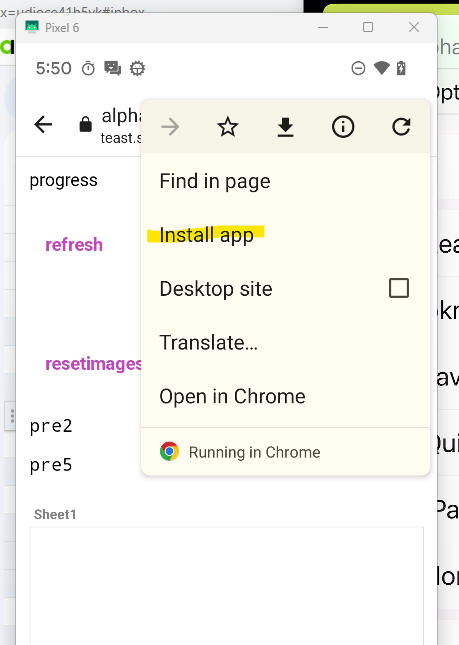
To install a PWA on an Android device:
- Open the PWA page in the browser.
- Click the menu icon (three vertical dots) to display the browser
menu.
- Select the Install app menu command.
(Note: The images shown below are for the Chrome browser running on a
Pixel 6 device.)
After the PWA page has been opened in the browser, an install icon is
displayed in the browser address bar. If this icon is not visible, the
PWA has likely already been installed. Click the icon to install the
PWA.
A common use case for PWA applications is offline mobile applications.
This section describes how an application that uses a List control with a
Detail View and an image capture feature works while offline when
deployed as a PWA.
The List control must be configured to persist the List data to
storage and the storage location must be set to IndexedDB. Images
should be configured to be stored on Amazon S3.
When the List data are loaded, all image field values contain URLs that point to
objects stored on Amazon S3.
Once the data have been loaded into the List, if the application must run while
there is no connection, the image URLs that point to Amazon S3 cannot be
resolved. If the images are to be displayed when there is no Internet
connection, the images must be stored on the device.
Because PWAs do not have access to the device file system, the image data
are stored as base64 encoded data in IndexedDB. After the List is
loaded, an Ajax callback is made to the server to retrieve the base64
encoded data for all images in the List. This data is then stored in
IndexedDB and each image has a unique key value.
The List data are updated, replacing all of the image URLs that point to
Amazon S3 with the key values for the base64 data stored in
IndexedDB.
The List might have thousands of rows, but at any given time only a subset of the
rows is visible. JavaScript code in the List determines which rows are currently
visible and replaces the image data in those rows with the base64 data
for each image (retrieved from IndexedDB). Once the image data has been
replaced with the base64 encoded data, the images in the List are visible
even when offline.
When a picture is taken, the base64 data for the image is stored in
IndexedDB and the key value for this data is stored in the List.
When edits to the List are persisted, the base64 data for all of the
images in dirty rows are sent to the server. The images are stored as objects in
Amazon S3, the image field values in the List are replaced with URLs that
point to Amazon S3, and the updated data are persisted to the SQL
database.
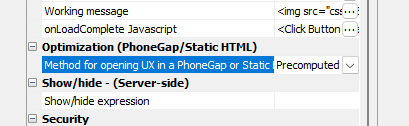
You can use embedded UX components in a PWA (only UX
components are supported).
When using embedded UX components in a PWA, you must set the
Method for opening UX in PhoneGap or Static HTML property to
Precomputed.
Progressive Web Applications: Creating a basic PWA
PWAs are an attractive option for building installable applications.
They are easier to build than native Cordova apps and there is no need to
submit them to the App Store (iOS) or Play Store (Android).
In this video we show how a simple PWA can be created from a UX
component that makes Ajax callbacks. We show how the PWA can be installed on
a desktop computer and how the PWA can easily be updated.
2023-11-06
Progressive Web Applications: Creating a PWA for Offline use
In this video we create a PWA for offline use. The PWA has a List with
a Detail View to update a SQL database, and the List data are
persisted to IndexedDB.
2023-11-06
Building a Progressive Web App (PWA)
This video shows additional techniques and considerations when building
Progressive Web Applications in Alpha Anywhere.
2024-02-08
Debugging PWA Apps — Alpha Anywhere
Troubleshooting and debugging techniques when building PWAs using Alpha
Anywhere. This video walks through common pitfalls and how to avoid or fix
them.
2024-11-19
Building a Progressive Web App (PWA) with Alpha Anywhere and Firebase
Firestore
(Part 1)
In this first part of the series, we introduce the Alpha Notes PWA. We
demonstrate how to build a PWA that utilizes Google's Firebase Firestore for
real-time data synchronization and offline capability.
2022-05-27
Building a Progressive Web App (PWA) with Alpha Anywhere and Firebase
Firestore
(Part 2)
In Part 2, we dive deeper into the creation of the Alpha Notes app. This
video
covers the technical implementation details of connecting Alpha Anywhere to
the
Firebase backend.
2022-05-27
OneSignal Web Push Integration with a PWA and Firebase (Part 3)
This video demonstrates how to integrate the OneSignal SDK with the Alpha
Notes
PWA. Learn how to implement push notifications in your Progressive Web App
using
Firebase Authentication and OneSignal.
2025-05-23
Using the OneSignal REST API with Alpha Anywhere (Part 4)
In the final video of the series, we explore using Xbasic to interact with
the
OneSignal REST API. This allows you to send targeted notifications to
specific
users or segments directly from your Alpha Anywhere server.
2025-07-11
Faster Loading using Static HTML Versions of a Component
Performance is critical for PWAs. This video shows how to use the "Static
HTML"
option for embedded UX components. This technique significantly reduces load
times by serving a pre-rendered HTML file instead of dynamically generating
the
component on every load.
2024-01-18
Lightweight List Components for Web and Mobile Apps
The "Lightweight List" is a high-performance alternative to the standard List
control. This video introduces the control and explains why it is ideal for
mobile PWAs where keeping the DOM size small is essential for smooth
scrolling
and interaction.
2024-03-05
How to Create Nested List Components in Alpha Anywhere
Creating complex mobile interfaces often requires nested data structures.
This
video shows how to embed child Lists within a parent List (e.g., Orders
within
Customers), a common pattern for rich PWA interfaces.
2023-04-25
▸ Video Transcript: Creating a Basic PWA
hello and welcome to the alpha software
demo and Q&A webcast I'm Dave McCormack
VP of product management here at Alpha
software and I'm coming back after a
terrific week last week where we had our
Alpha anywhere or Alpha software
developers day for 2023 I know a bunch
of you here today on this were able to
attend but for those of you who weren't
the recordings for those sessions even
for those of you who were the recordings
for those sessions are now available you
can find that on our website Alphas
software.com devday
2023 hyphen content hyphen portal and
we're going to be talking about one of
the topics that was brought up at the
developer day today but before we go any
further just want to make sure that I am
coming through so if people let me know
if you could see my screen and you can
hear my voice either in the questions or
the contents or the chat window Perfect
all right so the address let me grab
that address hang on a second and I will
uh I'll put that right into the address
bar hold on a moment do that for
you grab
an content portal
page
content okay grab that URL copy and I'm
going to paste that into the chat window
right
now so there you go um one of the
sessions that we had let me go ahead and
resume my screen
the first session that we had was with
uh selwin Ravens uh selwin is our
co-founder and president of alpha
software and he went through the key
features that were added to Alpha
anywhere over the past year as well as
some of the new ones that are on the
horizon now as he ended uh his
presentation he uh Bob Moore VP of
Mobility stepped in to talk a little bit
more about a concept called Progressive
web
applications and I know it was a huge
interest two years ago when Bob did this
presentation we hadn't really shown a
lot about it until our our last
conference and it but in fact a bunch of
stuff has been added to Alpha anywhere
to support Progressive web applications
and that's what we're going to talk
about today so if you saw Bob's
presentation last week and you had never
known anything about Progressive web
applications you may have felt yourself
a bit lost so today we're going to be
doing um one of I hope a series of PW
way
webinars but this one is going to be for
newbies so we're going to we're going to
start right at the beginning and sort of
explain what a progressive app really is
why you would want one and how you can
make one and then once you've got that
under your belt and you kind of
understand that I think and you go and
watch uh Bob's presentation it's going
to make a heck of a lot more sense so
let's get started all right so I am
going to move on to my next screen let's
start with the definition of a
progressive web app this is one that I
stole from Wikipedia so Progressive web
app is a type of application delivered
through the web built using common web
Technologies including HTML CSS
JavaScript and web assembly let's take a
look at that word delivered because
often you'll think of a web app is
simply a website that's interactive
maybe your bank has got a online banking
you log into the site and you use their
website there and that is just simply a
web app a progressive web app is
different because the the application
isn't one that you're interacting
through on their site exactly in fact
you're interacting it with it locally on
your own device that's right the app
itself is delivered to your ADV uh to
your device and that means as a result
it can be installed uh as a as an icon
on a home screen or in your start menu
on a
computer uh it still has access or
potential access to Hardware on your
device so using things called Web
assemblies we're not going to cover that
fully today but things called Web
assemblies you can actually access
Hardware uh and it also works offline
which is a huge Advantage um and another
huge Advantage for a lot of people is
the fact that you don't have to actually
install these so let's take a look at
those benefits again in a little bit
more detail if you think about a web app
again think your online banking app this
is very easy for people to reach they
just need to type in their URL and they
will get into a website where they can
interacts with with your data whatever
your app happens to
be on the other side over here we have
the native app now a native app isn't as
easy to install because you have to go
to one of the app stores or you need or
if it's on a computer you're going to
you might go to an app store but you do
need to install the software on your uh
on your device running some sort of
installation program now in many cases
that's fine but in many other cases
people simply don't want to install apps
people might not want to install apps on
their computer because they're afraid of
uh virus concerns they might not want to
install apps on their phone either for
the same reason or more likely simply
because they're running out of space or
maybe it's something as simple as they
don't remember their their login for the
Apple Store for Google Play or something
like that so it isn't it isn't nearly as
easy as simply going to a website so
this is where the pwa really combines
The Best of Both Worlds it allows you to
have the ease of access in it simply by
opening up a browser on any device and
going to a particular URL but it still
has many of the benefits of the Native
device including the ability to install
an icon which launches it um and the
ability for it to walk work offline and
also potentially access Hardware so
let's take a look about how you go about
installing remember I said well you
don't have to go to the App Store to
install them one cool thing you can do
with your pwa is when someone gets to
your website here's three different
views on three different uh devices so
let's take a mobile device an Android
device you can have an option right here
which says install and they can click
the button it can do it for the mobile
is what they'll do is they click
basically this that that share button or
the more button I forget what it's
actually called and they just tap add to
home screen and it will add that pwa or
the progressive web app to the home
screen of the phone and on a desktop
browser especially ones that are Chrome
based and that includes Edge not just uh
Chrome um the uh as there's a plus
button that'll appear when you go to a
URL that has got a progressive web app
available now when you click that that
actually can add the app onto your
computer as you can see here in this
example this has actually already been
open and the next time you go there you
might see a little uh a little login
which which tells you that you can go
ahead and open that app in a browser all
right so
whoops take back it was on the right
screen after
all hold on a
second while I find my
place okay play from current slide here
we go so for example once it's
downloaded here's here's an actual
here's the app as it appears on the
screen of my actual computer right here
it's got It's got an icon and all that
it's got a name and when I click on it I
can launch it here's what it looks like
when I launch it on my uh um my Mac or
it look the same also if I launched it
on a PC and here's what it would look
like on my iPhone over here now one
thing you've noticed is that there is no
what we call Chrome there are no
controls up here at the top so you don't
have the back button home favorites and
all that other stuff which is great
because for an application that stuff
really is kind of clutter that's stuff
that you don't want and in many cases
you don't want the user hitting the back
button after all many times you're
building what's called a sing Le web
page application if they hit the back
button all it's going to do is leave the
application and go to whatever website
they were on before they entered your
application so that's not ideal so one
other cool thing about the progressive
web app is that it can hide the Chrome
around the um around the window uh in
which your application is being hosted
all right so you can install these
things they have the benefits of a
native app you don't have to go through
the App Store they remove the Chrome
there's all kinds of cool stuff so
you're probably wondering how do you go
about building one of these what is
actually required to put together a pwa
well there really just four things that
you need for a pwa uh the first is you
need to have a server with SSL or TLS in
other words you need to be able to
connect to your page using an https
connection as opposed to just httt
HTTP um this will also work with Local
Host so as as you're testing locally you
don't have to have SSL but once you to
implement it you need to have SSL now I
showed maybe two months ago how to set
up a server how to set up SSL and all
that you might want to go back and take
a look at it I was using um Amazon web
services to to to host using a reverse
proxy kind of a cool little thing so
I've shown before how to set up a server
the next part is a start page but that
shouldn't be a surprise because every
application that you build has a start
page already so so far the first two
requirements are very much like any
other web
application now the next two are not you
also need to have something called the
web app manifest and something called a
service worker so what are these well a
web app manifest is a file ad Json file
that gives information about your
application mostly what it tells you
about are are the uh and this and this
is basically a file adjacent file that
is published to the same place as your
start page the next part is the service
worker the the service worker is a type
of what's called a web worker it is a
JavaScript that is running or JavaScript
script I should call it that's running
in the background in fact a service
worker can continue running even when
you have closed the tab that the web
page that it called it is on and the
browser still needs to be open or the
app still needs to be open but this will
continue to work in the background so
this this does all kinds of cool things
um cool thing number one is it lets you
have a pwa in the first place because
without a service worker you can't have
a
pwa the second thing is that it can be
used to do things like download large
files in the background without
interrupting the application as it's
being used currently by the user um and
another cool thing that it can do is it
can receive and handle push
notifications so that the server and the
app can keep talking back to each other
uh in the background uh without the user
having to initiate anything so that's
that's very very cool stuff that you can
do with it so what does a web app
manifest in a service worker look like
let me show you once you have created
your file set you're going to see two
files and these are created for me by
Alpha anywhere I'm going to show you how
that works in a moment the first first
one is manifest.json and the other one
is W.J and SW as you can probably
imagine stands for service worker well
let's take a look at the Manifest file
first so in the Manifest file you'll see
it gives you there's some things here
this is again generated by Alpha
anywhere for us but it gives us the the
name where lets the device know the name
of our application there's both a name
and a short name the short name I
believe is used just on the icon like on
the home screen where you don't have a
lot of room whereas the name would
appear in the title bar of your
application description I have left
blank and I'm not sure where it shows up
or even how it's used but then as you'll
notice the majority of the whoops the
majority of the uh file is used
basically specifying different icon
sizes and that's because this is a
universal type of application it needs
to run on devices that that have all
different screen sizes so icons need to
be available starting at 72x 72 pixels
and incrementing up to 512 by 512 with
some common sizes here in
between there's also a little bit of
other information here at the bottom
there's the display I'll talk about that
in a minute and the background color and
the theme color um not sure the theme
color but I'll show you what background
color does as well as a couple of other
settings in a
minute now let's take look at the
service worker the service worker is a
piece of JavaScript and this piece of
JavaScript is also generated for us by
Alpha anywhere taking settings that we
have in the
IDE so what it does one of the key
things that it has to do is set up
what's called a listener event and an
install event these are two things that
go into a service worker but I'm not
going to go in too much detail about
servers worker because even I don't
actually know all of the the um
qualifications that are needed behind at
the moment so I'm not going to
I'm not going to speak above my head on
this one but just know this script needs
to exist it does need to have a couple
of key elements and Alpha anywhere can
can generate these for you all right so
how do we go ahead and create a pwa in
Alpha anywhere well first of
all we
start with a like a ux component or some
component I believe this also works for
the grid but say a ux component maybe it
just works
a few weeks ago um we did or actually
two months ago we did a webinar in which
I built a really simple application that
application had a button on it which was
just a submit button and when you click
the submit button an animation popped up
so I decided I'd use that same
application again in this example except
this time I would turn it into a
progressive web application so that I
can install it on my devices and so that
it'll work offline
so all I did was I went over to the Web
projects control panel and I clicked on
or selected the animation example ux and
then up here you see the pwa logo I
clicked on create a progressive web
application so far pretty easy right all
right that opened up this property grid
here and at the bottom of the property
grid there's an okay button when I click
okay it'll automatically create all of
the files that I need and put them in a
folder a subfolder called pwa and I can
then take those and uh I can place them
on an S3 bucket I can put them on my
Alpha anywhere application server I can
really put them any place that's capable
of serving up static
HTML now I say static because even
though your your HTML May um do database
interaction make API calls and stuff
like that the actual first load is
actually static it's all just JavaScript
HTML and uh and possibly um web assembly
again talk about that one
later let's take a look though at some
of the settings though that you can
adjust so up here I have my app name and
my short name it just came from the ux
that that gets picked up automatically
for the short name I may not have wanted
to go with animation example I may have
just chose an example or something
shorter like that because it didn't
really fit nicely on the home screen I
noticed my phone when I did it so I'm
going to say keep it to you know 10
letters or something like that the
description uh it's a field here I'm not
sure where it's used to be honest with
you um the static cache name I would
leave these alone these are basically
just indicating to the progressive web
app where it will find its
data the dynamic version for static and
dynamic these are interesting and I
really going have to do a research as to
what the differences between the to but
in general I can tell you that when you
make an update to your application
you're going to want to bump those
numbers and you'll do that just by
clicking these hyperlinks down here
it'll just add this this would become a
101.2 and if I clicked the dynamic one
it would bump it to 101.2 here as well
when you bump it the next time someone
opens up your Progressive web
application it's going to update itself
to that new version so that's what's
kind of cool when it opens up if it sees
that the Dynamic version number or the
other static version number is unchanged
then it knows it does not need to update
and it'll just leave it alone okay so
those are those are useful when you're
making updates and you want to push
those updates out the next thing you
want to take a look at is the URL for a
Ajax callbacks now in my example I don't
have any Ajax callbacks I don't have a
database I don't have a backend database
um so it's really not a great example
but most of the time you probably will
be um so if that's the case you're going
to want to tell Alpha where your Alpha
server is located so that it can make
callbacks uh to to your X basic code
that you may have defined for your ux in
my case I didn't bother with this um but
I know that it does need to be specified
or it's just simply not going to
work the last one here or actually
there's three more I want to cover but
this one here the master icon um
basically you want to give it an image
that I think is 512 by 512 and what
Alpha will do is will automatically
create all those smaller versions of the
icons for you and place them in a folder
and they'll be available for your uh
Progressive web app so that the correct
size loads on the correct
device next we have Standalone as the
display option I'm in PowerPoint right
now let me just go right into uh let me
just go right into live alha anywhere
for this
one under uh display type we have
Standalone now if you remember I told
you that when a progressive web app is
running it often is running chromeless
there's no back button home favorites
and stuff like that you may for some
reason wish to enable browser
functionality in which case the display
option you could set to browser there's
also minimal AI um which has even fewer
controls at the top then simply
Standalone and then we have full screen
which takes over the full screen as you
can imagine now full screen uh
Standalone is full screen when you're
running it on a mobile device but it
isn't necessarily full screen when
you're running it on a desktop device
and remember a progressive web
application can run on both the next
thing is the theme color if you remember
from the previous slides the top of my
windows were all red where it said uh
application uh or animation example
that's where you actually set this is
right here it doesn't have to be red it
can be any color you like background
color at this moment I don't know where
it's used so I'm not going to not really
going to talk about that and then you
could decide what you want to do at the
end so remember I talked about
publishing this like to an S3 bucket
that's actually one of the options here
so after it builds the file sets when I
click okay I can tell it that I'd like
it to go to my S3 bucket of course I'd
have to set up a storage connection
string which we can talk about
separately in order to do that um and
but it's just a convenient way to have
that done the other thing is it could
just open up the folder in it and then
it be up to you where you're gonna where
you're going to put those
files all right when that's done and I
clicked okay I just simply took that
file set and I pasted it into my project
so let's go ahead
and I don't think I've ever opened it
here on this browser let's open up Edge
and let's go take a look at my
application so the URL to get there and
you can you can do this to at home if
you like is Goof
can.com uh what is it called
index.html this is going to be an
https because it is a progressive web
app and that is required so let me click
okay this was working just before just
before I got on so we'll see if it's
working
today there it is wonderful now if you
can see take a look at this window
something exciting has happen it says
app available see this app available
install the animation example I sure do
I want to install that so let's install
it right now faster load times quick
access additional Windows features plus
best of all it also works offline so I'm
going to go ahead and install that and
now it's been installed and it is
running do I want to pin it to the start
menu or the taskbar sure why not create
a desktop shortcut fine start it when I
no I'm not that's that's G little too
too far all right let me close down Edge
not my favorite
browser all right and um and you'll see
that my my application is running and if
I click the submit button it does what
it's supposed to it runs my little
animation so that is the crash course of
alpha
anywhere uh Alpha anywhere and
Progressive web
applications uh for newbies and I hope
that you guys have found that that
helpful are there any questions or are
there any questions on anything
else I'll give you guys a minute okay
here we
go do users need special permissions to
install uh nope I believe you just have
unlike a regular application I don't
think that you need to be in fact I I
know you don't because I have user
authorization control on my Windows
machine and a moment ago
if I tried to install a regular
application it would have said hey you
need permissions do you want to log in
as the administrator looks like it
certainly isn't needed in Windows I
don't think he really needed on anything
else because they are rather safe
applications there's they are sandbox
pretty
well does this work in Firefox oh I'm so
glad someone brought that up the answer
is no Firefox for whatever reason is the
one browser that does not support
Progressive web applications they might
at some point uh and they and they
started to but somewhere around 2020
they gave up uh and they and they said
it's not they said it's probably not
coming anytime soon so I'm not really
sure about
that uh next question what at what build
did the progressive web application
feature become available well it became
available I think the first time was
during last week's build it stopped
being hidden behind a feature key and
became a uh thing that's now in our
stable release of alpha anywhere so it
is now a feature that you can use right
now it's been around for about a week
now it the technology itself 2018 is I
guess is when they started working on it
maybe as far back as 2015 somewhere in
that range but it wasn't really being
supported uh the notion of the Manifest
and the service workers and so on
weren't really being supported by most
browsers until maybe a year or two ago
so this is still pretty new stuff but
right now except for Firefox users now
is a good time to get into the
progressive web applications
does security work the same yep it works
exactly the same of course once you're
offline uh whatever did load before is
probably still loaded kind of like it is
in the browser but you still would need
uh for example if you if you had to uh
call backs or you had a login screen or
something like that um you and you had
connection to the server it would let
you in and if it didn't of course it
wouldn't let you in so so yeah that's
that's all
possible someone Saidi got a different
page yeah the reason you got a different
page is you probably typed in index. a5w
instead of
index. HTML so I actually got two
homepages the default one is the one
which will say Bob's Bikes but if you
log in with index. HTML it should let
you
in uh you skipped over fir store GitHub
options any guess when guidance will be
available so for fire store absolutely
take a look at the um at what Bob has
done also take a look at the release
notes we have done some documentation on
that GitHub I'm not sure but I'm going
to write that down right now and see how
quickly we can get documentation out to
explain how that works so that's that's
a really good one um and how long I
don't know a week or shouldn't take
longer than that that's it's a new
feature it's it's just being uh we're
just wrapping up doc down for
it
uh is there a new uh stable alpha web
app bill I think you mean Alpha anywhere
in which case yes there is a new one in
fact there's a new one this week and
there's a new one yesterday so uh you go
ahead and download it if you
like uh did I say that the browser
application much be
https yes that is the case you cannot do
it with a non-encrypted uh thing the
browser simply won't let you do it it's
part of the specification of the
standard for Progressive web apps so you
do have to have an SSL certificate I it
really you should have them anyway I
mean there's there's almost no reason to
there you can get them for free at this
point so you know it's just good
practice
um Alpha launch pwa and sell mention
another one on the horizon what is the
name besides Alpha launch um I don't
remember what the next thing is Alpha
launch of course is that application
that lets you run your applications
inside of it and Alpha launch itself is
available in the web stores uh you can
find it for Android and you can find it
for
iOS um I don't know what the third one
was that someone mentioned offand but go
take a look at the
webinar
link Let's see we have anything else
here that looks like it wonderful hey
everyone thank you very much for showing
up always love having you guys here um
we not going to be doing a webinar next
week because it is the Thanksgiving
holiday or the day before it here in the
United States but we will be back the
week after in the meantime you can send
those questions and guides GUI Dees
Alphas
software.com I hope you guys have a
great two weeks take care stay well
bye-bye
See Also
 PWA button on the Web Projects Control Panel