SQLite Databases
Description
When you create a Cordova project, you can include pre-populated SQLite database files as part of the Cordova project.
Android 15 16KB Memory Page Size Support (Google Play Store)
With the release of Android 15, Google now supports devices with 16KB memory page sizes. Previously, 4KB memory page sizes were used.
When publishing Cordova apps to the Google Play Store, a warning is shown if native libraries (.so files) are not aligned for 16KB memory pages. This requirement affects apps that use Cordova plugins that include native libraries. To date, the only plugins we've identified that include native libraries are the series of SQLite plugins.
If you are using the Cordova SQLite plugin, you should be sure to use the latest version of the SQLiteStorage plugin (cordova-sqlite-storage). The latest version of the SQLiteStorage plugin includes .so files that are aligned for 16KB memory pages.
For further details see:
- Android 15 16KB Memory Page Size Support
- Prepare your apps for Google Play's 16 KB page size compatibility requirement
A genie allows you to create the SQLite databases that you include with your Cordova project. Watch the video below to learn more:
If your Cordova project includes pre-populated SQLite databases, your UX component can work with the data in these SQLite databases using Action Javascript. See PhoneGap - SQLite Actions for more information.
If you are including pre-populated SQLite databases in your project, be sure to specify the following plugins: Device, File, File Transfer, SQLitePluginExt.
To define the SQLite databases that should be part of your Cordova project, click the smart field for the SQLite Databases property in the Cordova Genie.
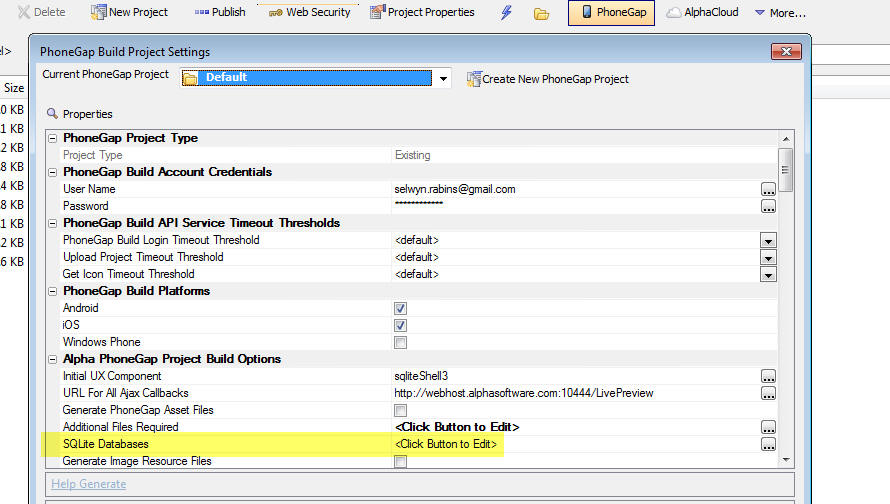
This will open a dialog where you can define your SQLite databases.
Your project can include multiple SQLite databases and each database can include multiple tables. Each SQLite database is contained in a single file and this file is automatically added to the Additional Files Required setting in the builder.
You can choose to put all of the tables you want in your SQLite databases in a single SQLite database, or you can use multiple SQLite databases - the choice is yours.
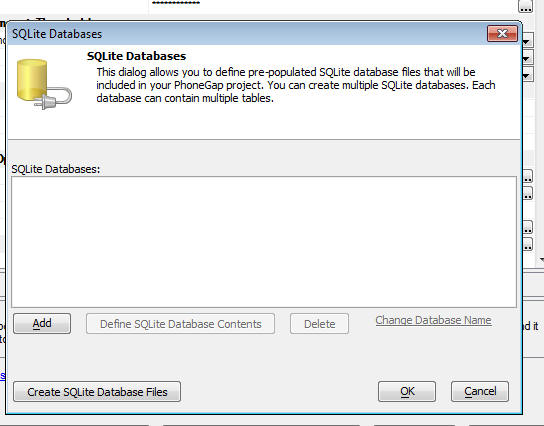
Once you add a new SQLite database to the above dialog, you can click the Define SQLite Database Contents button to specify the tables that should be in the SQLite database. For each table that you specify you can define how the table should be populated. The options are to perform a SQL query to extract data from any SQL database supported by AlphaDAO, static data, or Xbasic. If you choose the Xbasic option, you can specify Xbasic code that will return data that are used to populate a table.
Once you have defined the SQLite databases, click the Create SQLite Database Files button to actually create the SQLite database files. These files will be created in the www folder in your Cordova project.