Indicator location
Description
Specify the location of the indicator icons. Choose 'Auto' to let Alpha Anywhere choose an appropriate location based on the Navigation flow direction. Choose 'Element' if you want to position the indicator in a specific element. There are also 'Top', 'Bottom', 'Left', and 'Right' options for placing the indicator.
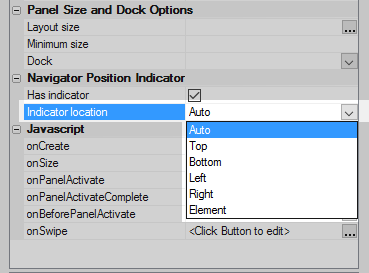

Options
The 'Auto' option sets the indicator location automatically depending on the Navigation flow direction. If the flow direction is either left-to-right or right-to-left then the indicator will appear on the bottom of the screen. If the flow direction is either top-to-bottom or bottom-to-top then the indicator will appear on the right.
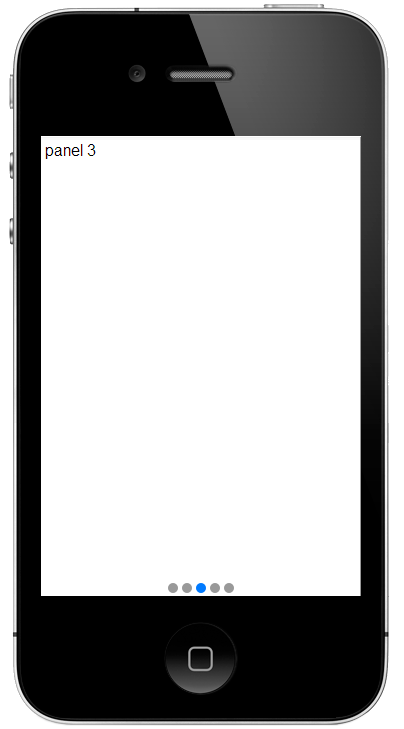
The 'Top' option sets the indicator at the top of the screen.
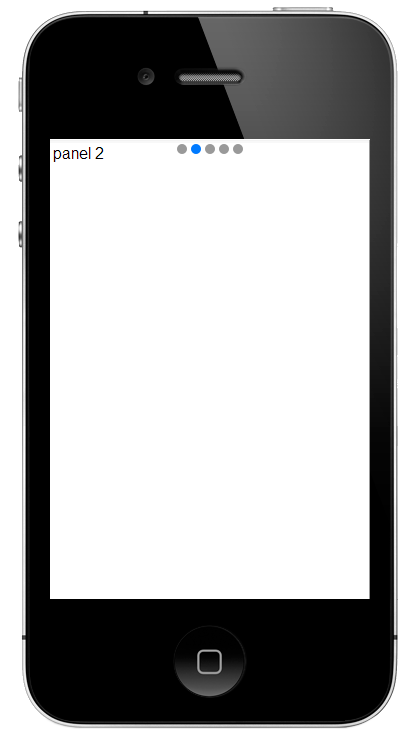
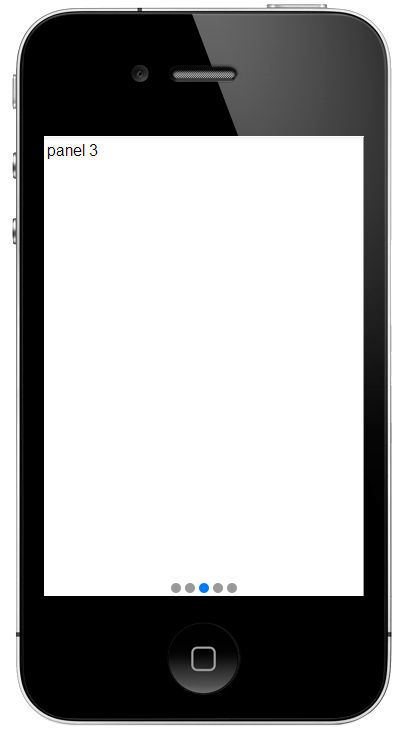
The 'Bottom' option sets the indicator at the bottom of the screen.
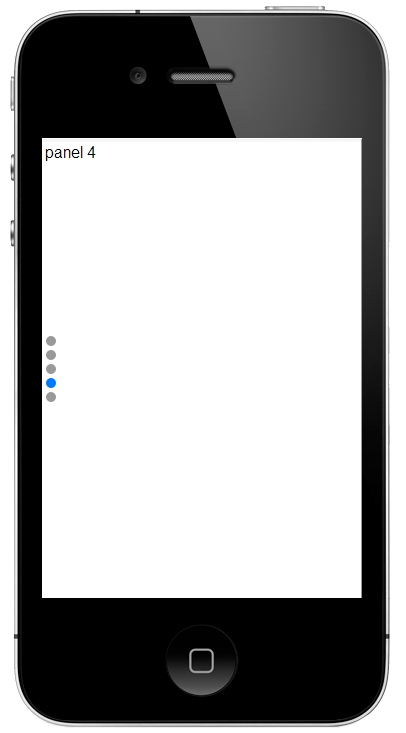
The 'Left' option sets the indicator on the left side of the screen.
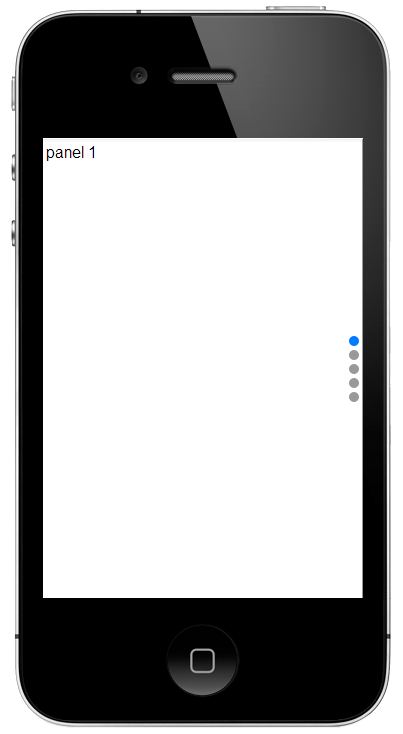
The 'Right' option sets the indicator on the right side of the screen.
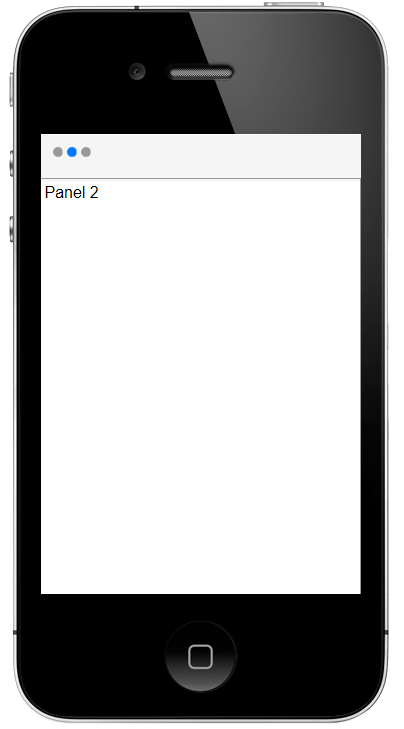
The 'Element' option sets the indicator inside an element. In this case the element is defined in a HTML free-form container set inside a Panel Header Container.
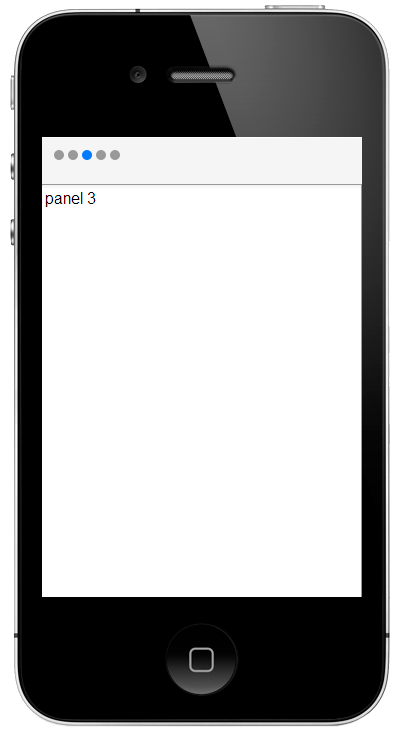
Using the Element option.
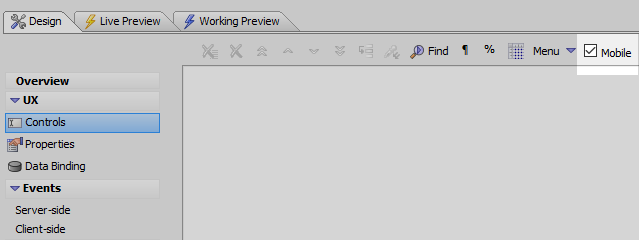
In the UX Builder on the UX Controls page, check the Mobile checkbox in the toolbar.
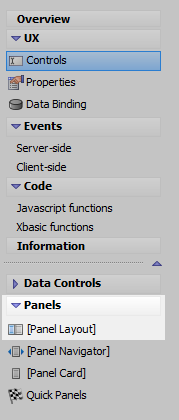
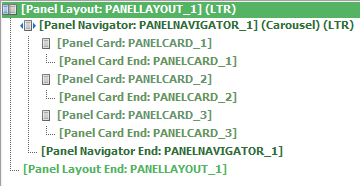
From the Panels menu click on the [Panel Layout] option to add a panel layout to the control.
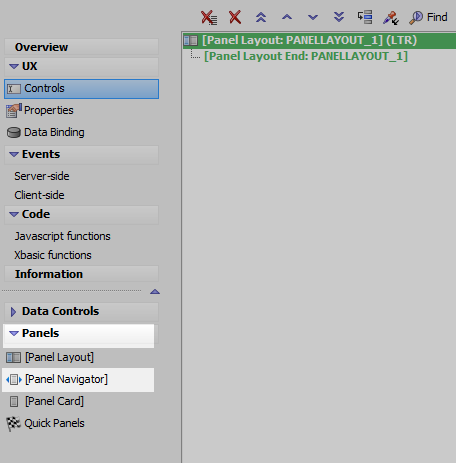
In the Panels menu click on [Panel Navigator] to add a Panel Navigator inside the Panel Layout.
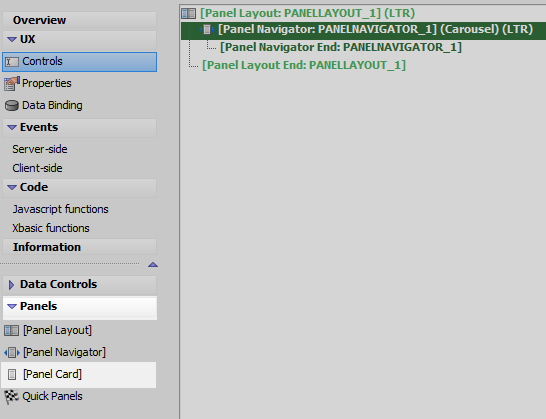
Click on [Panel Card] in the Panels menu and add a Panel Card inside the Panel Navigator.
Add several more Panel Cards to the Panel Navigator.
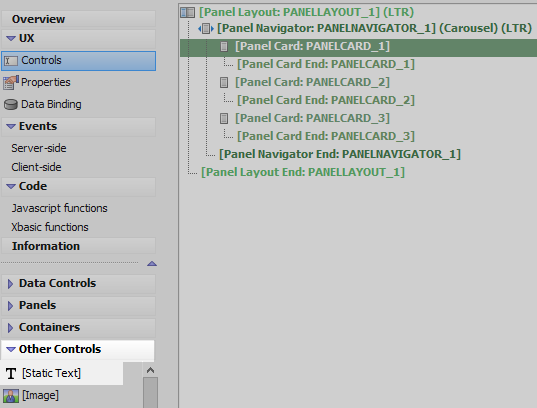
Highlight PANELCARD_1. Open the 'Other Controls' menu and click on [Static Text] to add a static text control to the first panel.
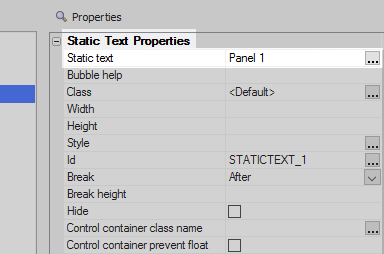
Highlight the [Static Text] control. In the Properties list on the right change the 'Static text' property to read 'Panel 1', or something to help identify this Panel.
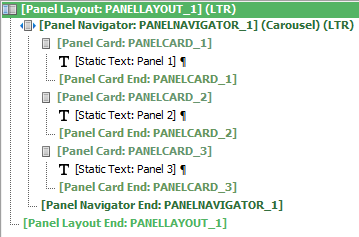
Add [Static Text] controls to all the remaining Panel Cards and give each of them a unique 'Static text'.
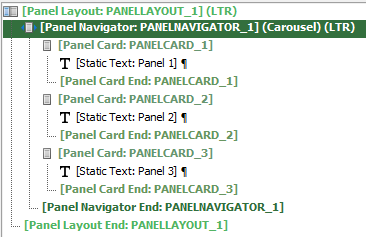
Highlight the Panel Navigator.
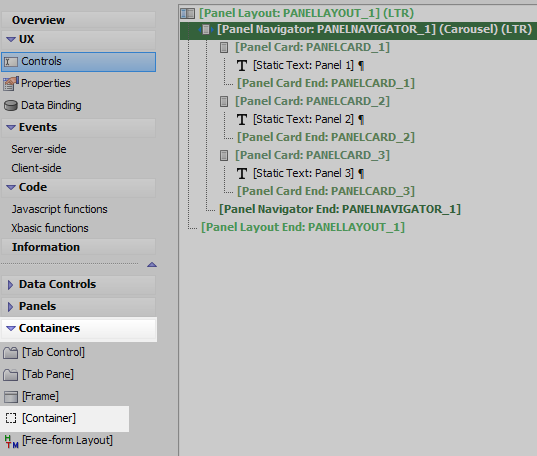
Open the Containers menu and click on [Container].
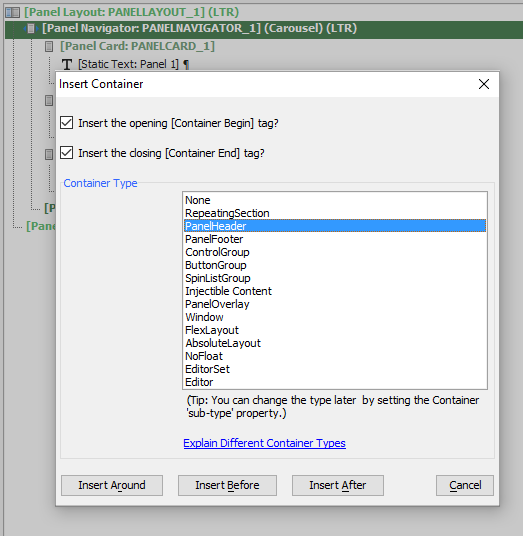
From the Container Type list that appears select 'PanelHeader'.
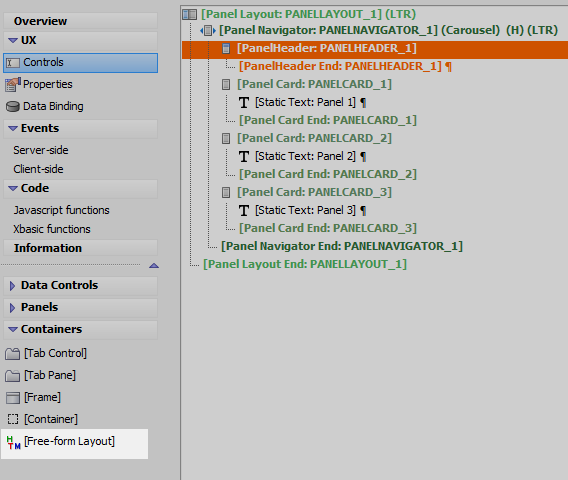
Highlight the PanelHeader container. Open the Containers menu again and click on [Free-form Layout] to add some freeform html to the header.
Highlight the [Free-form Layout]. In the Properties list click the [...] button next to the 'Free-form layout' property in the Free-form HTML section.
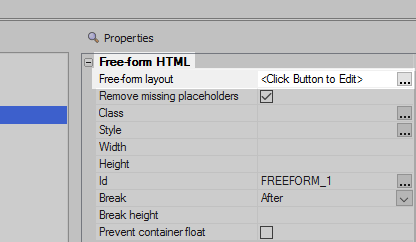
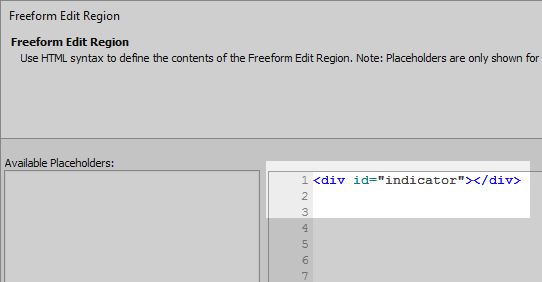
The Freeform Edit Region dialog will open. Add the following HTML and click OK.
<div id="indicator"></div>
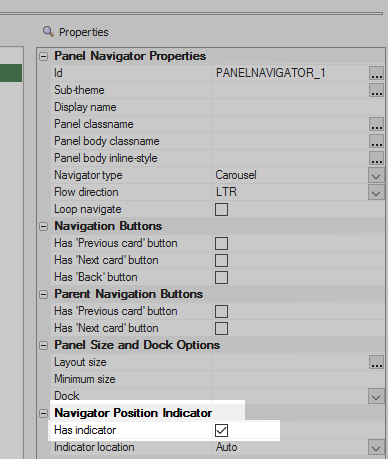
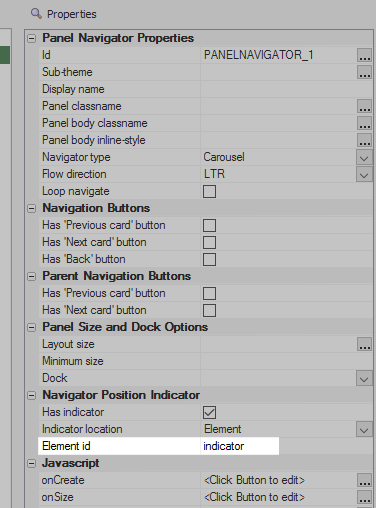
Highlight the Panel Navigator. In the Properties list check the 'Has indicator' property in the Navigator Position Indicator section.
Set the indicator location to Element.
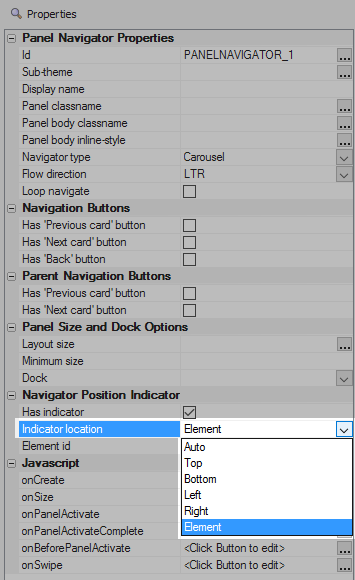
Set the Element id to be 'indicator', the id that was defined in the html div.
Run the component in Live Preview. You should see the indicator appear in the div element.