Adding and Removing Panels Dynamically
Description
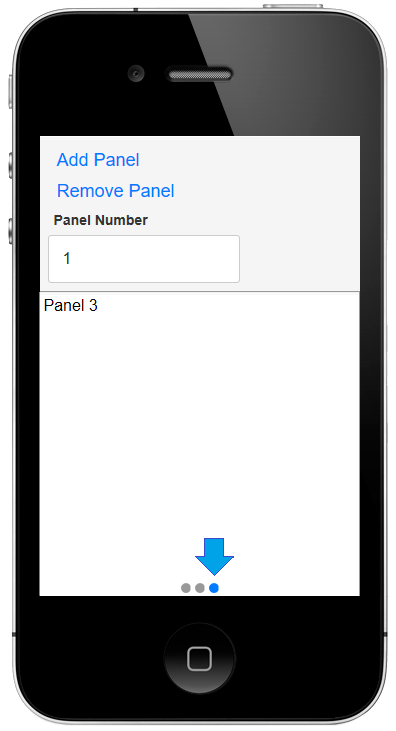
You can add and remove panels using Javascript, without having to place [Panel Card] containers in a [Panel Navigator]. This guide demonstrates how to build a UX component that can dynamically add panels that have a designated panel number defined by the user.
To see how to dynamically add and remove panels follow the guide below or watch the following video:
Create a UX that Dynamically Adds and Removes Panels
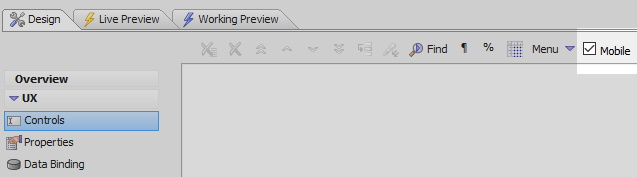
In the UX Builder open the UX Controls page and check the Mobile checkbox.
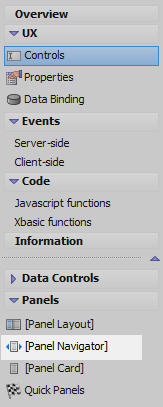
Open the Panels Menu and click on [Panel Navigator] to add a Panel Navigator to the component.
Highlight the Panel Navigator. In the Panels menu click the [Panel Card] option and click 'Insert After'.
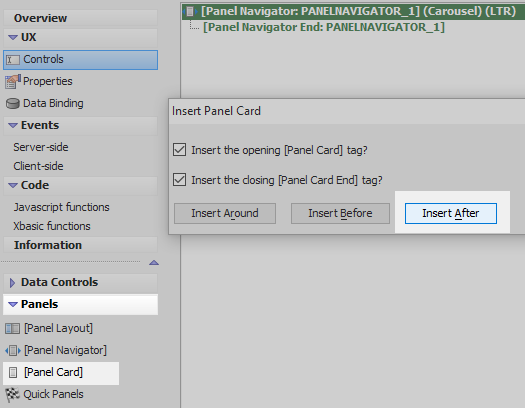
Highlight [Panel Card End:PANELCARD_1]. Click on the [Panel Card] option and 'Insert After again to add a second panel card to the Panel Navigator.
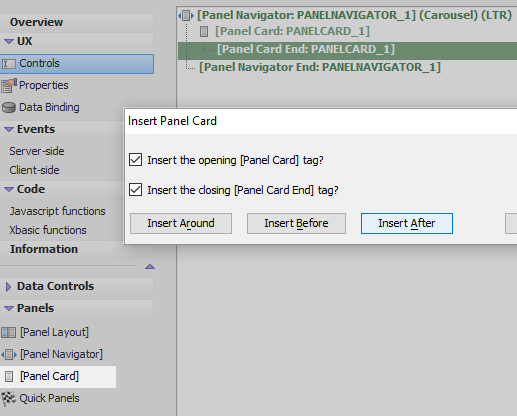
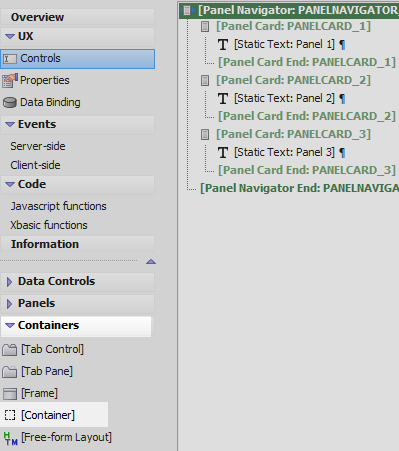
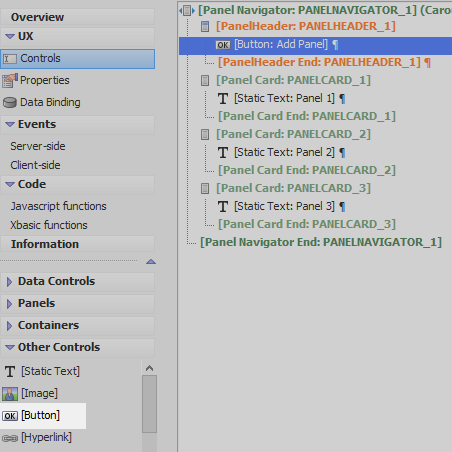
Highlight [Panel Card End: PANELCARD_2]. Click on the [Panel Card] option in the Panels menu and click 'Insert After. The component should now look like this:
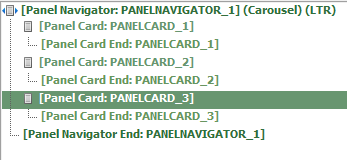
Highlight PANELCARD_1. Click on [Static Text] in the 'Other Controls' menu to add a Static text control to PANELCARD_1.
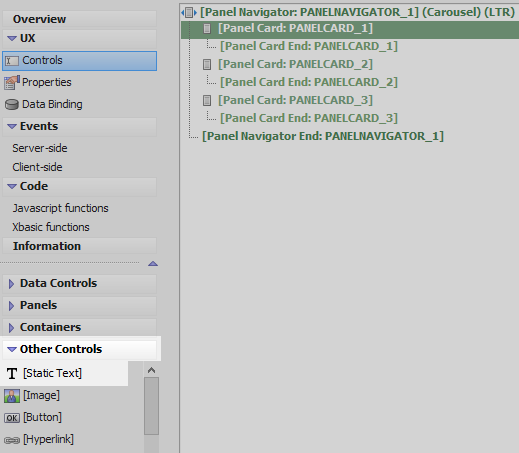
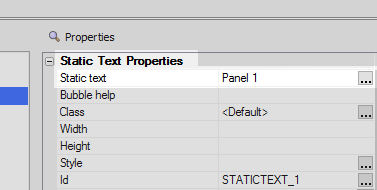
Highlight the Static Text control. In Static Text Properties section on the right set the 'Static text property' to read 'Panel 1'
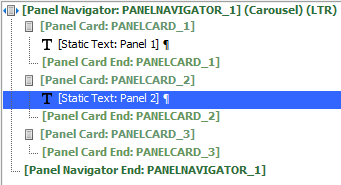
Highlight PANELCARD_2. Add a [Static Text] control to PANELCARD_2 and set the 'Static text' property to read 'Panel 2'.
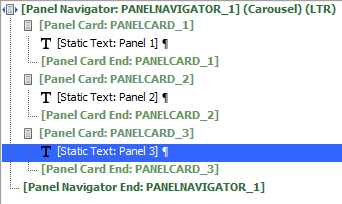
Highlight PANELCARD_3. Add a third [Static Text] control and se 'Static text' to read 'Panel 3'.
Highlight the Panel Navigator
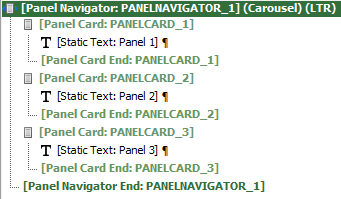
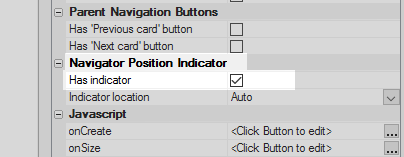
In the Panel Navigator's properties list locate the Navigator Position Indicator section, check the 'Has indicator' checkbox.
Open the Containers menu and click on the [Container] option.
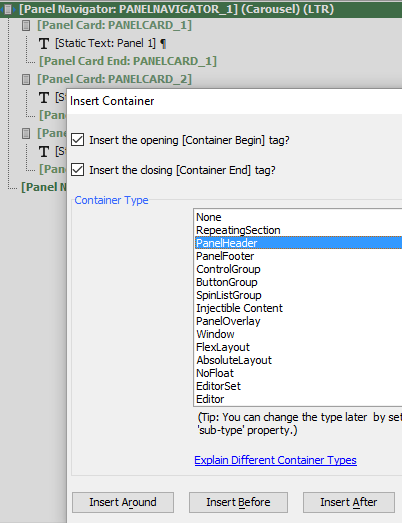
From the Container Type list select 'PanelHeader' and click 'Insert After'.
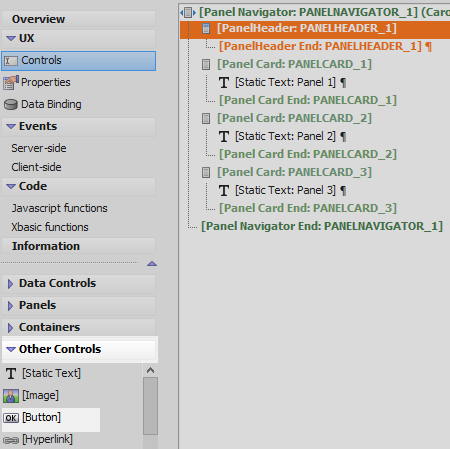
Highlight the newly added Panel Header. Open the 'Other Controls' menu and click on [Button] to add a button control to the panel header.
In the button control's properties list change the 'Button text' property to read 'Add Panel'.
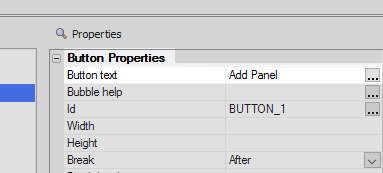
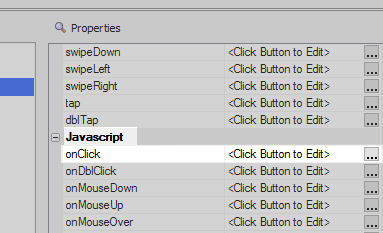
Scroll down the properties list for the 'Add Panel' button to the 'Javascript' section. Click the [...] button next to the onClick property.
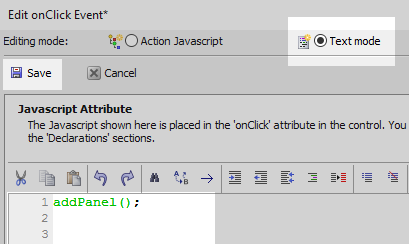
In the Edit onClick Event dialog select 'Text mode' from the radio buttons in the Toolbar, then add the following javascript and click 'Save'.
addPanel();
Open the Other Controls menu again and click [Button] to add a second button control to the Panel Header.
Highlight this button and in the properties list set it's 'Button text' property to read 'Remove Panel'.
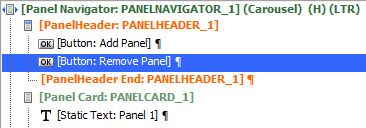
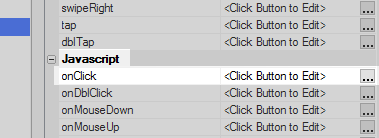
Scroll down the properties list for the Remove Panel button. Again in the Javascript section click on the onClick property.
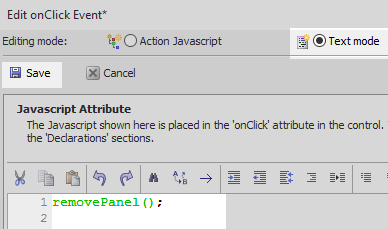
In the Edit onClick Event select the 'Text mode' radio button again and add the following javascript and click 'Save'.
removePanel();
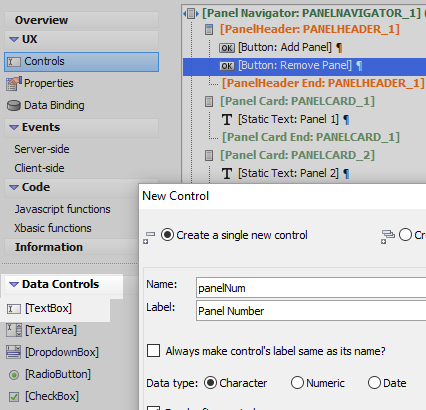
Open the Data Controls menu and click on [TextBox] to add a textbox control to the panel header. Give this textbox control the name 'panelNum'
Open the Javascript functions page in the Code menu.
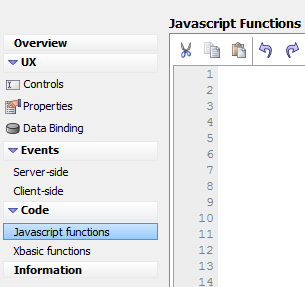
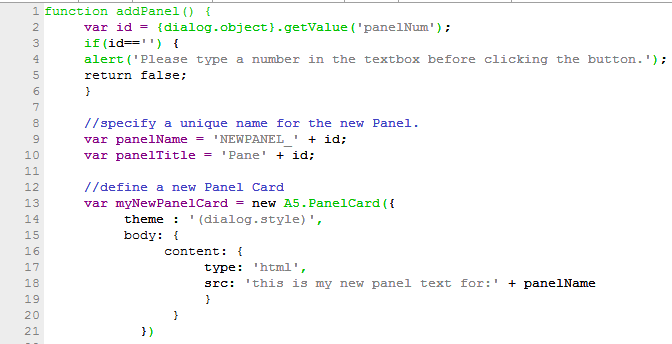
Add the following Javascript to define the addPanel() and removePanel() functions:
function addPanel() {
     var id = {dialog.object}.getValue('panelNum');
     if(id=='') {
     alert('Please type a number in the textbox before clicking the button.');
     return false;
     }

     //specify a unique name for the new Panel.
     var panelName = 'NEWPANEL_' + id;
     var panelTitle = 'Pane' + id;

     //define a new Panel Card
     var myNewPanelCard = new A5.PanelCard({
          theme : '(dialog.style)',
          body: {
               content: {
                    type: 'html',
                    src: 'this is my new panel text for:' + panelName
                    }
                }
            })

      //get a pointer to the Panel Navigator where the new Panel will be added

      var pNav = {dialog.object}.panelGet('PANELNAVIGATOR_1');

      //add the new Panel Card to the Panel Navigator

      pNav.addPanel({
          name: panelName,
          title: panelTitle,
          src: myNewPanelCard
      });

      //optionally set focus to the Panel just added.
      pNav.setActivePanel(panelName);
      }

function removePanel() {
     var id = {dialog.object}.getValue('panelNum');
     if(id == '') {
         alert('Please type a number in the textbox before clicking the button');
         return false;
     }
     var panelName = 'NEWPANEL_' + id;
     var pNav = {dialog.object}.panelGet('PANELNAVIGATOR_1');
     pNav.removePanel(panelName);
     }
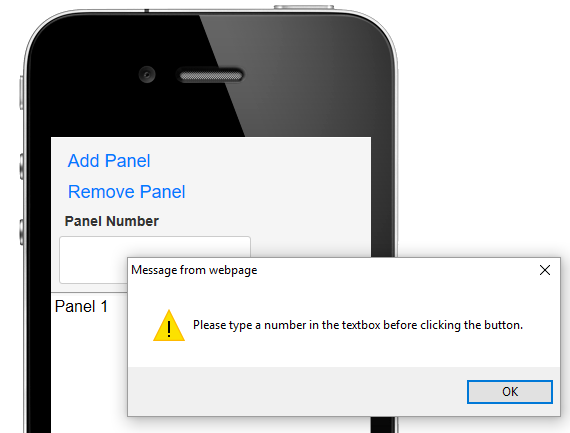
Run the component in Live Preview. When you try to add a page without entering any information into the textbox you should get an alert.
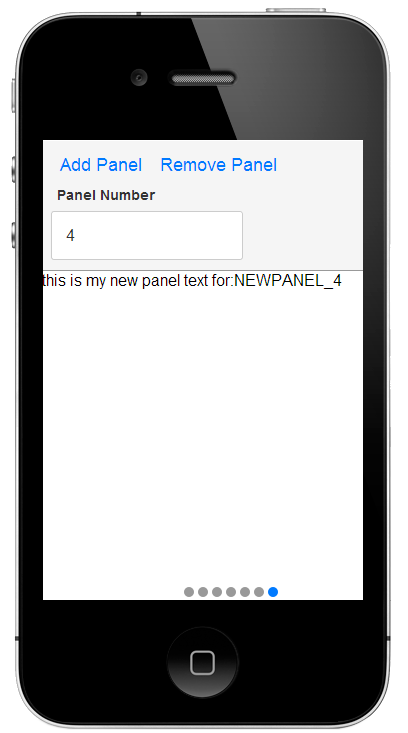
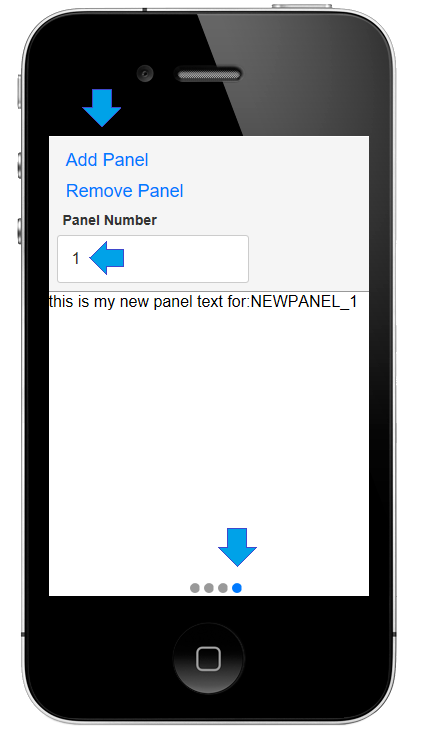
When a number is entered into the textbox and 'Add Panel' is clicked, then a new panel should appear.
Now try removing the added panel.