List Control - Query by Example (QBE)
Description
Use QBE to allow users to filter List data using simple keyword or operator-based expressions entered above each column.
Discussion
The QBE feature is a powerful way to search for data in a List. The QBE feature displays an input control above each column in the List as shown in the image below.

If the List columns are resizable, then the QBE fields will automatically adjust in size as the List columns are resized. Similarly, if you change the order of columns in the List, or you hide certain columns, the QBE fields will automatically adjust.
Turning on QBE for a List
To turn on the QBE feature in a List, open the List Builder and then in the List Properties pane, check the Has 'Query-by-Example' property.

To configure the QBE, click the smart field for the Query-by-Example definition property. This will open the dialog shown below.
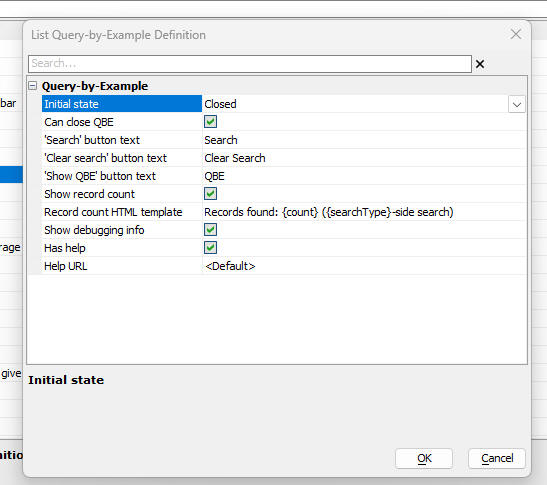
Properties of note in this dialog are:
Initial state - The QBE can either be shown or closed when the UX is initially rendered. If it is closed, a button (whose label you can set) is shown to open the QBE.
Record count HTML template - The template to use for displaying the records found by a search if the Show record count property is checked. The template should include placeholders. {count} - number of records found. {searchType} - indicates if the search as done client-side or server-side.
Has help - Indicate if the QBE has a button to explain the QBE syntax.
Help URL - If blank or >Default<, default help text is shown. If you want to customize the help text, specify the URL from where the customized help text should be loaded.
QBE Syntax
The following operators can be used when entering search criteria:
.. (two dots), =,<,>, <= and >=
The .. (two dots) operator is used to indicate that you want to find:
records where a field starts with a certain value (e.g alpha..)
records where a field ends with a certain value (e.g. ..alpha)
records where a field contains a certain value (e.g. ..alpha..)
records where a field is between two values (e.g. value1..value2)
Searches on character field are case-insensitive.
The search operators =, <, >, >=, <= and comma have the following meaning:
= - finds record where a field is equal to a certain value (e.g. =alpha)
> - finds record where a field is greater than a certain value (e.g. >alpha)
< - finds record where a field is less than a certain value (e.g. <alpha)
>= - finds record where a field is equal to or greater than a certain value (e.g. >=alpha)
<=- finds record where a field is equal to or less than a certain value (e.g. <=alpha)
, - finds records when field is equal to any of a list of comma delimited search values (e.g. alpha,beta,gamma or =alpha,>beta,<omega) - finds record where a field equals alpha OR is greater than beta OR is less than gamma.
If you enter a search value without any operator (e.g. alpha), the default search operator for the field's data type is used.
The default search operator for each field in the List is defined in the Fields tab in the List builder.
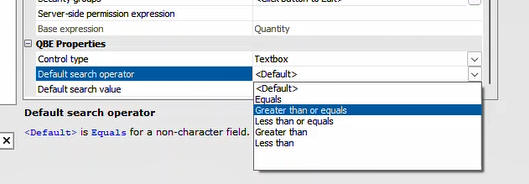
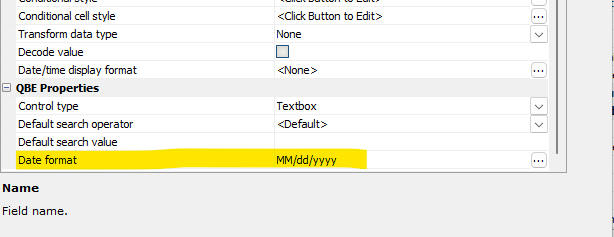
QBE Properties - Date and Datetime Searches
When searching for Date or Datetime values, you must specify the Date format used in the List so the value can be converted to a Javascript date object.
When you enter a search value in the QBE for a Date or Datetime field, you can use any of the following special values:
Today
Yesterday
Tomorrow
This Week
This Week-to-date
This Month
This Month-to-date
Last Week
Next Week
Last Month
Next Month
This Year
Last Year
Next Year
This Year-to-date
This Quarter
This Quarter-to-date
Last Quarter
Next Quarter
To make it easier to enter one of these values, you can set the control type for the QBE field to DateRangeNames. This will display a dropdown control for the field in the QBE row where the user can select the Date Range Name
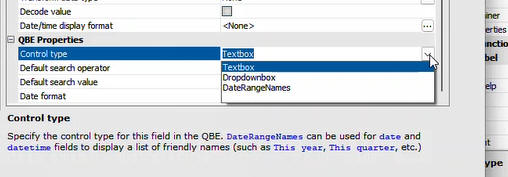
For certain fields in the QBE you might want to present the user with a list of choices. You can do this by setting the QBE control type for the field to Dropdownbox. The choices for the Dropdownbox and either be static or dynamic (a SQL query or an Xbasic function that returns a CR-LF delimited list of choices).
Understanding Where QBE Searches Are Executed
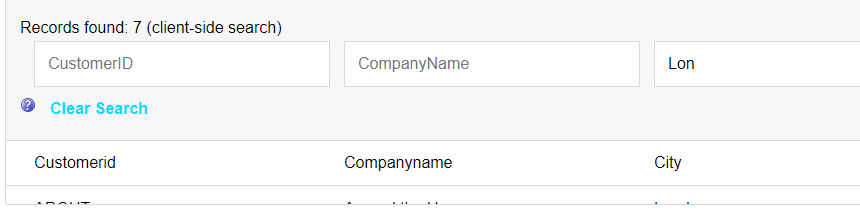
By default, QBE searches are executed client-side, making them extremely fast. If you have turned on the option to show the number of records found by a query, the message will indicate where the search was performed. For example, in the image below, the search was performed client-side.
In some cases, a server-side search is executed. For example, if the List is paginated or the List specifies the number of records to retrieve (i.e. the Record limit property is greater than -1)
This next image shows the message when a server-side search is executed.
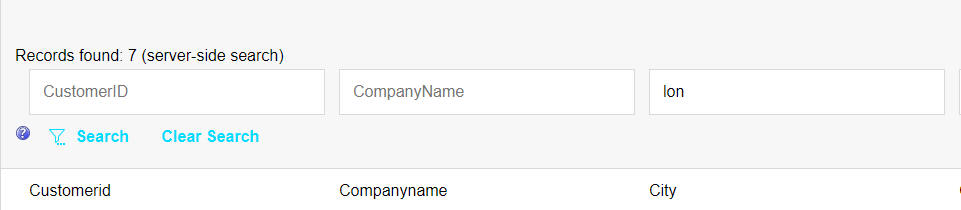
Notice that in the case of a server-side search, the QBE has a Search button which you must click in order to perform the search. In the case of a client-side search, the QBE does NOT have a Search button because the search is triggered by the onKeyUp event as you type a value into one of the search fields.
Excluding fields from QBE
You can specify that certain fields should be excluded from QBE. Previously, all fields in the List were automatically included in the QBE.
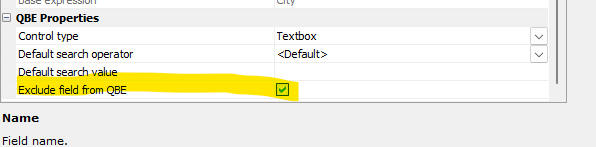
List Control - Defining QBE for a List
In this video we show how a QBE feature can be defined for a List.
List Control - Server-side and Client-side searched in a List QBE
In this video we show the difference between client-side and server-side QBE searches.
List Control - Searching in Date and Datetime fields using QBE
In this video we show how friendly date range names (e.g. this week, next week, etc.) can be used to search Date and Datetime values in a List.
List Control - List Has QBE because ActionBar has Search Button
In this video we show how the List will have a QBE feature even though the QBE feature has not been enabled for the List.