List Control - S3 Bucket Data Source
Description
Populate a List Control directly from an Amazon S3 or Wasabi bucket. Includes built-in actions for viewing and downloading files.
When you create a List control, you can now specify that the data source is an S3 Bucket. The List data will contain two properties:
- objectName
The name of the object in the bucket.
- URL
The URL for the object.
Configuring the S3 Data Source
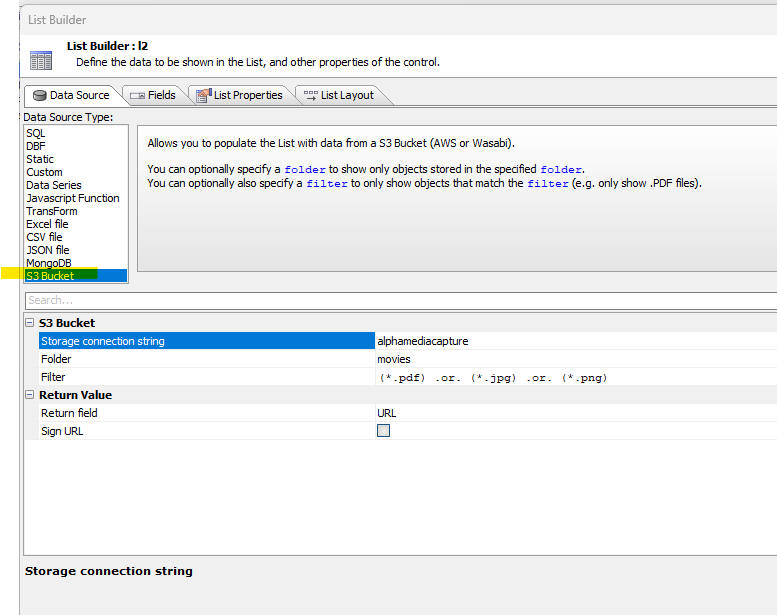
When you select S3 Bucket as the data source, the following properties are available:
- connection string
The storage connection that points to your S3 or Wasabi bucket.
- folder
(Optional) The name of a folder in your bucket. If specified, only objects in that folder are shown.
- filter
(Optional) Allows you to filter the objects shown in the List. For example, to show only .pdf or .jpg files, specify: (*.pdf) .or. (*.jpg)
You can optionally specify that the URLs computed for each object should be signed. If you enable signing, you must specify the duration (in seconds) for how long the signed URL remains valid.
Displaying Images from Private Buckets
If your S3 bucket is private, the standard URL generated by the Data Source will not be accessible to the client browser. To display images from a private bucket, you must sign the URLs at the Field level.
This is configured on the Fields tab of the List Builder. See Sign S3 image URLs for details on how to set up the Sign S3 image URLs property and the required Storage connection string.
Defining Actions (View/Download)
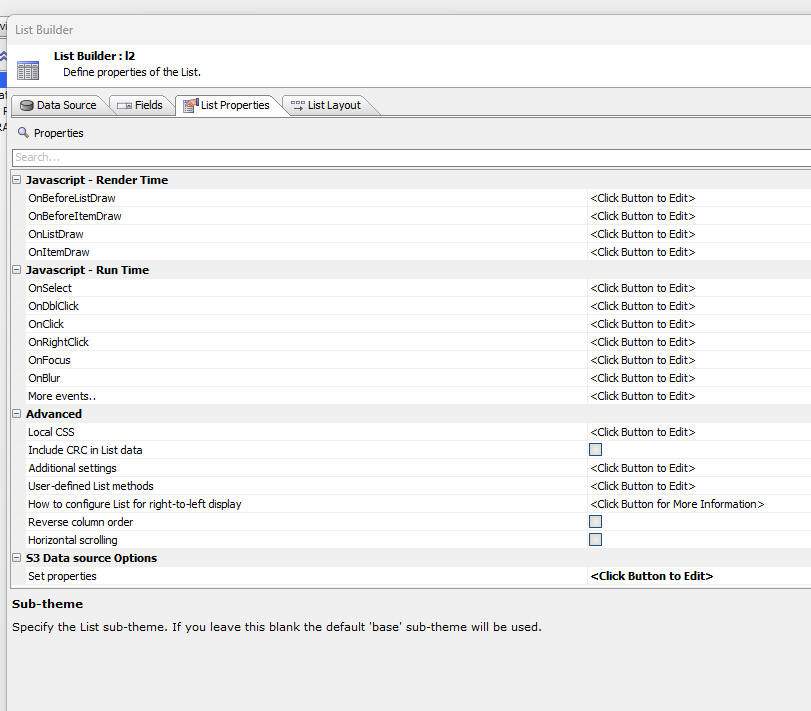
You can define actions to View or Download the object shown in the current List row. These actions can be triggered by:
- Clicking a row
- Double-clicking a row
- Clicking a button within the row
Configuring Row Click/Double-click Actions
To configure actions for row clicks:
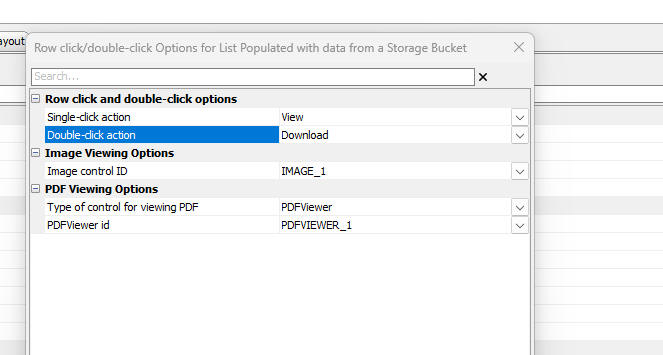
In the dialog that appears, you can set the action for Click and Double-click. The available actions are:
- Nothing
Do nothing.
- View
View the object.
- Download
Download the object.
If you select View, you must configure the target controls:
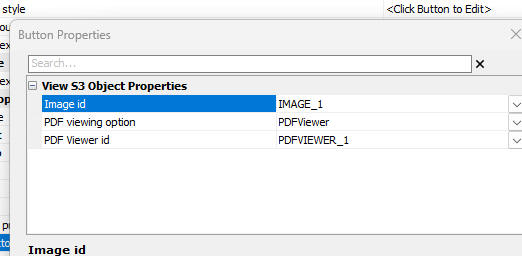
- Image id
The ID of an unbound image control where image objects will be displayed.
- Type of control for viewing PDF
Select either PDFViewer or IFrame.
- PDF Viewer id
The ID of the PDFViewer control (if "Type of control" is set to PDFViewer).
- IFrame id
The ID of the IFrame control (if "Type of control" is set to IFrame).
Using System Buttons for Actions
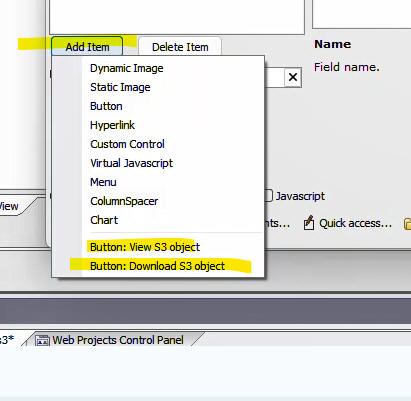
Instead of row clicks, you can add explicit buttons to each row.
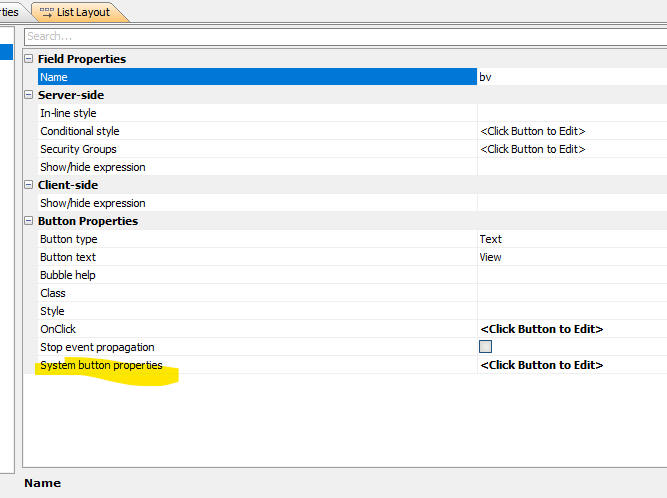
When you select one of these buttons, a new property System button properties appears in the Field Properties.
Clicking the smart field for the View action opens the configuration dialog (same as the Row Click configuration) to define the Image ID, PDF Viewer ID, etc.
Videos
List Control - S3 Bucket Data Source
Learn how to populate a List Control from an S3 Bucket and configure view/download actions.
See Also