Custom Icons in List Column Headers
Description
Add custom icons to column titles in a Columnar List layout. Each icon can trigger its own JavaScript event.
Discussion
You can add custom icons to each column title in a Columnar List layout. You can add multiple icons to each title and each icon can have its own JavaScript event code.
Enabling Custom Icons
To turn on custom icons for a column title, check the Has user defined icons in column header property in the List Builder Columns tab.
Once enabled, click the smart field for the Column header icons property to define the icons and the corresponding JavaScript.
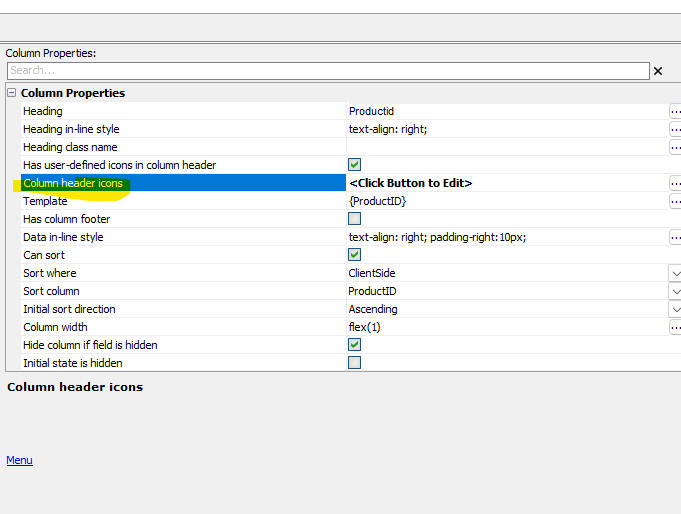
Configuring Icons
When you click the smart field for the Column header icons property, the configuration dialog is shown.
You can define as many icons as you want. For each icon, you specify the icon name by clicking on the Click to set icon button. If an icon has been set, the button text is shown in blue.
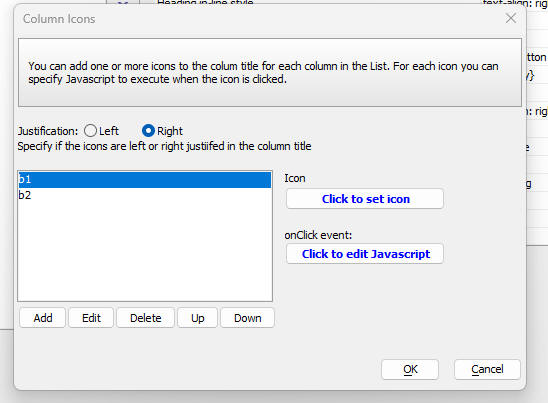
Adding JavaScript Events
For each icon, you must define the JavaScript to execute when the user clicks on the icon. Click the Click to edit Javascript button to define the code.
Videos
Custom Icons in Column Titles
In this video we show how you can add custom icons to column titles in a columnar List. When the user clicks on an icon, JavaScript that you define, is executed.
See Also