Create a List from a Template
IN THIS PAGE
Description
You can create a new List control by selecting a previously saved template. Templates capture common List settings (data source, fields, Detail View, in-place editing, and sync policy) so you can reuse them when building new components.
Prerequisites
Templates are created from an existing List in the List Builder. If no templates exist yet, the New Control dialog will show a help link explaining how to create one.
Save a List as a Template
- In a UX component, add a List control via Add Control or Favorites.
- Double-click on the list control to open the List Builder dialog and configure your List.
- For example: click the tab List Properties and select Has Detail View and Allow in-place editing. Then click the tab Detail View and select Synchronization policy and enable automatic sync (e.g., Client-to-server synchronization - perform client-to-server synchronization whenever user saves edit to a row in a list). Click OK to close the dialog.
- When done with the list settings, in the List Builder, click Save/Load settings → Save settings and provide a name (e.g., *customers_in_place_editing*). Confirm the final pop-up notice that properties were saved.
Create a List by using an existing List Template
- Open an empty UX component and add a List control (Add Control or Favorites).
- In the New Control dialog, check Create list from template.
- Choose an existing template (e.g., Customers) and click OK
- Run the component in Working Preview to verify that data and settings were applied from the template. You can also review settings by double-clicking the List Control to open the List Builder dialog
Figures/screenshots
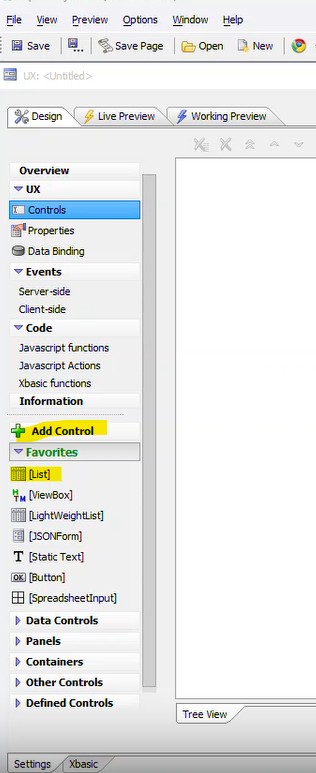
Add a List Control to your UX Component via (Add
Control or Favorites).
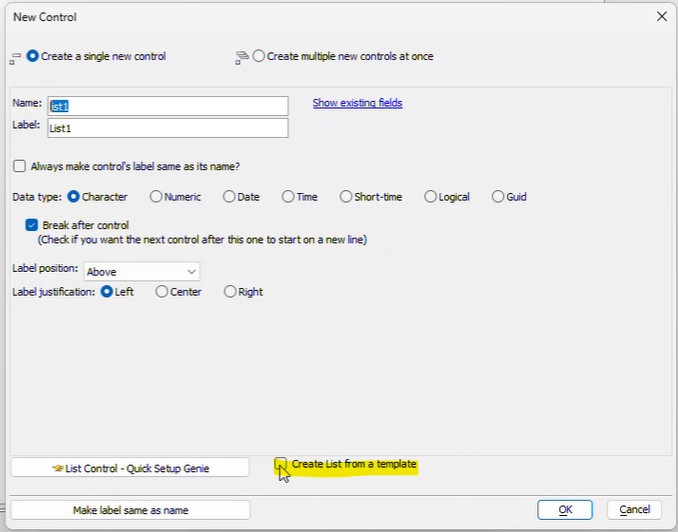
Check "Create list from a Template" option
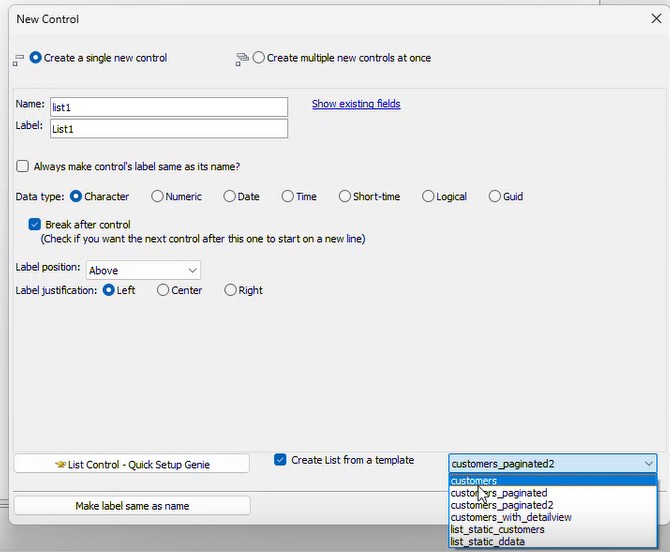
Choose an existing List Template option
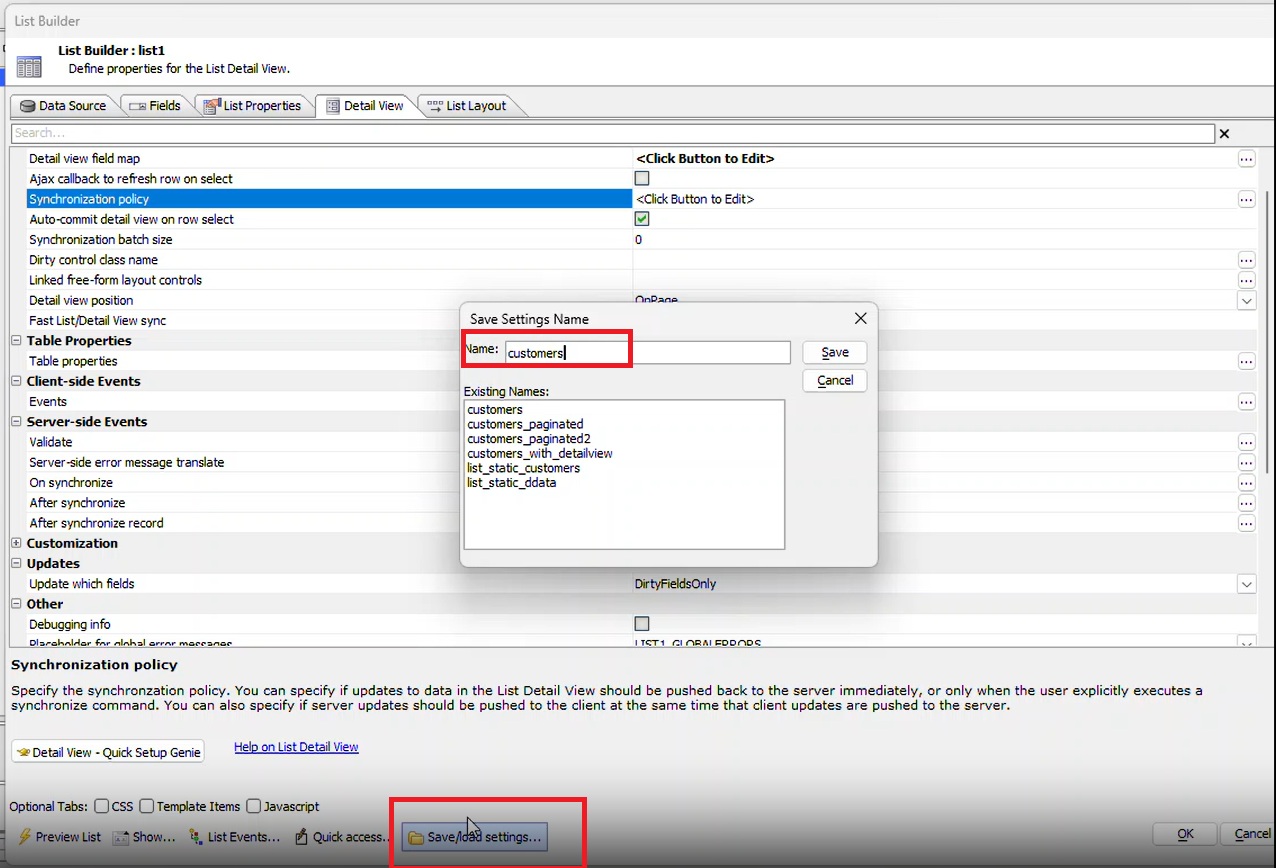
Saving a list with selected settings as a List Template
If no templates are defined
When Create list from template shows no available templates, click How to create a template to open instructions. After saving your first template, it will appear in the template picker.
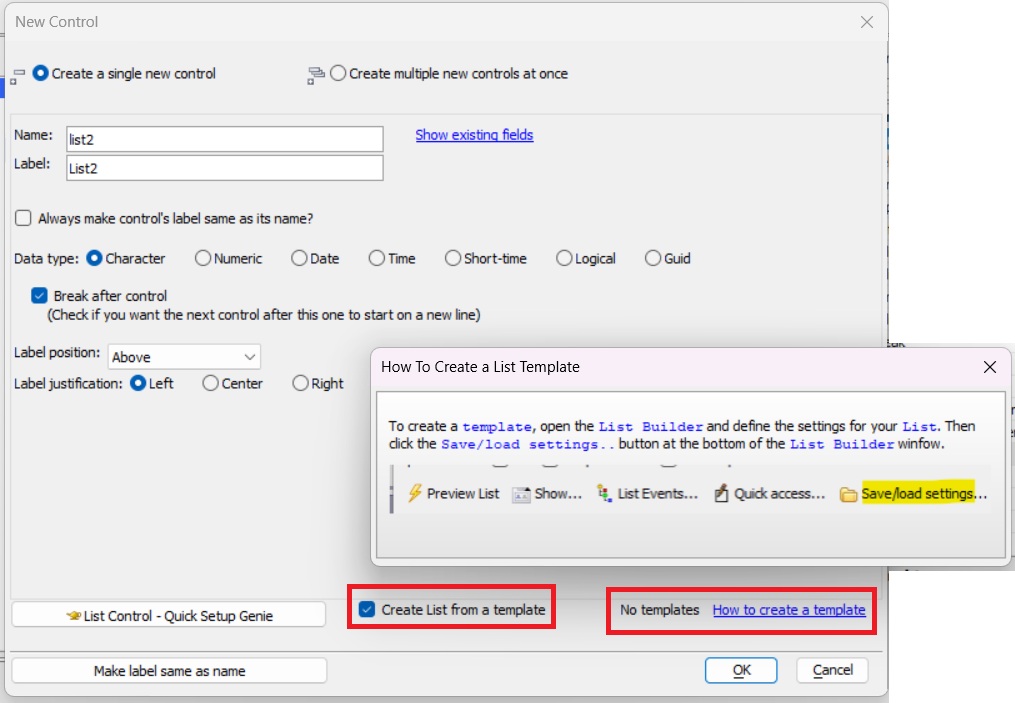
No Template - Help Dialog (informational only, no clickable actions)