Light Weight List – Date and Datetime Fields - Date Picker and Format
Description
Date and datetime columns in a Light Weight List can be configured to show a date picker and to use a specific display format.
Overview
For columns that are bound to date or datetime fields, the Light Weight List lets you control both how the value is displayed and whether a date picker is shown when the user edits the cell.
You can enable a date picker so users can select dates from a calendar, and you can choose a display format that defines how the date or datetime value appears in the list.
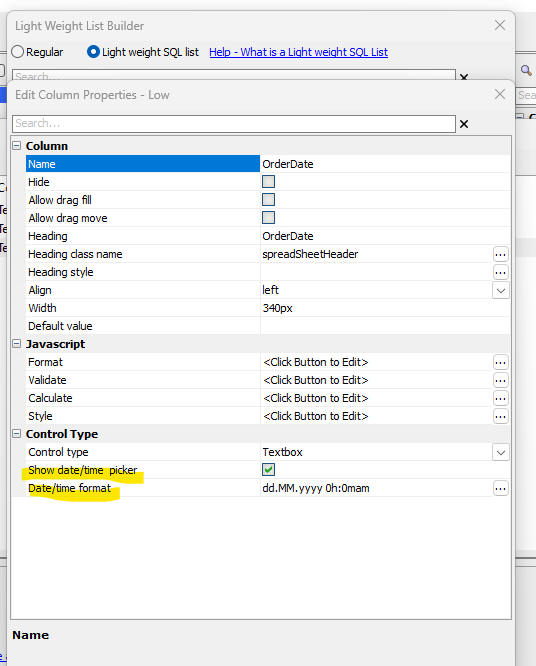
Configuring date fields
To configure a date or datetime column, open the column properties for the Light Weight List and select the date-picker settings and format options for that field. The selected format controls how values are shown in the Light Weight List and provides a consistent representation of date and datetime values.
Related video
The video below demonstrates picklist-based editors in a Light Weight List, including settings that also apply to date and datetime columns.
Note: This is the same video as at Dropdownbox, Edit-combo, Auto-suggest.
Date picker and picklist configuration
This video shows how to configure picklist-based editors in a Light Weight List, including settings that apply to date and datetime fields.
See Also