Data Driven JSON Forms
Description
Learn how to create forms dynamically from a database definition using JSON Forms and Xbasic helper functions.
Data driven forms
A data driven form is a form that is dynamically generated from a list of questions. These questions are typically looked up in a database (or an Excel spreadsheet) and then converted into a form definition when an Ajax callback is made to the server to load a particular form.
See: Data Driven JSON Forms video 1 Data Driven JSON Forms video 2
For example, assume you have a database with the following sample data:
FormId | Prompt | Type | Variable | Page | Choices | ShowHide | Disable | Readonly |
form1 | First name | textbox | fname | Home | ||||
form1 | Last name | textbox | lname | Home | ||||
form1 | Date of birth | textbox-datepicker:dd/MM/yyyy | dob | Home | ||||
form1 | Are you married? | switch | married | Home | ||||
form1 | Favorite color | button-list | favoriteColor | Home | red,green,blue | |||
form1 | Address | textbox | address | Address | ||||
form1 | City | textbox | city | Address | ||||
form1 | State | textbox | st | Address | ||||
form1 | Zip | textbox | zip | Address | ||||
form1 | Home Phone | textbox | phone_work | Phone | ||||
form1 | Work Phone | textbox | phone_home | Phone |
An Excel file (called datadrivenjsonform.xlsx) with this data is available in the MDBFiles folder in the folder where Alpha Anywhere is installed.
The sample data defines a form with several questions. The form has several control types and the questions are organized into 3 pages - Home, Address and Phone.
Notice that the Date of birth field specifies that the field is a date picker and the format for the date is set to dd/MM/yyyy.
For each field you can specify showhide, disable and readonly expressions. These expressions must be defined using JavaScript and the expressions must return a true or false value. Your JavaScript can reference values in other fields in the form by prefixing the variable name with data. For example, to reference the value in the First Name field (variable is fname), you can use data.fname.
If the showhide expression returns true, the field is shown. If it returns false, the field is hidden.
If the disable expression returns true, the field is disabled.
If the readonly expression returns true, the field is read-only.
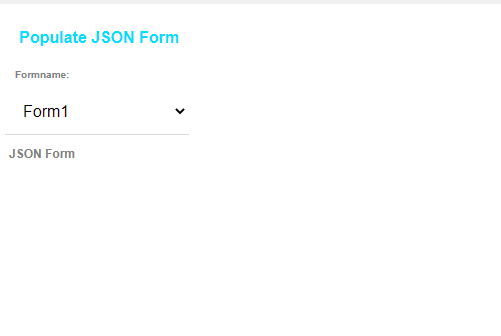
You might have a button on your UX component to make an Ajax callback and load the questions (i.e. controls) for a particular form (for example, form1).
For example, the image below shows a UX with an empty JSON Form and a button that makes a callback to load a particular form.
Here is an example Xbasic function that handles the callback and returns the JavaScript to load the JSON Form.
function xb as c (e as p)
    dim formname as c = e.dataSubmitted.formname

    dim fn as c
    dim cs as c
    dim table as c
    fn = a5.Get_Exe_Path() + "\MDBfiles\datadrivenjsonform.xlsx"
    cs = fn
    table = "DataDrivenJSONForms"

    dim style_name as c = e.tmpl.style_name

    dim def as c = A5Helper_getJSONFormitems_fromDatabase(cs,table,"FormId",formname,style_name)

    dim js as c
    js = "var items = " + def + ";" + crlf()
    js = js + "{dialog.object}.setJSONFormItems('jf',items);"
    xb = js
end function
Helper functions
The following Xbasic and JavaScript functions are used in the Xbasic function above.
A5Helper_getJSONFormitems_fromDatabase()
This function will query a SQL database (or an Excel file) to get the definition of a data driven JSON form.
Syntax:
C result = A5Helper_getJSONFormITEMS_fromDatabase(C cs, C tablename, C formnamefield, C formname [, C style_name [, C orderbyfield [, C filterfield ]]])
Where
- cs - The connection string to the database.
- tablename - The name of the table to query.
- formnamefield - The name of the field in the table that contains the name of form to retrieve.
- formname - The name of the set of controls you want to retrieve.
- style_name - (Optional) The style of the host component.
- orderbyfield - (Optional) The name of the field that defines the order in which the controls appear in the JSON Form.
- filterfield - (Optional) The name of the field that determines if a particular control should appear in the JSON Form.
{dialog.object}.setJSONFormItems(JSONFormName, Items)
This JavaScript function populates a JSON form with the items defined in the Items parameter.
Where:
- JSONFormName - The name of the JSON Form to populate.
- Items - An array of objects that define the items to populate the JSON Form with.
An easy way to generate the Items array is to build a JSON Form using the builder. Then click the Show... button and select the JSONForm Items (JSON) command from the pop-up menu.
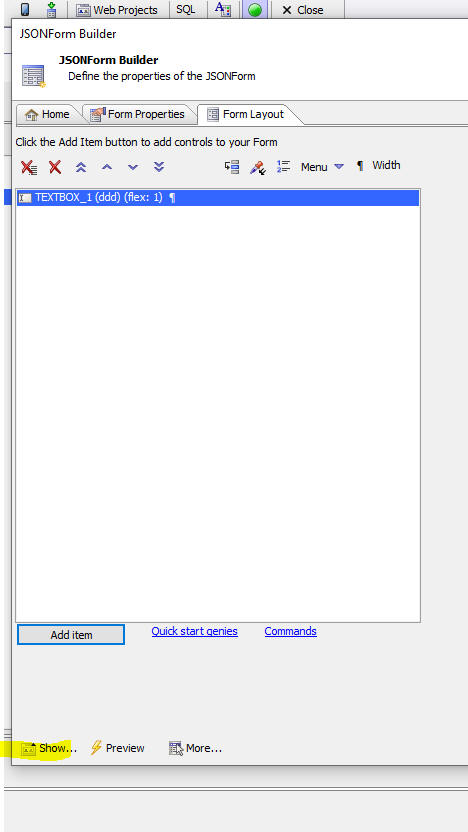 Show JSONForm Items
Another way in which the Items array can be generated is using the Xbasic a5wcb_jsonFormItems_from_commands() function or the a5Helper_GenerateJSONFormDefinition_From_SampleData() function.
The a5wcb_jsonFormItems_from_commands() function takes a series of commands (same syntax as is used for the Quick Input option in the JSON Form Quick Start Genie) and generates an array of JSON Form items that you can then use with the {dialog.object}.setJSONFormItems() method to populate a JSON form.
The a5Helper_GenerateJSONFormDefinition_From_SampleData() function generates a JSON Form definition from sample JSON data.
a5wcb_jsonFormItems_from_commands()
Syntax:
C definition = a5wcb_jsonFormItems_from_commands(C commands)
Where
- definition - The array of JSON Form items.
- commands - The Quick Start commands used to generate the items.
Example:
dim commands as c = <<%str%
fname
lname
company
switch:are you married[[married]]
button-list:item passed[[passed1]]&passed,failed
textarea:notes^^^control.style="height:2in; border: solid 1px blue;"
%str%

dim items as c
items = a5wcb_jsonFormItems_from_commands(commands)
You could then use the generated items to populate a JSON form. For example:
dim js as c = ""
js = "var items = " + items + ";" + crlf()
js = js + "{dialog.object}.setJSONFormItems('jform1',items);"
a5Helper_GenerateJSONFormDefinition_From_SampleData()
Syntax:
C definition = a5Helper_GenerateJSONFormDefinition_From_SampleData(C JSONData)
Where
- definition - The array of JSON Form items.
- JSONData - The sample JSON data.
Example:
dim jsondata as c = <<%str%
{"Firstname": "John", "Children": [
        {"Name" : "Callie"},
        {"Name" : "Griffin"},
        {"Name" : "Luke"}
    ]
}
%str%

dim items as c
items = a5Helper_GenerateJSONFormDefinition_From_SampleData(jsondata)
You could then use the generated items to populate a JSON form. For example:
dim js as c = ""
js = "var items = " + items + ";" + crlf()
js = js + "{dialog.object}.setJSONFormItems('jform1',items);"
Defining Arbitrary Controls and Properties
The A5Helper_getJSONFormITEMS_fromDatabase() function allows you to set any property in the dynamic form by adding settings to a new field in your database called Other.
You can define any control type to appear in your JSON form by specifying the properties for the control in the Other field in the table that is queried by the function.
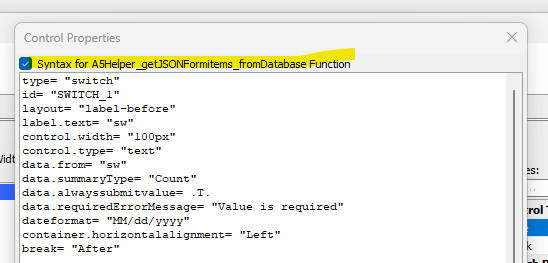
Here is how to get the properties for an arbitrary control:
- Create a UX component and add a JSON form to the UX.
- Edit the JSON Form and define a control.
- Click the Show... button (bottom left on JSON Form builder dialog) and select the Control Properties option. Check the checkbox control to show the syntax for the A5Helper_getJSONFormITEMS_fromDatabase() function.
- Paste these property values into the Other field in SQL table.
For example, to set the label style for a control, you might find the property is label.style.
Add the property name and value to the Other field in your database (e.g. label.style="color:red;").
You can set as many property values as you want by entering a comma delimited list. For example:
label.style="color:red;",layout = "label-float-above",control.style="color:purple;"
Videos
Video: Data Driven JSON Forms
A data driven form is a form where the questions shown on the form are retrieved from a database. If you want to add a new question to the form you don't have to edit the form. You just edit the database that lists the questions.
How to dynamically set the structure of a JSON Form
In this video we show how you can dynamically set the structure of a JSON form using a Javascript function.
See Also