Using AI to create a Web Page
Description
Create a new HTML page using the AI tools in Alpha Anywhere, provide a prompt, monitor progress, review results, and make iterative edits with AI.
Prerequisite
Ensure at least one AI IDE Settings profile is defined so the IDE can make AI requests.
Create The Page
Open AI HTML Generator
From the AI menu, choose the option to create an HTML page.
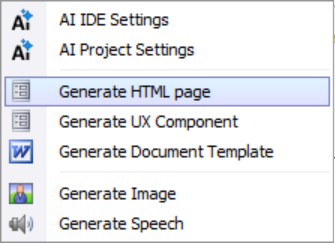 AI Menu For HTML
Provide A Prompt
The New HTML dialog includes a prompt for the page you want to add to your project.
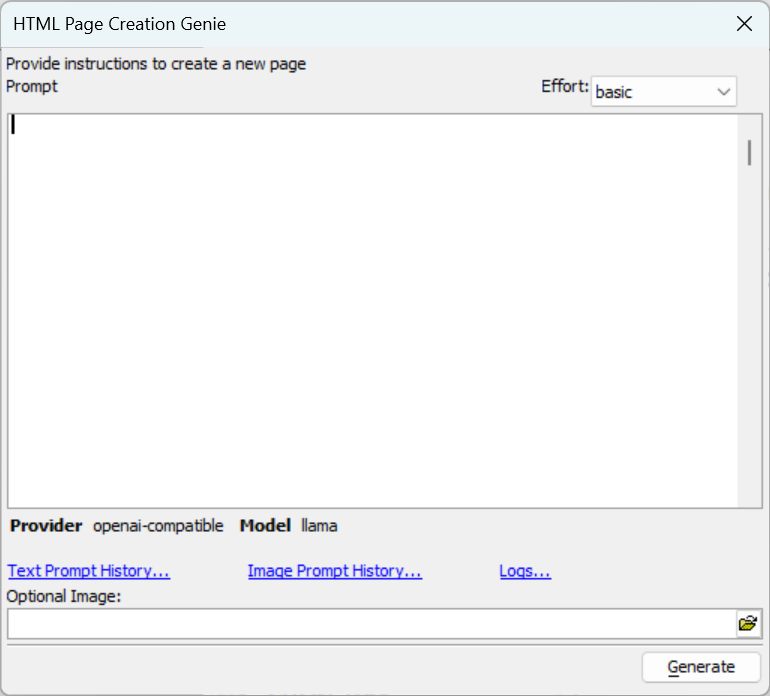 New HTML Dialog
Example Prompt
In this example we generate a welcome page for a library.
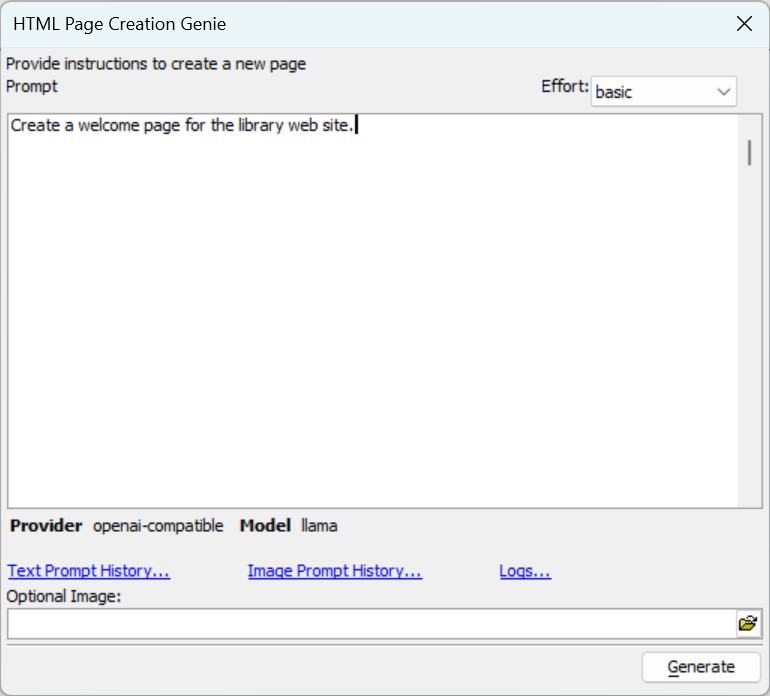 Prompt Example
Select Effort (If Available)
If a better effort was defined in AI IDE settings, an effort combo appears so you can choose basic or better.
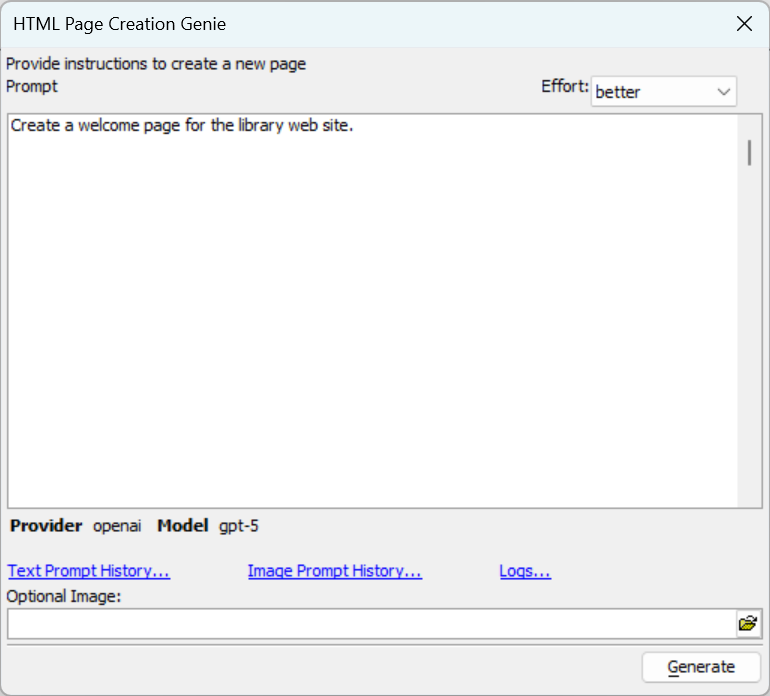 Effort Selector
Generate And Monitor
Click Generate. For text AI requests, a progress window shows live feedback from the AI.
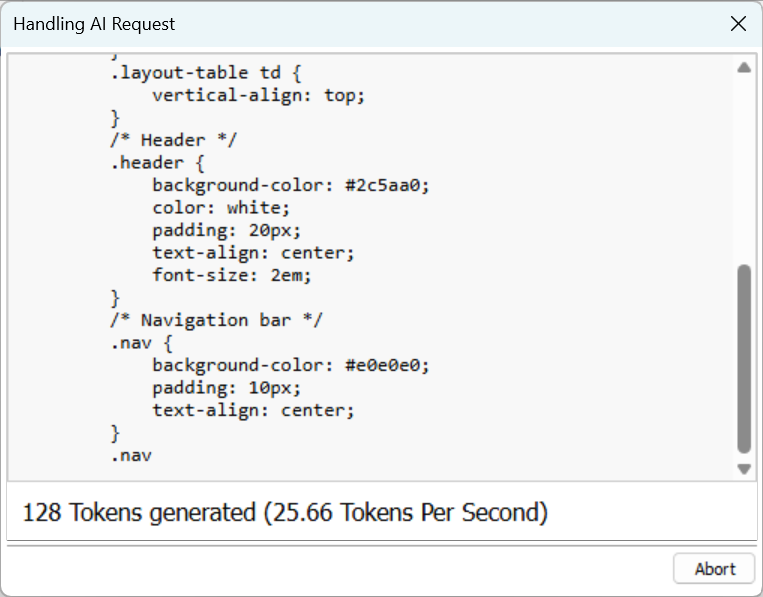 Progress Window
Review The Result
When complete, the generated HTML is displayed in the editor.
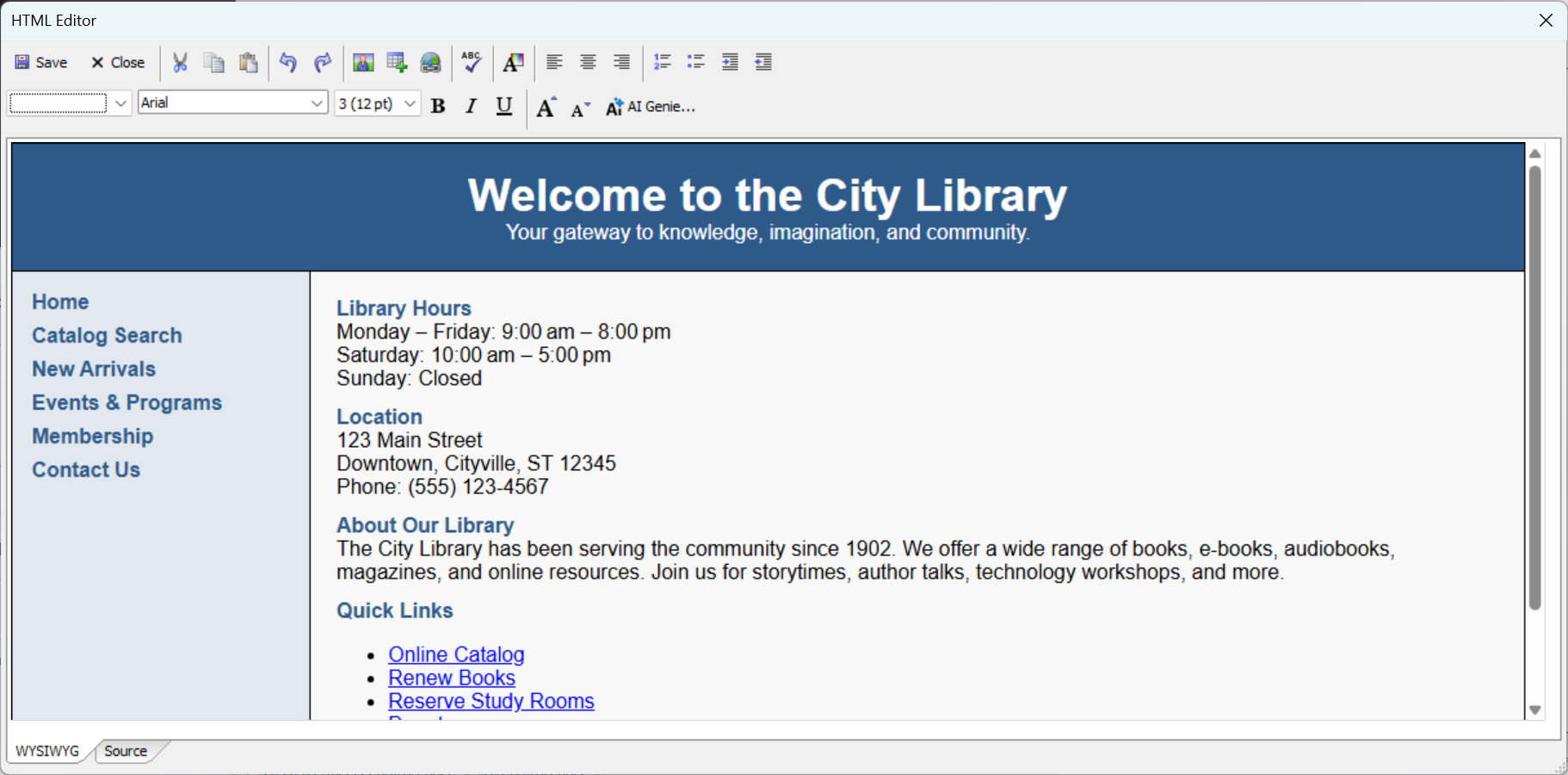 Generated Page In Editor
Save The Page
Save as you normally would; the new page appears in the Web Project Control Panel.
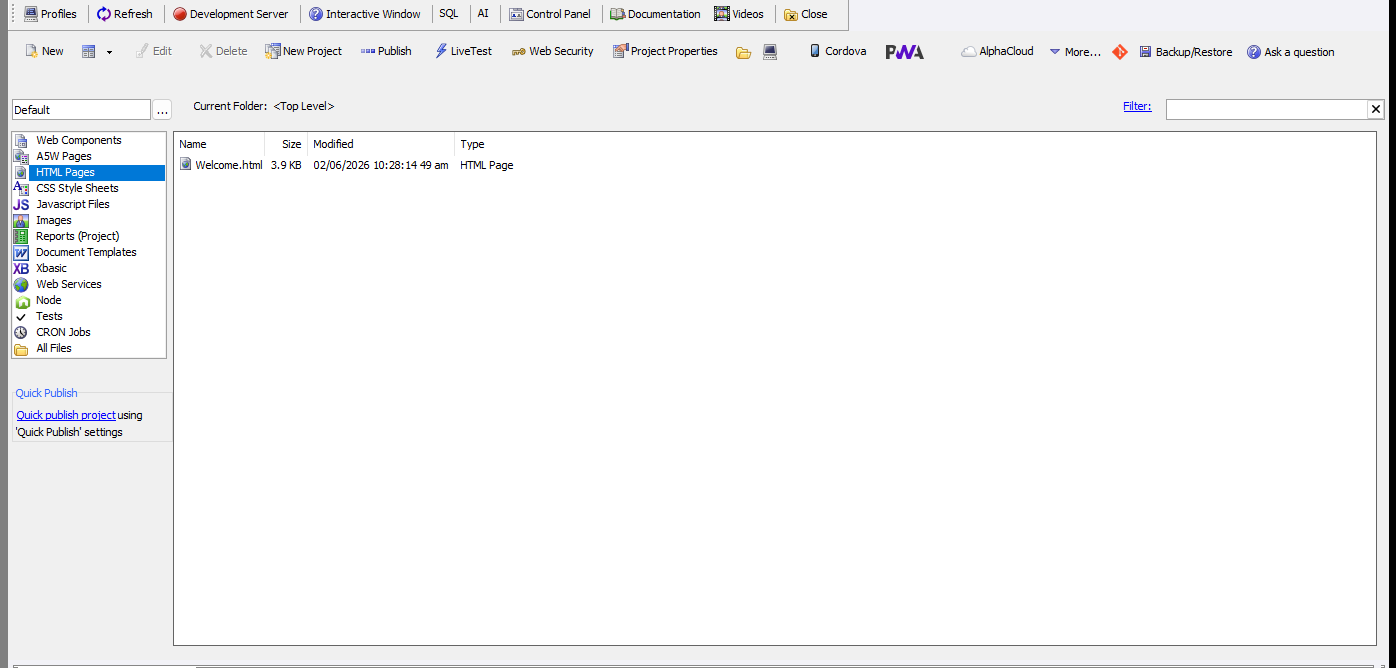 Saved Page
Edit With AI
Open Editor AI Menu
After saving, the editor includes an AI menu for making iterative edits.
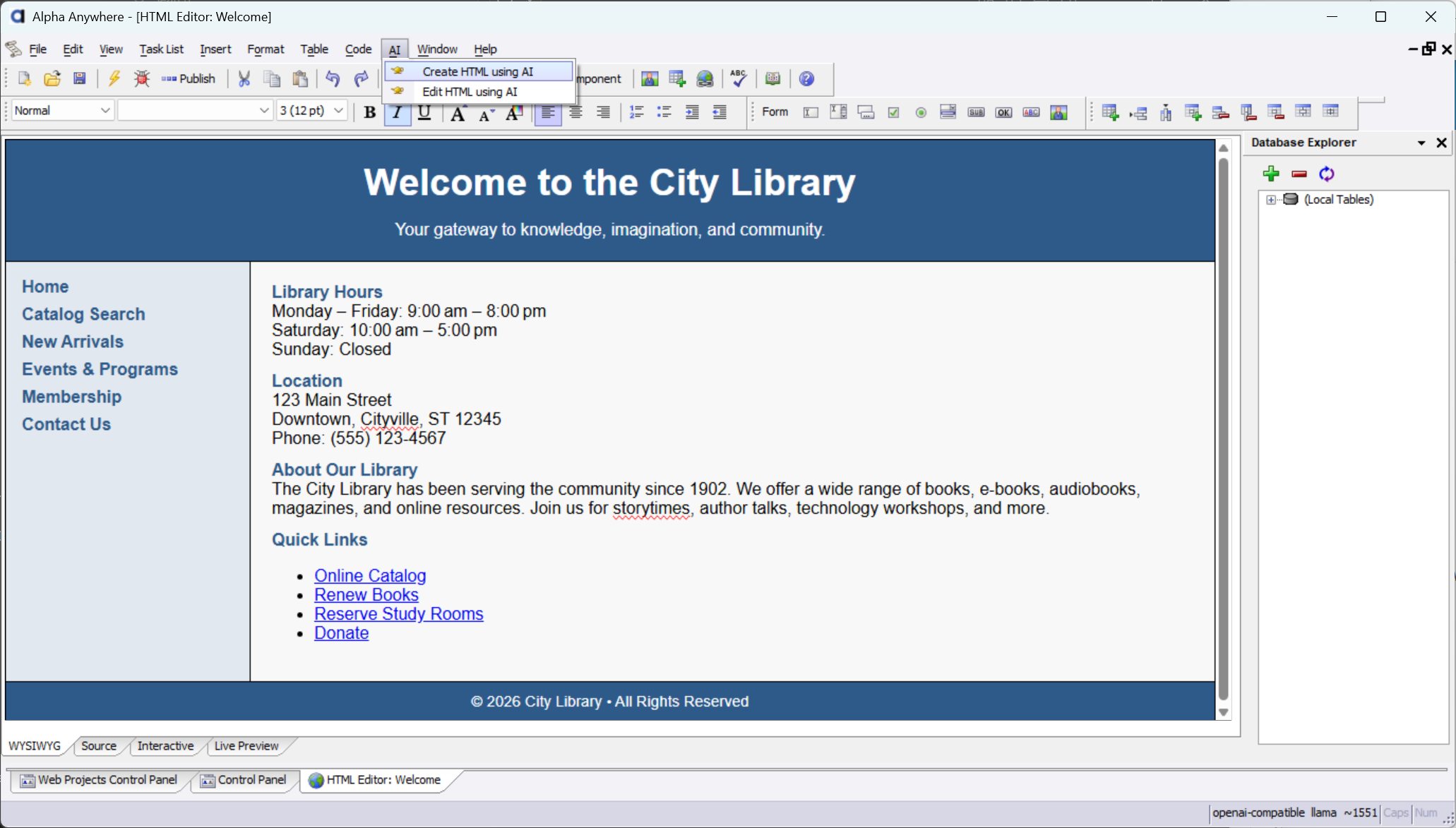 Editor AI Menu
Enter Edit Prompt
For example, change the header background.
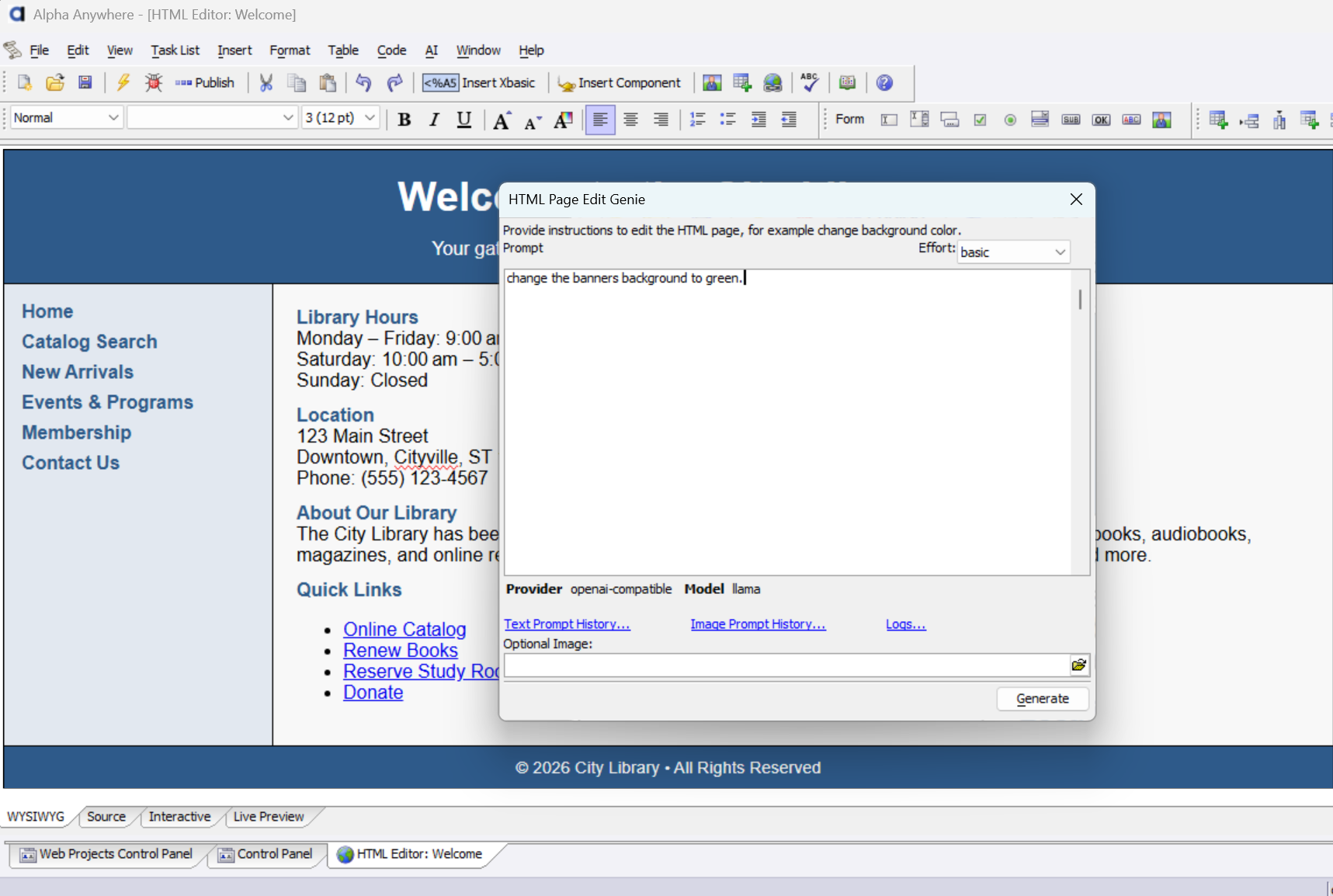 Edit Prompt
Apply And Review
The header background updates; in this example it is now green.
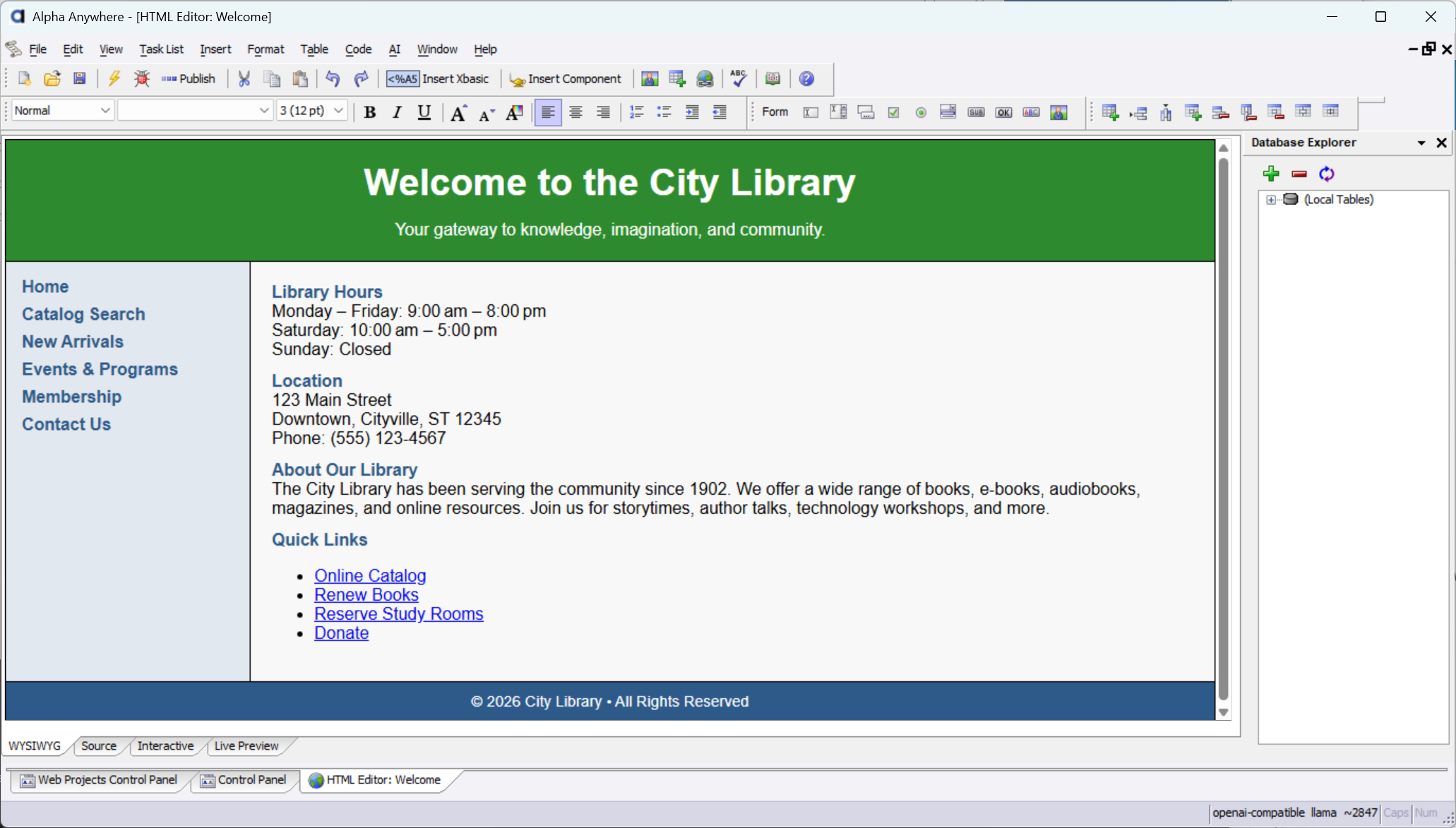 Header Updated