Interactive Window AI Integration
Description
Use the interactive window to send prompts to AI with quick prefixes, view results, and generate or modify project files directly.
Overview
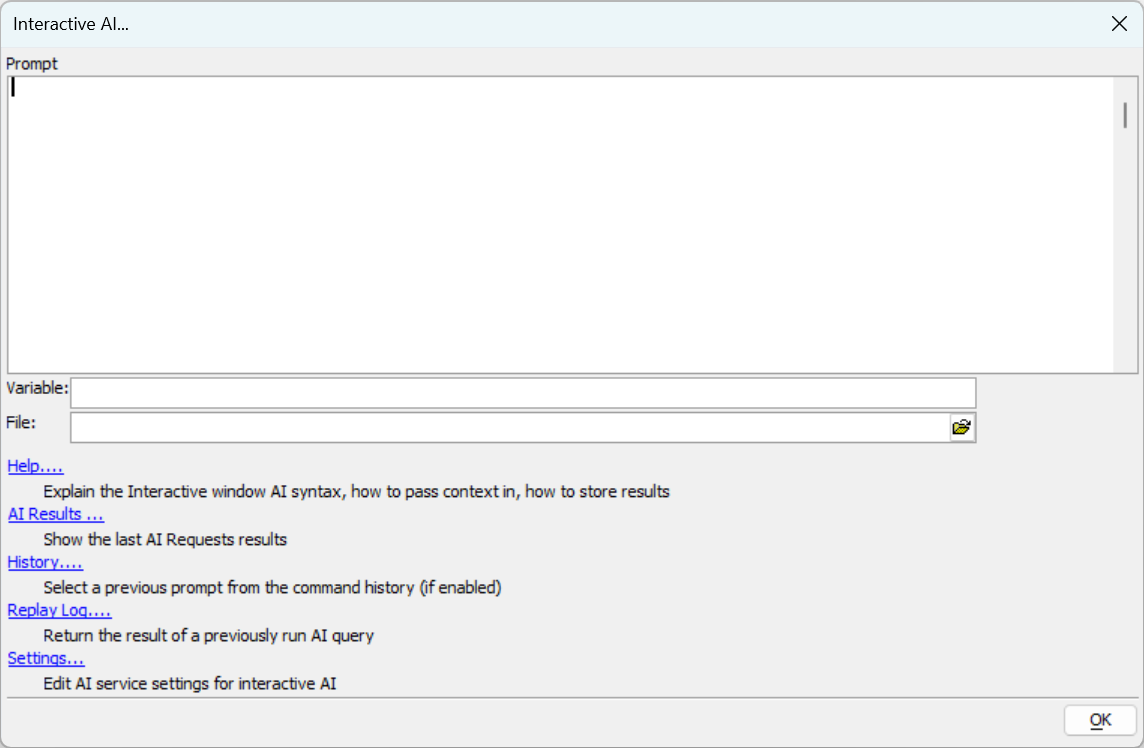
In the interactive window, the ! prefix on a line performs interactive AI queries. Type ! by itself to open the interactive AI dialog.
- Multi-line prompts
Type longer prompts comfortably.
- Inspect last result
Review the last AI result without printing with ?.
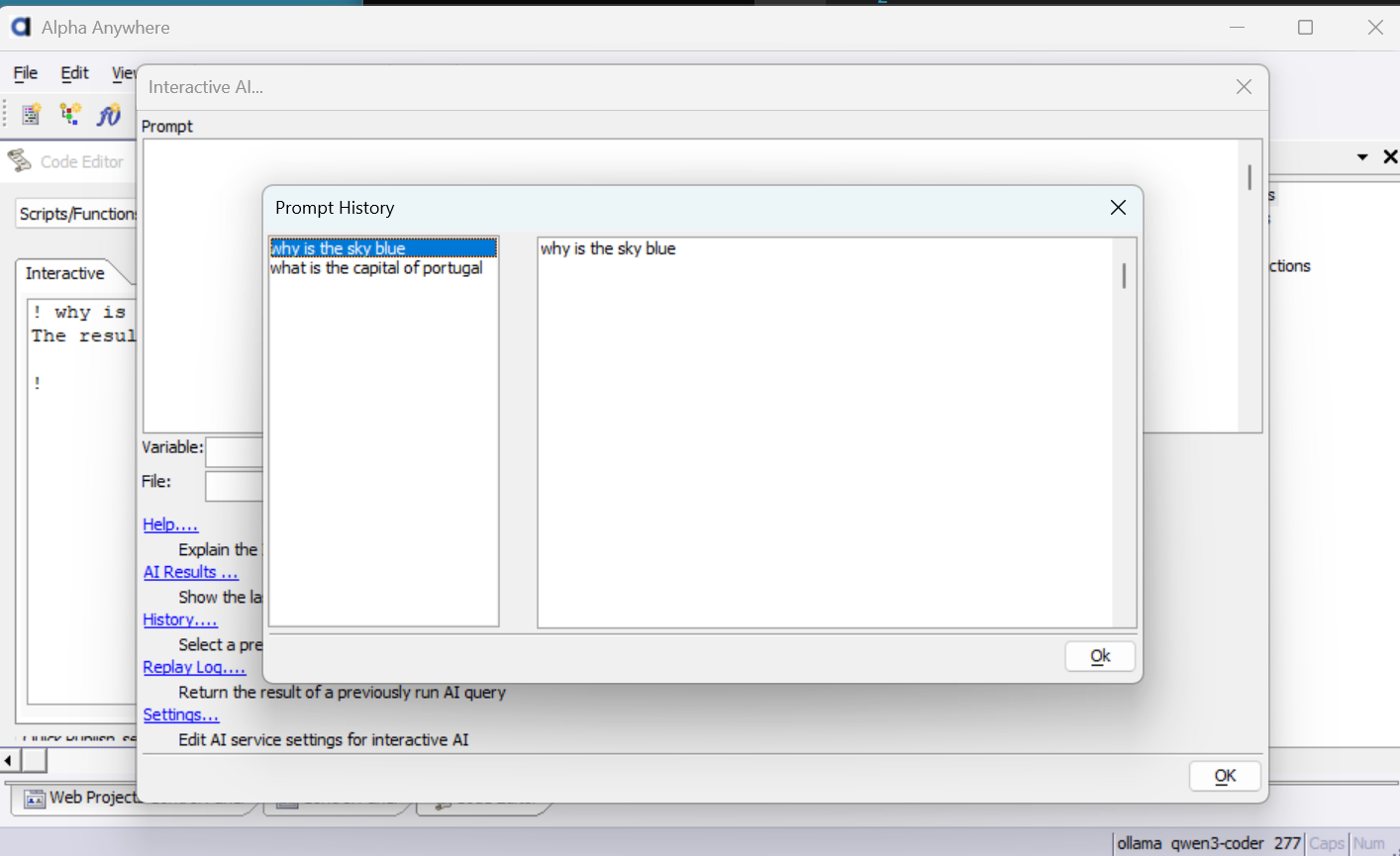
- History
Scroll prior prompts when enabled.
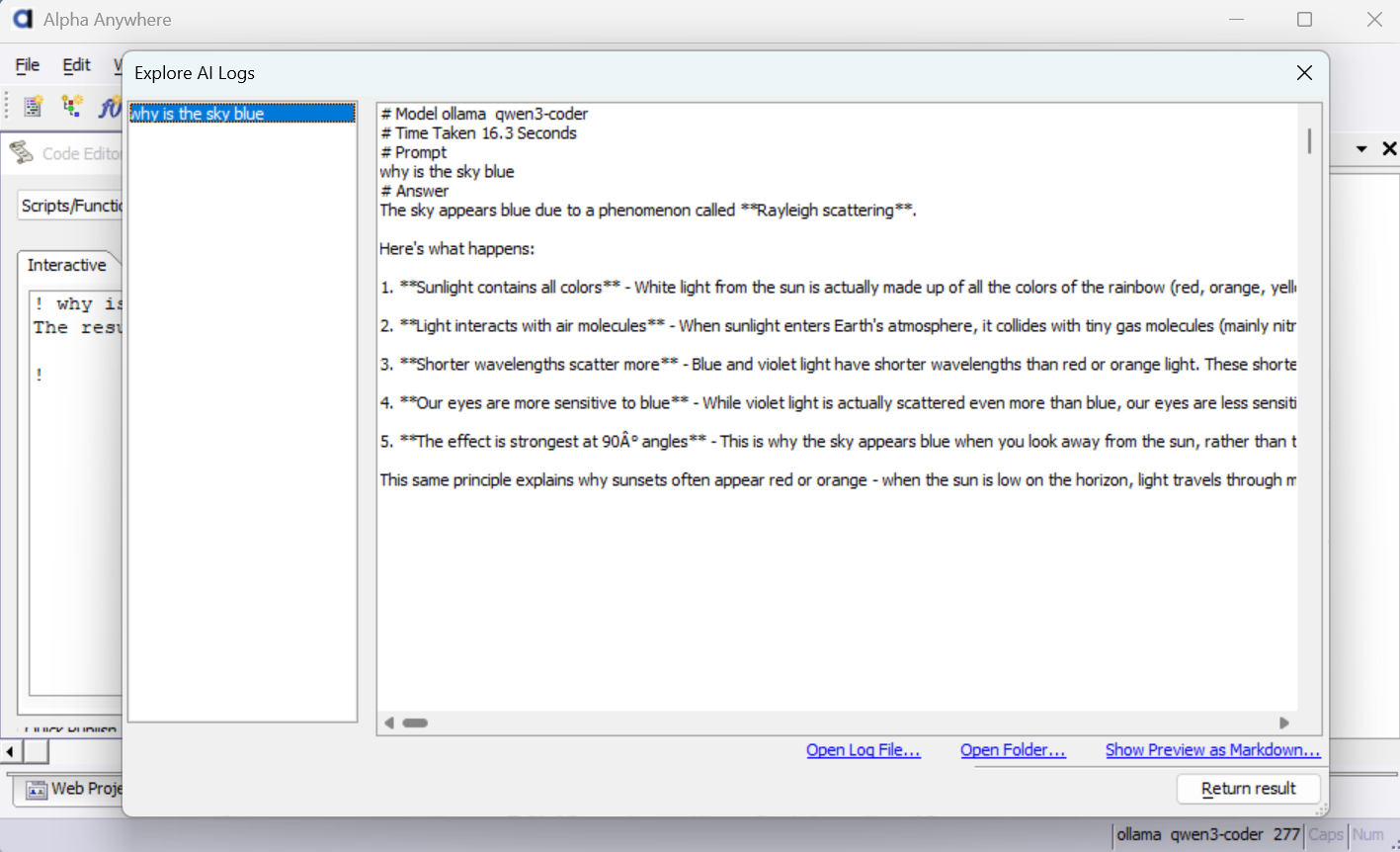
- Log
View and replay prior results when logging is enabled.
- Quick settings
Open AI settings tailored for the interactive window.
Basic Query
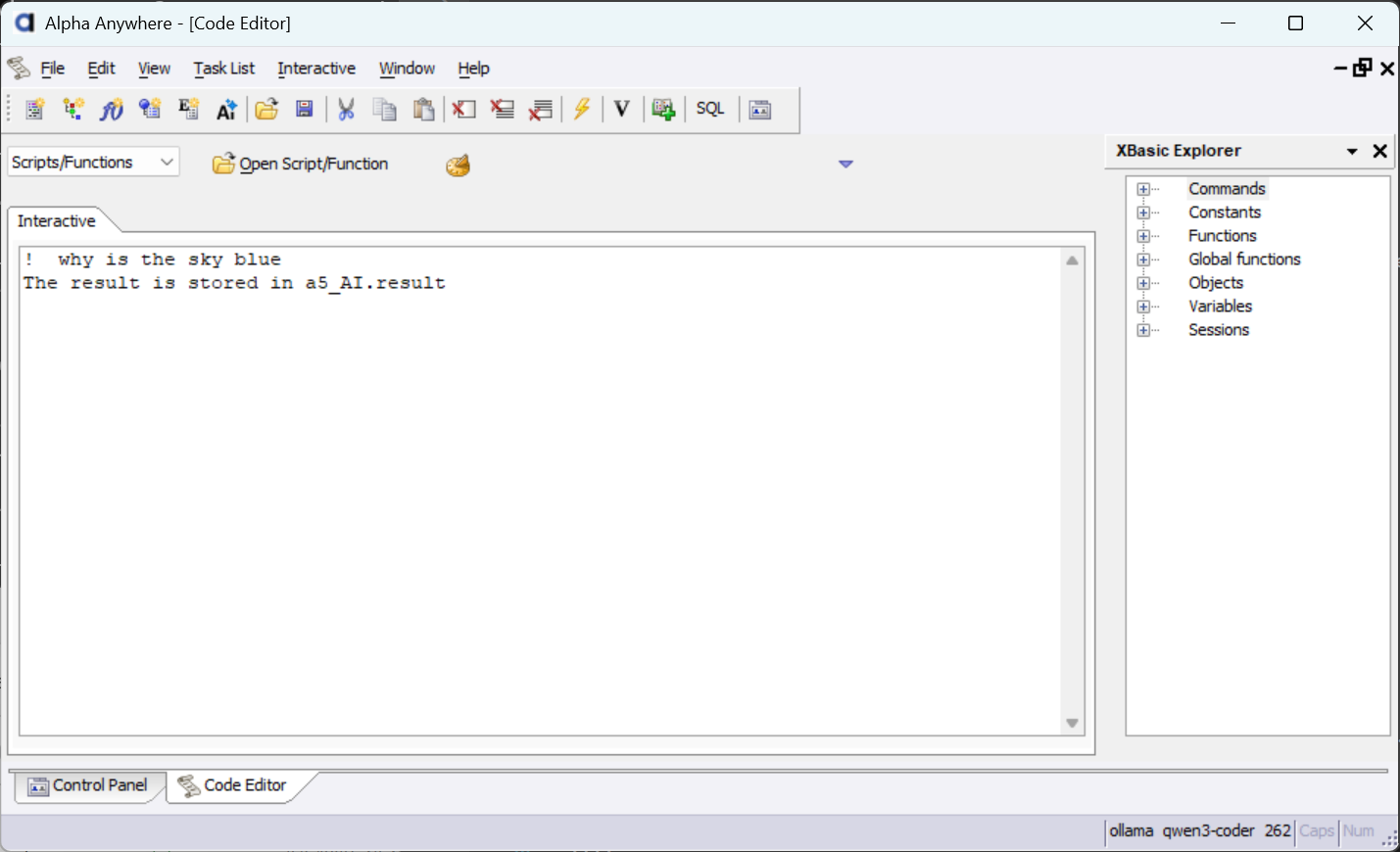
Send a simple prompt with !. The result is stored in a5_AI.result (print with ?).
! why is the sky blue
The result is stored in a5_AI.result
? a5_ai.result
= The sky appears blue due to a phenomenon called Rayleigh scattering.
Adjusting The Effort
Choose higher-effort models defined in AI settings using prefix repeats.
- !
Uses the basic effort.
- !!
Selects the better effort.
- !!!
Picks the best effort.
!! Create a function in JavaScript that, using a supplied Ollama URL, performs an AI query.
The result is stored in a5_AI.result

? a5_AI.result
= // JavaScript helper function text (truncated)
Putting Results In A Variable
Assign the AI result to a custom variable with name = after the prefix.
! javascript = create a snippet of JavaScript that shows splitting a string with comma delimiters into an array.
Result stored in javascript
? javascript
=
// Basic string splitting with comma delimiter
const csvString = "apple,banana,orange,grape";
const fruitsArray = csvString.split(',');
console.log(fruitsArray);
// Output: ["apple", "banana", "orange", "grape"]
Passing Variables For Context
Include variables in parentheses to provide context (e.g., an open SQL connection supplies schema info).
dim cn as sql::Connection
? cn.Open("::Name::AADemo-Northwind")
= .T.

! (cn) sql = create a SQL query to return all the products
Result stored in sql
? sql
=
SELECT * FROM Products;
Create Web Project Files
Use >(filename) in the argument to save results directly into the Web project.
! (>welcome.html) Create a welcome page
The result was saved to the web project in welcome.html
Existing files are automatically backed up so AI changes can be reverted.
Modify Existing Files
If the page exists, issue an edit prompt to change it.
! (>welcome.html) change the background light blue
The result was saved to the web project in welcome.html
Image Recognition / OCR
Use the scan: prefix to include an image as context (requires an image-recognition profile).
! (>wolf.png) scan: describe the image
The result is stored in a5_AI.result
? a5_ai.result
= " The image shows a wolf standing on what appears to be a snowy terrain with some trees in the background... "
Generate Image
Use the draw: prefix to generate an image (requires an image-generation profile).
! (>whale.png) draw: create a photorealistic image of a whale breaking the surface of the ocean.
The result was saved to the web project in whale.png
Generate Audio
Use the say: prefix to generate an audio file (requires a speech-generation profile).
! (>welcome.mp3) say: Welcome to our automation platform
The result was saved to the web project in welcome.mp3
Speech To Text
Use the transcribe: prefix to convert an audio file to text.
! transcribe: welcome.mp3
Welcome to our automation platform.